
This guide explains how to approve or reject transactions in OfficeCentral.
Approval is required to ensure that transactions are:
Reflected in accounting reports
Included in financial records and aging reports
⚠️ Only approved transactions will appear in reports generated by the OfficeCentral system.
Where to Access Accounting
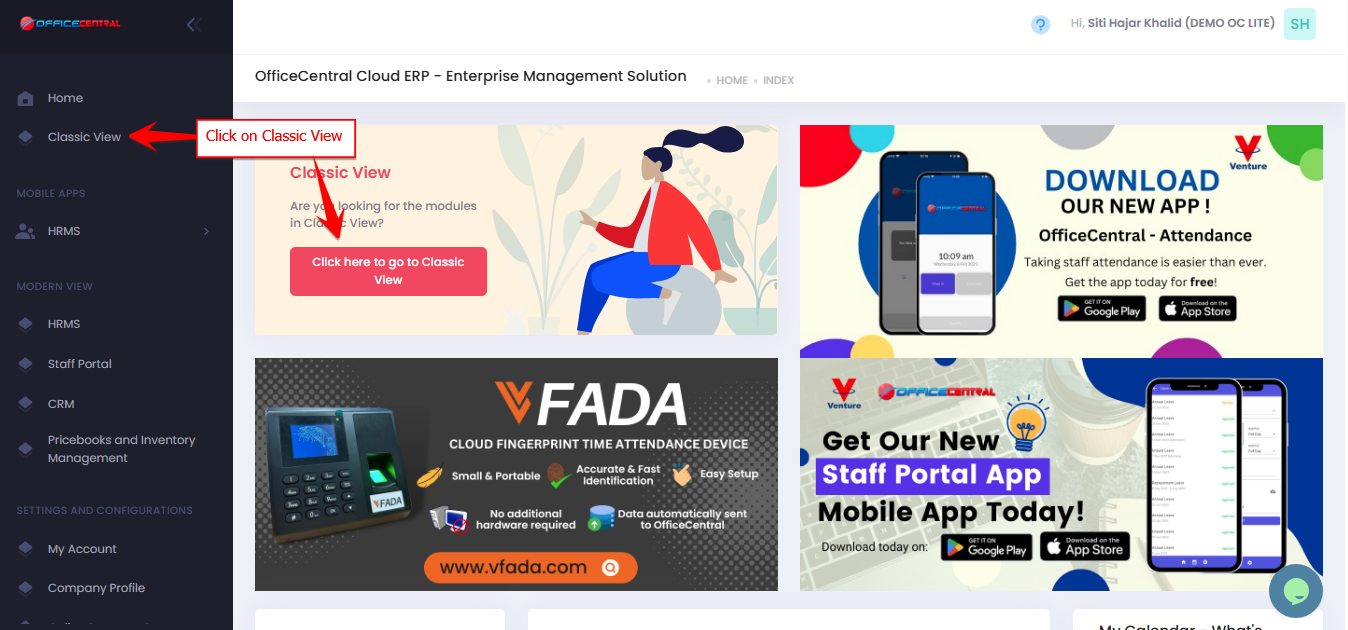
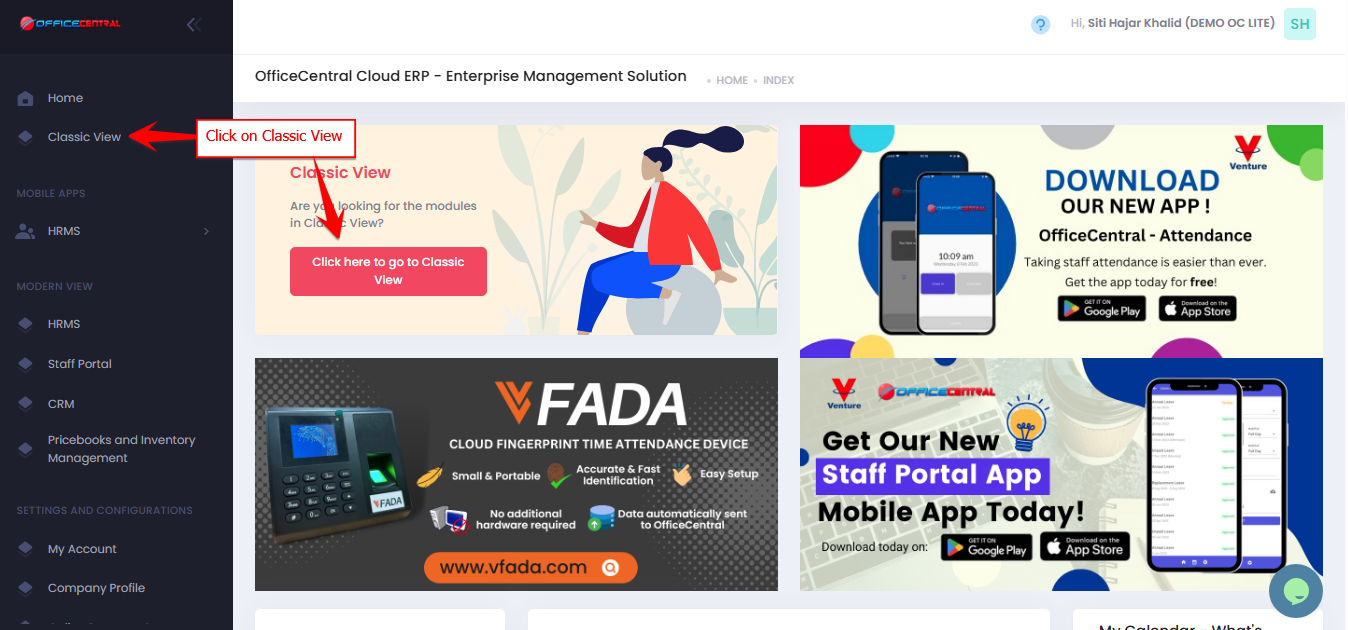

How to Approve / Reject Transactions
Step 1: Access the Transactions Module
Go to Accounting > Transactions > My Location > Active
Use the screenshot below to locate these buttons.

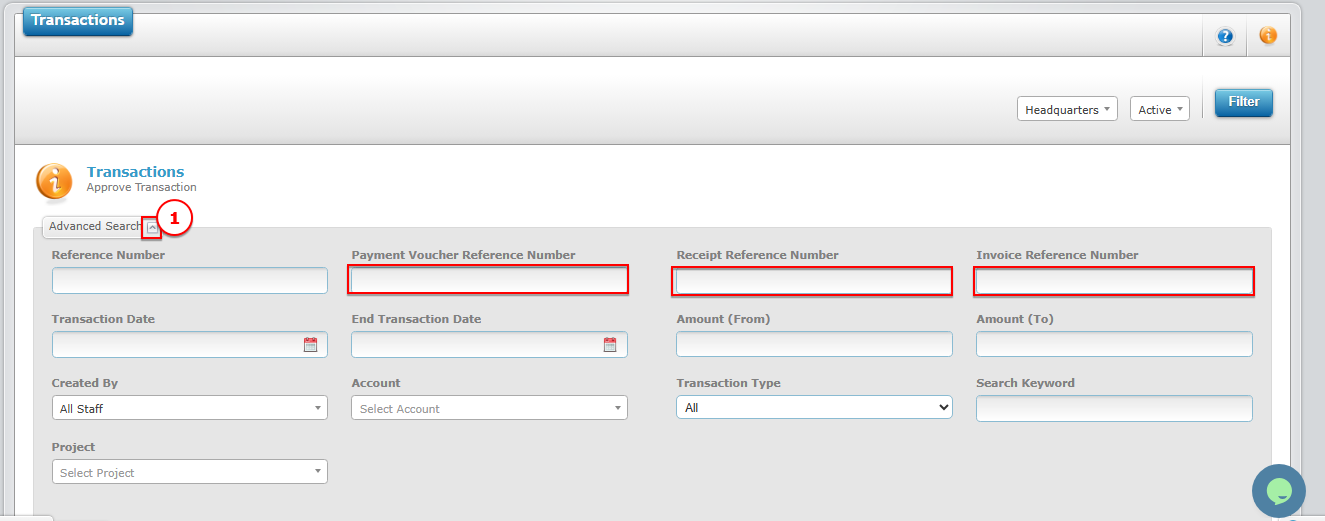
Step 2: Search Transaction
Use the Advanced Search Function to locate the transaction
Best to use reference number to find the transaction
Step 3: Approve / Reject / Unapprove
| Action | Description |
|---|---|
| Approve | Confirms the transaction and includes it in reports |
| Reject | Declines the transaction (will not be included in reports) |
| Unapprove | Reverts an approved transaction back to Pending status for editing or further changes |
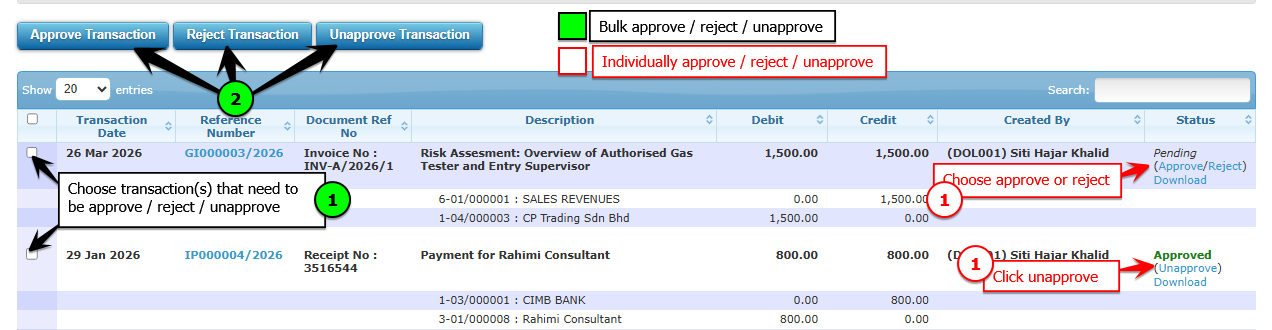
Click Approve to confirm the transaction
Click Reject if the transaction is incorrect or not required
Click Unapprove to revert the transaction to Pending so that it can be edited or reviewed again
⚠️ Note:
Only Pending transactions can be Reject
Use the screenshot below to locate these buttons.
⚠️ Important Notes
Only approved transactions will appear in:
Financial reports
Customer/vendor aging
Rejected transactions are NOT included in reports
All transactions must go through approval for accuracy and control
? Deletion Policy
Transactions CANNOT be deleted
Reasons:
To maintain audit trail compliance
Rejected transactions must be kept as proof if there are:
Missing numbers
Gaps in invoice sequence
? Example Scenario
If invoice numbers appear to skip (e.g., INV001 → INV003):
The missing invoice (INV002) may be rejected, not deleted
This ensures proper documentation for audit purposes
? Summary
| Action | Result |
|---|---|
| Approve | Included in reports and records |
| Reject | Not included, but still stored for audit |
| Delete | ❌ Not allowed |