
Leave Entitlements allow you to automatically calculate leave balances based on job classification, leave type, and years of service. This saves time by avoiding manual calculations for each staff.
? Where to Access HRMS
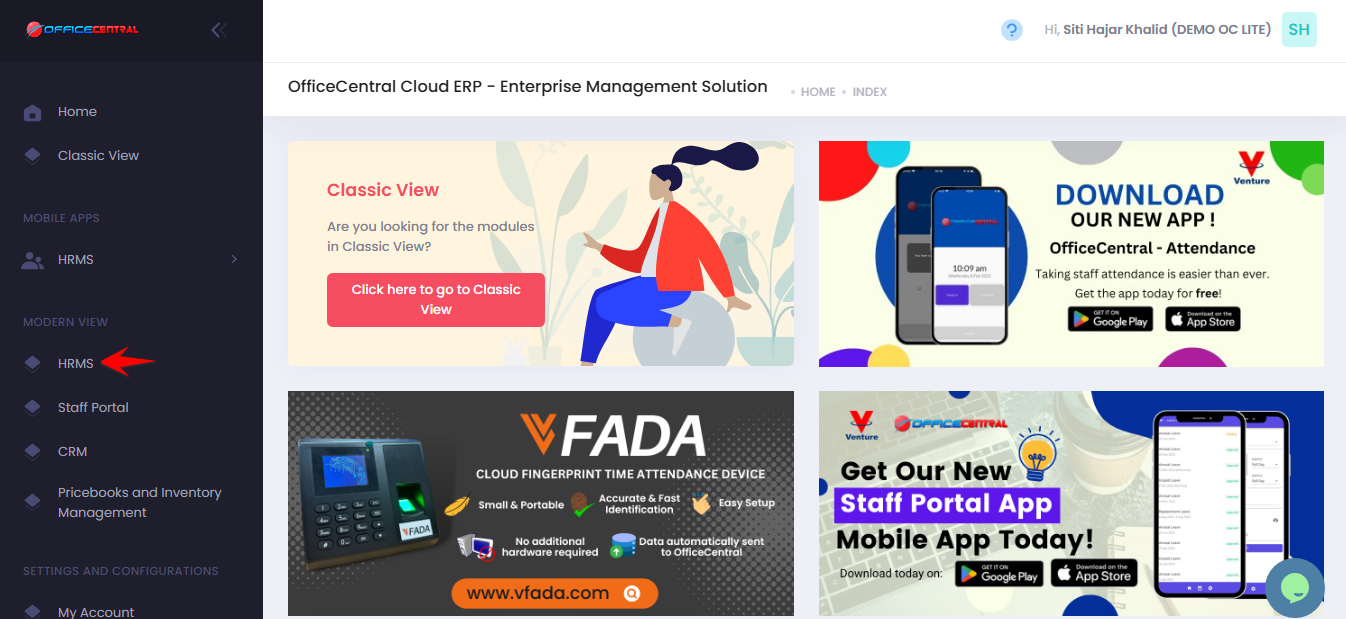
1️⃣ Where to Access This Function
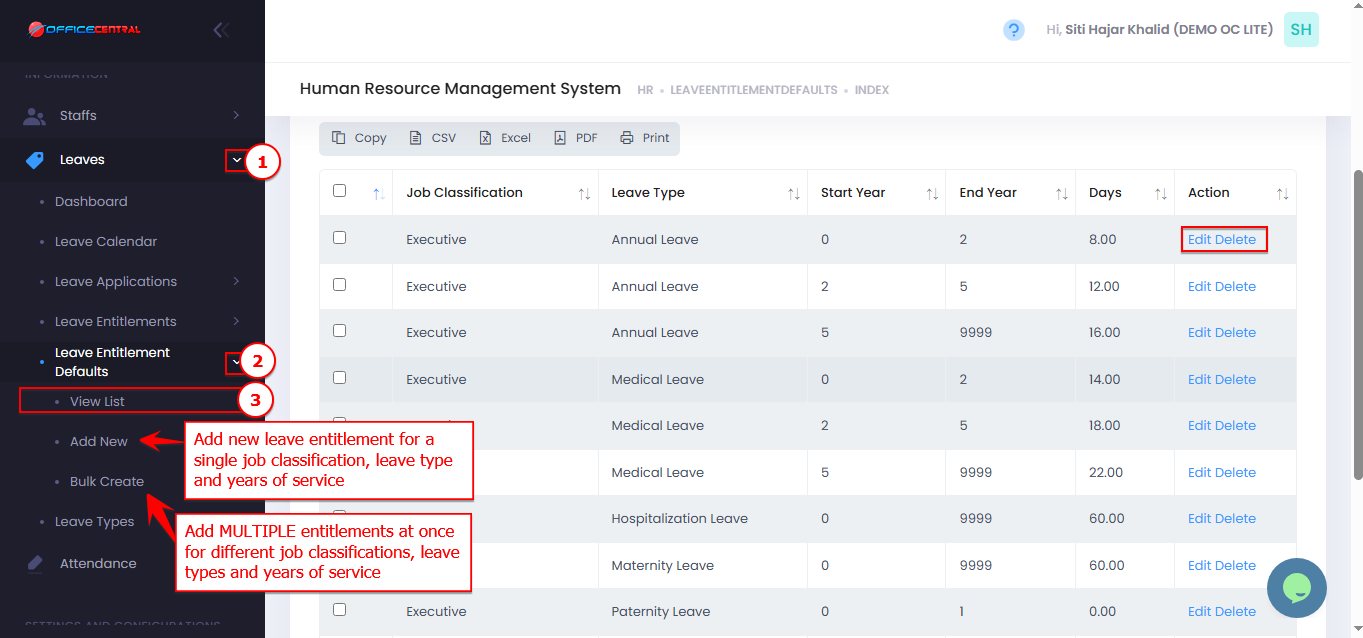
Go to Leaves → Leave Entitlement Defaults → View List
You will see a list of existing leave entitlements in your company.
| Button | Function |
|---|---|
| Add New | Create a new leave entitlement for a single job classification, leave and years of service |
| Bulk Create | Add multiple leave entitlements at once for different job classifications, leave types and years of service |
| Edit | Modify an existing leave entitlement |
| Delete | Remove an unused leave entitlement (cannot delete if already assigned to staff) |
Use the screenshot below to locate the buttons.
2️⃣ How to Add a Single Leave Entitlement
Click Add New to create a new entitlement.
Fill in the required information:
| Field | What to Enter / Explanation |
|---|---|
| Leave Type | Select the leave type this entitlement applies to (e.g., Annual Leave) |
| Job Classification | Select the staff classification (e.g., Executive, Manager) |
| Start Year | The starting service year for this entitlement (calculated from Date Joined) |
| End Year | The ending service year for this entitlement |
| Days Entitled | Number of leave days allocated for this period and classification |
| Limit Days to Bring Forward | • No limit: Staff has 12 unused days → all 12 can be brought forward • Cannot forward: Set Limit To = 0 • Limit to Certain Days: Set Limit To = 5 → only 5 days can be brought forward |
Click Save to store the new entitlement.
✅ Tip: Make sure the start and end year correctly reflects the employee’s years of service.
3️⃣ How to Add Leave Entitlements in Bulk
Click Bulk Create
You will see the bulk add screen.
Steps to add multiple entitlements:
Select Leave Types
Select Job Classifications
Enter Start Year and End Year for service period
Enter Days Entitled
Select No Limit / Limit To, enter amount of leaves that can be brought forward
Click Add for each row you want to create
Once all rows are added, click Save to finalize.
✅ Tip: Use bulk add if you want to assign multiple entitlements for different job classifications or leave types at once.
⚠️ Notes
Leave entitlements are calculated automatically based on the employee’s Date Joined.
Bulk Add is helpful when setting up multiple classifications or leave types for the same service period.
Always click Save after making changes to ensure the system updates leave balances correctly.