
? Where to Access HRMS
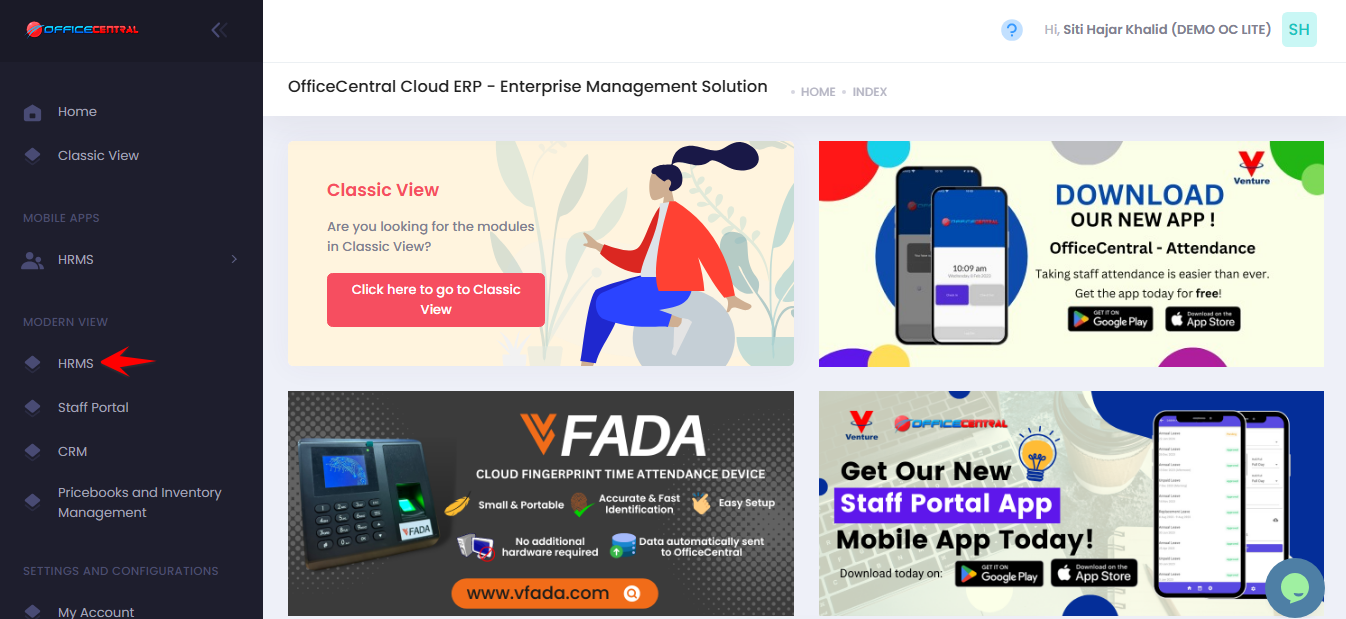
? Where to Access This Function
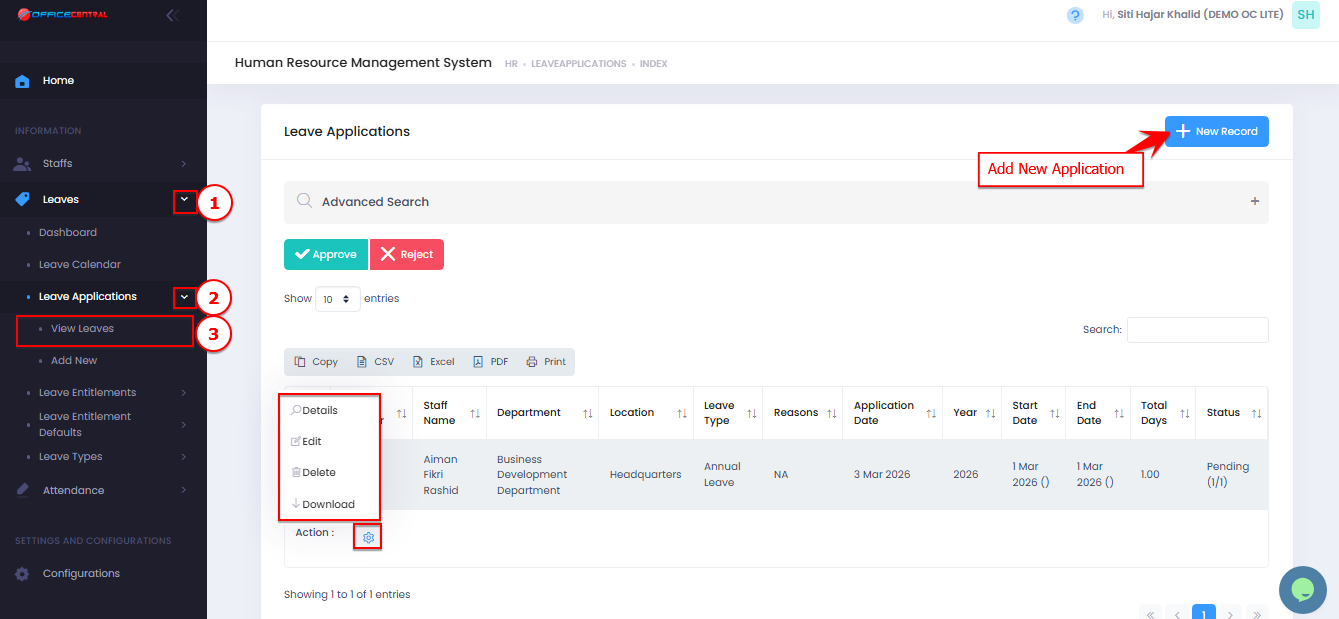
Go to Leaves → Leave Applications → View List:
From here, you can:
| No. | Action | Description | Button / Location |
|---|---|---|---|
| 1 | Add | Create a new leave application | Click New Record at the top of the page |
| 2 | Details | View Details to see full leave info including attachment (if any) | Click Details next to the application |
| 2 | Edit | Modify existing leave application | Click Edit next to the application. Only leave applications not yet approved can be edited. |
| 3 | Delete | Permanently remove leave application | Click Delete next to the application. Deleted data cannot be recovered. |
| 4 | Download | Download leave application | Click Download next to the application |
Use the screenshot below to locate the buttons.
1️⃣ Steps to Add a New Leave Application
1️⃣ Select Staff
Choose the staff name from the dropdown list.
Make sure you select the correct employee before proceeding.
2️⃣ Select Leave Type
Choose the appropriate Leave Type (e.g., Annual Leave, Medical Leave, etc.).
Ensure the staff has sufficient leave entitlement balance before selecting the dates.
⚠️ Important: Leave balance and entitlement will affect whether the leave can be applied successfully.
3️⃣ Select Leave Dates
Choose the Start Date and End Date
? Half-Day Leave Option
If the leave is half-day, select Half Day → Morning or Half Day → Afternoon for each date.
Example:
Morning half-day leave on 1st March
Start Date: 1 March, Half Day: Morning
End Date: 1 March, Half Day: Morning
For full-day leave, leave the default All Day selection.
⚠️ Important: Make sure start and end dates and half-day settings match the leave type and entitlement.
The system will automatically calculate the total leave days based on:
Working days / Calendar days setting
Public holidays (if applicable)
Make sure the selected dates match the staff’s available leave balance.
4️⃣ Enter MC Code (If Applicable)
If the leave type is Medical Leave, enter the MC Code in the field provided.
This step is required only if your company tracks MC reference numbers.
5️⃣ Enter Reason
Fill in the Reason for Leave.
The reason should clearly explain why the staff is applying for leave.
Example:
Family matter
Medical appointment
Emergency leave
If not available, please enter NA
6️⃣ Click Submit
After completing all required fields:
✔ Click Submit
The leave application will then be submitted into the system.
⚠️ Important Notes
| Setting / Action | Yes | No |
|---|---|---|
| Send Email | Staff will receive an email notification when leave is approved. | Staff will not receive email notification. |
| Auto Approve | Leave is automatically approved without manual intervention. | Leave requires manual approval by approver/admin. |
| Validate Min Days | System ensures user applied leave within the allowed timeframe. | System does not check if leave is applied within the allowed timeframe. |
| Validate Balance Available | System checks if staff has sufficient leave balance before approval. | Leave may be approved even if the staff does not have enough leave balance. |
⚠️ Once a leave application is approved, the staff cannot:
Add attachments
Edit leave details
This ensures leave records remain accurate and consistent.