WHEN to Add Users
Add users when:
A new staff needs system access.
Different departments require system access.
You want to control access using role groups.
You want staff to access only their own data (non-admin users).
You want better task delegation and workflow efficiency.
Important:
Each User must / will be linked to a Staff profile.
License credits are deducted only for active users.
How to Add a New User
There are 2 ways to add a user:
Create User (for new users)
Assign User (for existing registered users)
? Where to Access This Function
To manage users:
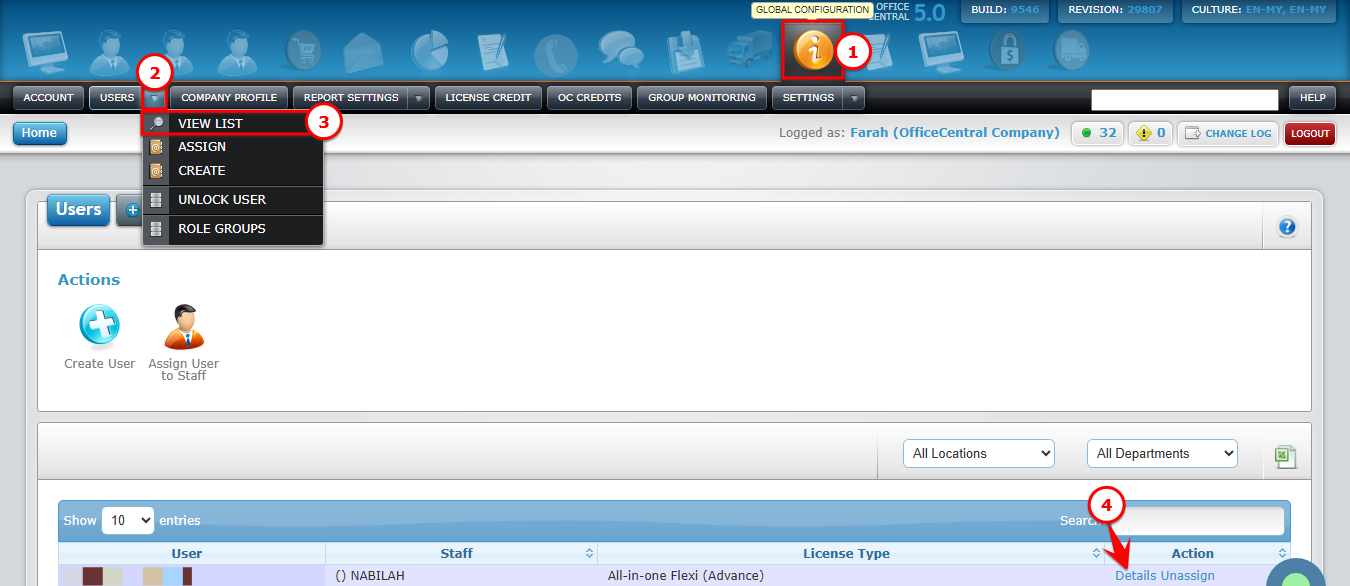
Go to Global Configuration
Click Users
Use the screenshot below to locate each button:

1️⃣ Create User (For New Users)
Use this option if the staff has NEVER registered before.
Steps:
Go to Global Configuration > Users
Click Create
Fill in the required information:
| No. | Field | What to Do |
|---|---|---|
| 1 | Staff Type | Choose New Staff or Existing Staff |
| 2 | Staff Name | Select existing staff OR type new staff name |
| 3 | License Type | Choose the license to assign (based on subscription) |
| 4 | Enter email (this will be the username) | |
| 5 | Password | Enter password |
| 6 | Confirm Password | Re-enter password |
Click Save
2️⃣ Assign User (For Existing Registered Users)
Use this option if:
The user has already registered before, OR
The email is already used in another OfficeCentral account.
Steps:
Go to Global Configuration > Users
Click Assign
Fill in the following details:
| No. | Field | What to Do |
|---|---|---|
| 1 | Username | Enter the existing username |
| 2 | License Type | Select the license to assign (based on subscription) |
| 3 | Staff Name | Select the staff name |
Click Save
How to Unassign User (Remove from Active License)
If a staff is no longer using the system / resign, you should Unassign the user.
Steps to Unassign:
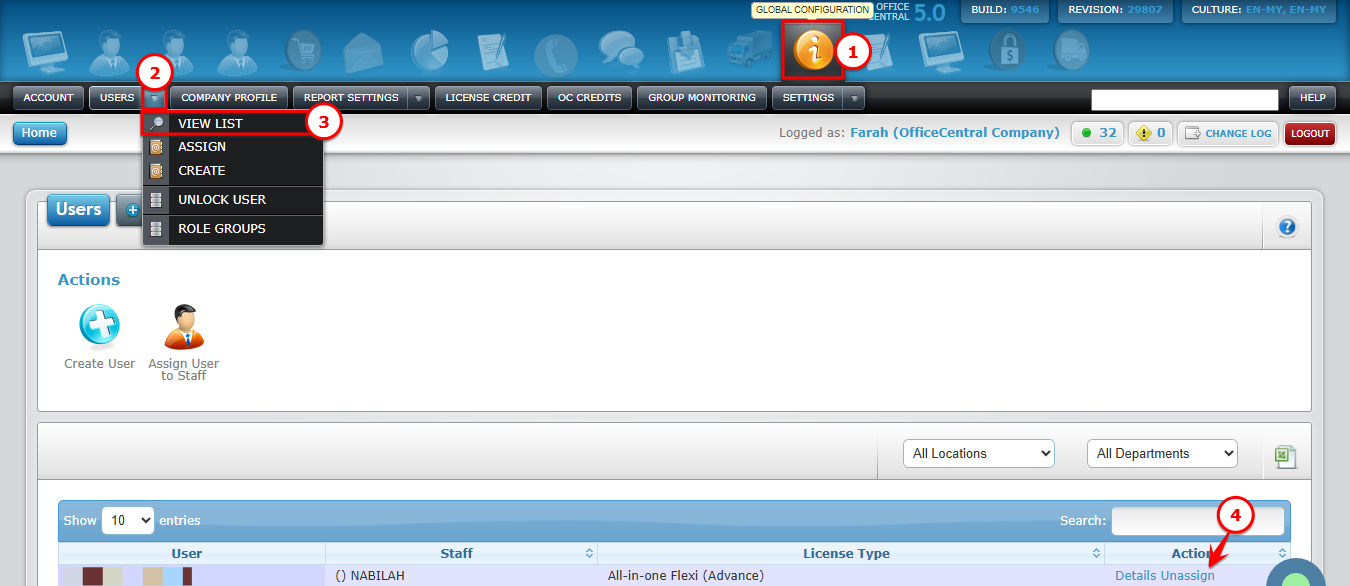
Go to Global Configuration > Users
Click View List
You will see the user list.
| No. | Action | What to Do | |
|---|---|---|---|
| 1 | Click Unassign | Click the Unassign button | |
| 2 | Confirm | Click OK to proceed OR Cancel to stop |
Use the screenshot below to locate each button:
After confirmation:
The user account becomes inactive.
The staff is removed from active license count, hence they cannot log in anymore.
System will stop charging license for this user in the next billing cycle.
Reassign License & Roles
Steps to reassign:
Go to Global Configuration > Users
Click View List
Click Details
You will see the user list.
| No. | Step | What to Do |
|---|---|---|
| 1 | Select License | Choose new license type |
| 2 | Update License | Click Update License |
| 3 | Select Role Group | Choose appropriate role group(s) |
| 4 | Update Roles | Click Update Roles |
Use the screenshot below to locate each button: