
You can update your Company Profile to include:
Company basic information
Logo
GST/SST information
Financial information
Language & culture
Email settings
⚠️ Keeping this information accurate ensures proper invoicing, payroll reporting, and statutory compliance.
? Where to Access This Function
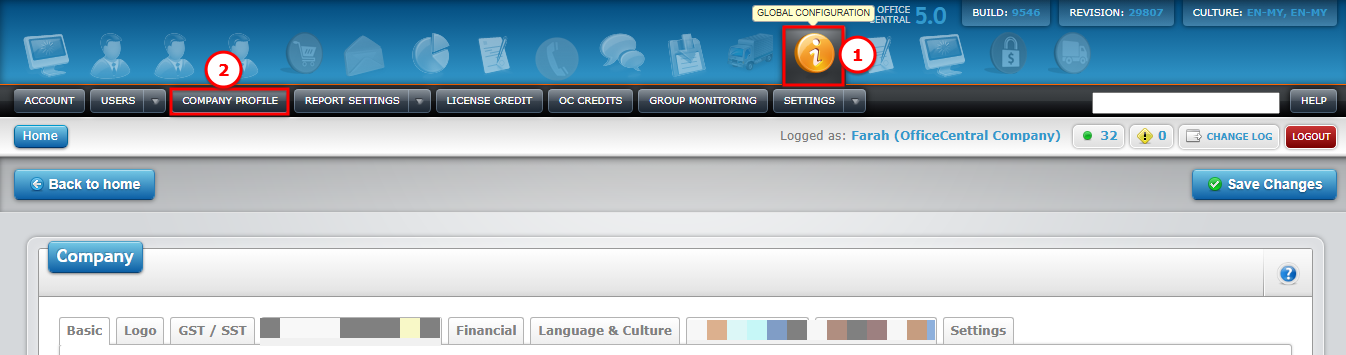
Go to Global Configuration
Click Company Profile
Use the screenshot below to locate each button:
1️⃣ BASIC Information
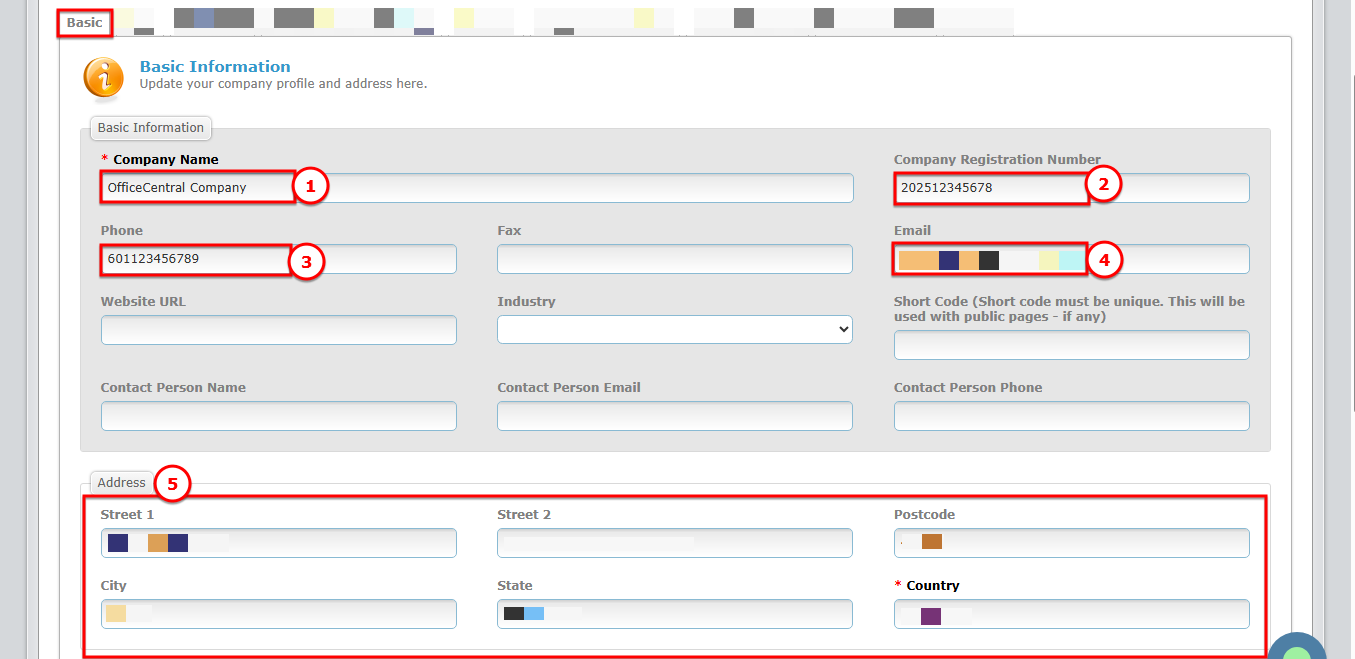
Click the Basic tab to update your company’s general information.
| No. | Field | What to Enter |
|---|---|---|
| 1 | Company Name | Full registered company name |
| 2 | Company Registration Number | Your official registration number |
| 3 | Phone Number | Main company phone number |
| 4 | General contact email for the company | |
| 5 | Address | Full company address (street, city, postcode) |
Use the screenshot below to locate each field and button.
2️⃣ LOGO
You can upload or update your company logo.
Steps:
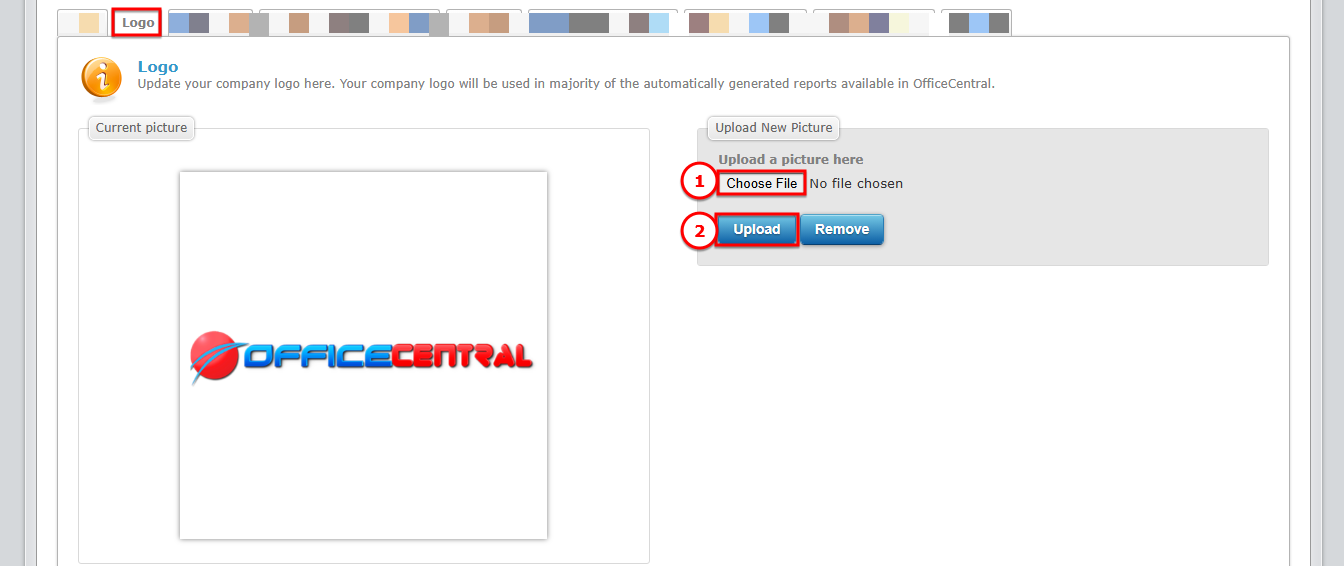
Click the Logo tab
Click Choose File to select the logo from your computer
Click Upload to upload the logo
Once uploaded, click Save Changes
| Tip | The logo file size should be less than 100kb. |
Use the screenshot below to locate the Choose File and Upload buttons.
3️⃣ GST/SST
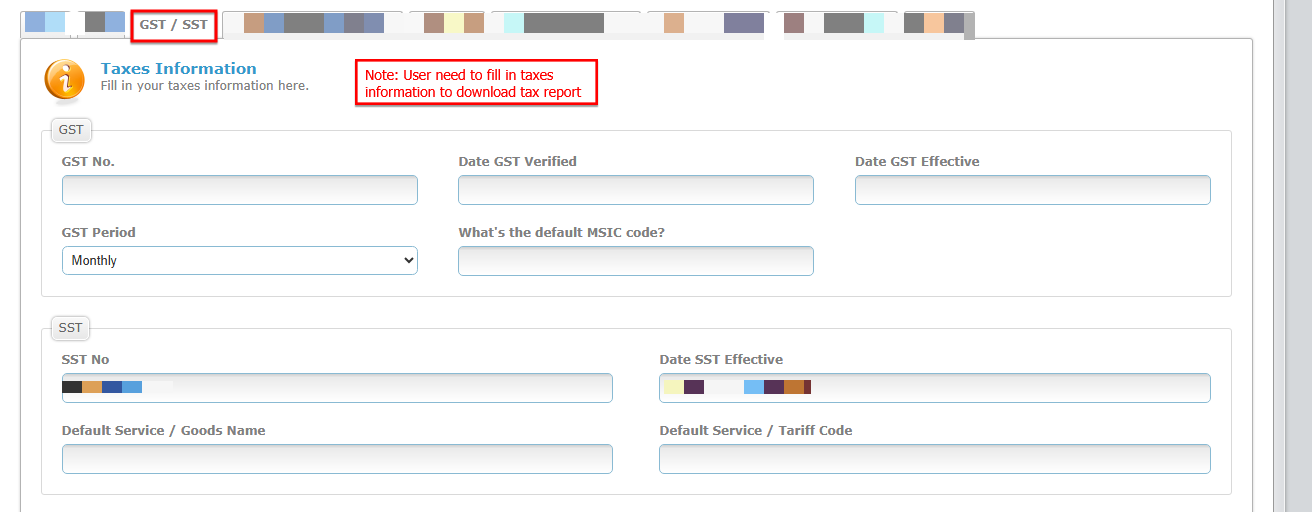
Click the GST/SST tab to update your sales tax information.
Note: User need to fill in taxes information to download tax report
4️⃣ FINANCIAL INFORMATION
Click the Financial tab to enter your company’s financial details.
| No. | Field | What to Enter |
|---|---|---|
| 1 | Payable To | Full company name (as registered) |
| 2 | Bank Name | Company bank name (e.g., Maybank, CIMB) |
| 3 | Bank Account Number | Company bank account number |
| 4 | Statutory Numbers (optional) | Company's EPF, SOCSO, Income Tax, Zakat, Tabung Haji, PayPal email, Corporate Code for Maybank |
⚠️ Important: Fill in statutory numbers correctly (#4), as this will reflect in Payroll statutory forms.
Use the screenshot below to locate each field and button.
5️⃣ LANGUAGE & CULTURE
Click the Language & Culture tab to configure system language settings.
| No. | Field | What to Enter |
|---|---|---|
| 1 | Language | Select your preferred language for the system |
Make sure to save and re-login to view changes
6️⃣ SETTINGS
Click the Settings tab to configure automatic email notifications.
Any automatic email setup selected in this setting will consume OC Credit