
Roles determine what parts of the system a user can access.
An Admin can assign roles to each staff member to control their access.
? Access Role Settings
1️⃣ Go to Global Configurations > Users > Role Groups

You will see the Role Groups List with these options:
| # | Button | Function |
|---|---|---|
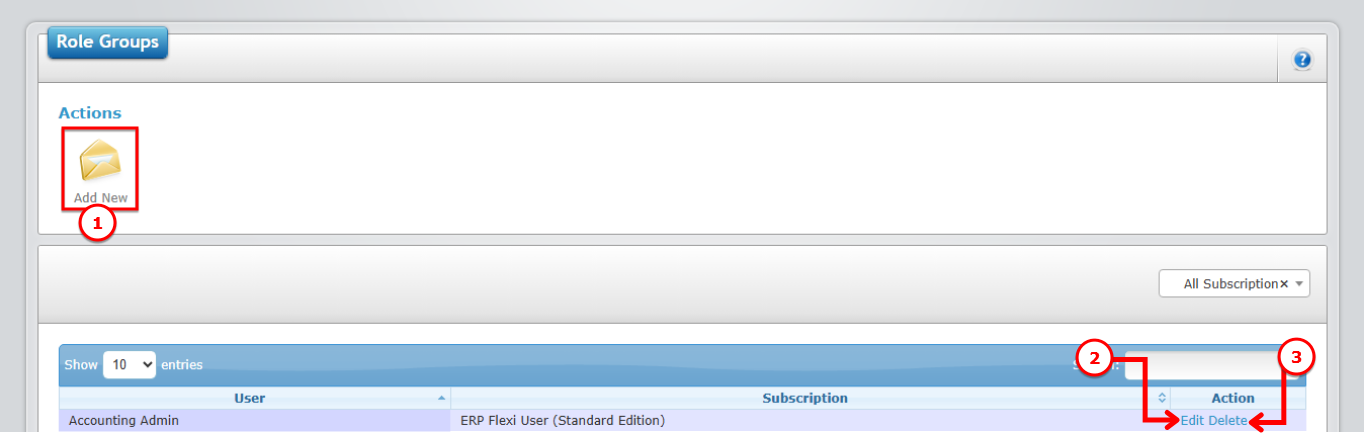
| 1 | Add New | Create a new role group |
| 2 | Edit | Modify an existing role group |
| 3 | Delete | Remove a role group from the system |
Use the screenshot below to locate each button:
➕ How to Add a New Role Group
1️⃣ Click Add New
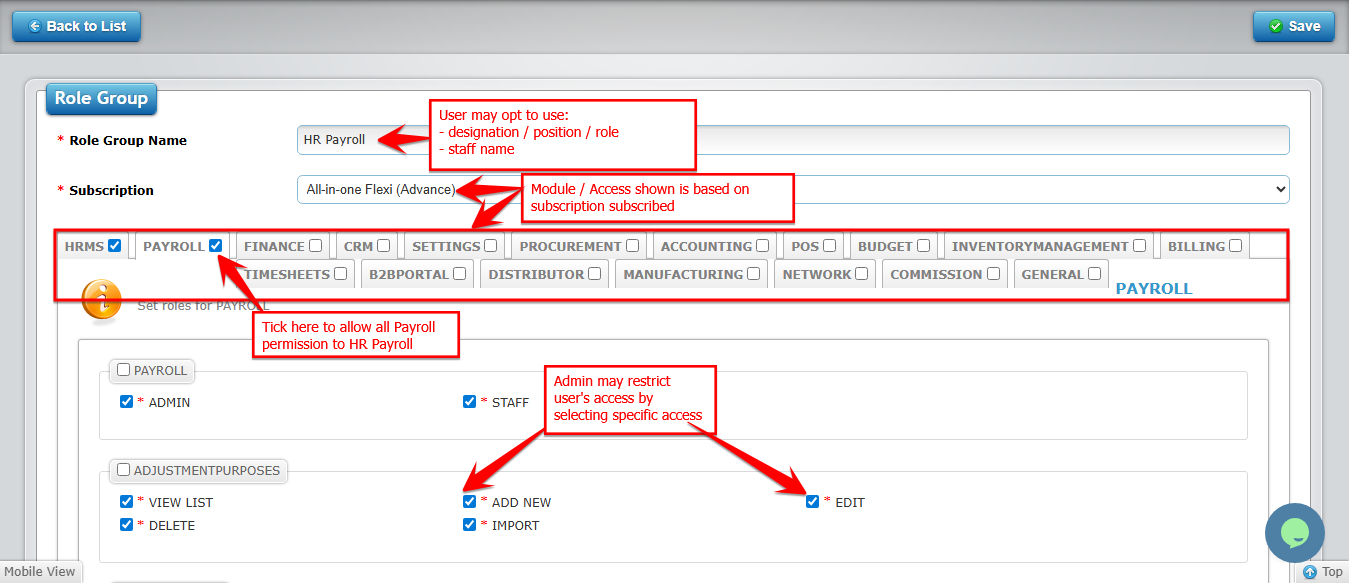
2️⃣ Fill in the details:
| # | Field | What to Enter |
|---|---|---|
| 1 | Role Group Name | Give a suitable name for the role group (e.g., Admin, HR, Payroll) |
| 2 | Subscription | Choose the subscription/module(s) this group should have access to |
| 3 | Choose Access | Admin may restrict user's access by selecting specific access |
| 4 | Save | Click Save to create the role group |
3️⃣ After saving, the new role group will appear in the Role Groups List.
✏️ How to Edit a Role Group
1️⃣ Click Edit next to the role group you want to modify
2️⃣ Update the Role Group Name or Subscription
3️⃣ Click Save to apply changes
? How to Delete a Role Group
1️⃣ Click Delete next to the role group
2️⃣ Confirm deletion
⚠️ Deleting a role group will remove all permissions associated with it. Make sure no active users rely on it before deleting.