
? Where to Access Payroll
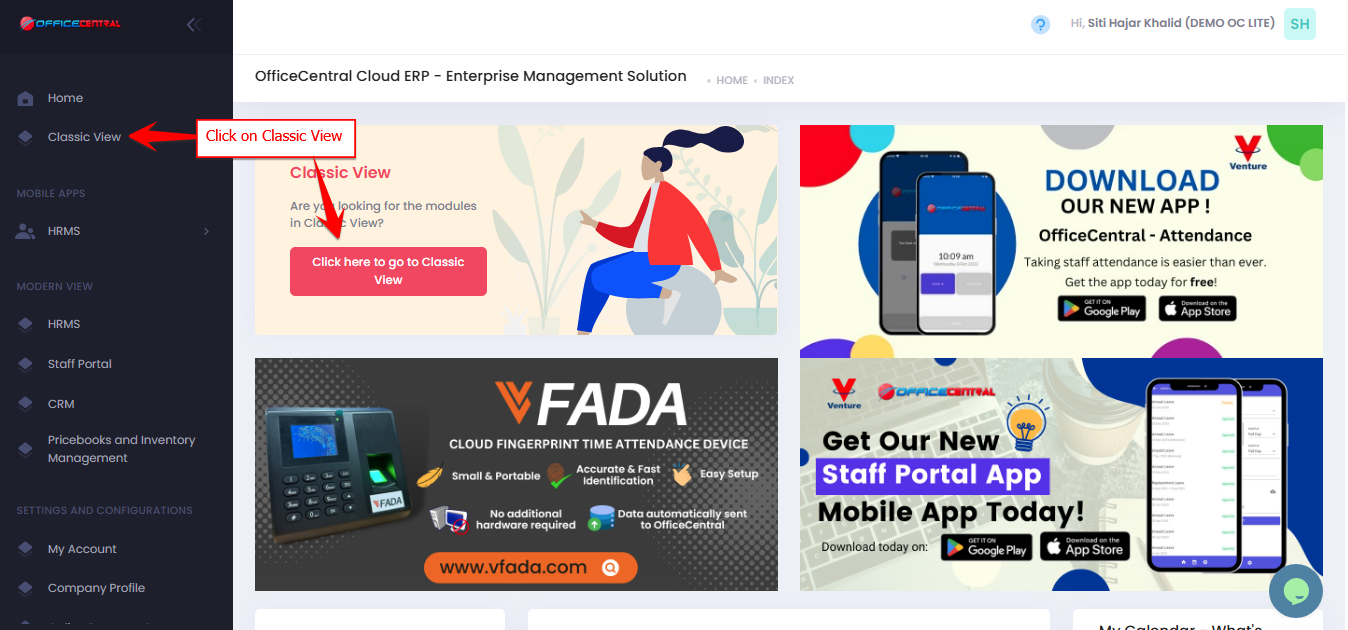

1️⃣ How to Add Adjustment (Additional Earnings / Deductions)
Go to Payroll > Adjustments > Add New
You will see a form to add adjustment for A STAFF

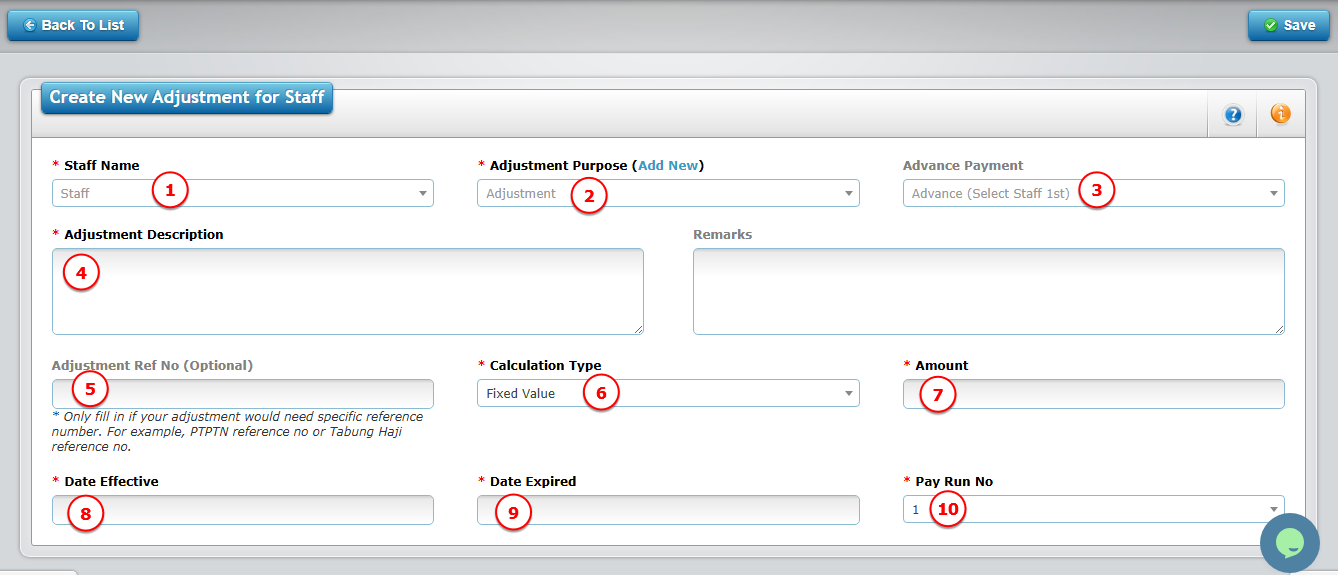
Please refer to the explanation below to help you complete the fields correctly.
? Field Explanation
| No. | Field | What to Do | Example / Explanation |
|---|---|---|---|
| 1 | Staff Name | Select the staff name | Choose the employee you want to apply the adjustment to |
| 2 | Adjustment Purpose | Choose the adjustment purpose | If you would like to see the details/add new adjustment purpose, please refer Step 3a |
| 3 | Advance Payment | Select advance payment | Select this only if the staff has already received an advance and you are paying the remaining balance. ? Advance payment must be recorded in the Finance Module first. |
| 4 | Adjustment Description | Enter short description | Example: Travel claim for site visit |
| 5 | Adjustment Ref No | Enter reference if applicable | Example: PTPTN / Tabung Haji reference no |
| 6 | Calculation Type | Choose how the amount is calculated | See explanation below |
| 7 | Amount / Percentage | Enter amount / percentage based on selected calculation type | Depends on selection in No. 6 |
| 8 | Effective Date | Select start date | System starts calculation from this date |
| 9 | Expiry Date | Select end date (if any) | System stops automatically after this date |
| 10 | Pay Run No. | Select salary payment cycle | Select which payroll cycle this adjustment should be applied to.
|
? Explanation of Calculation Type (Field No. 6)
Choose how the allowance/deduction should be calculated:
| Calculation Type | When to Use | Example |
|---|---|---|
| Fixed Value | Amount is always the same every month | RM100 allowance → Enter 100 |
| Based on Salary Calculation Formula | Adjustment follows salary formula (e.g., unpaid leave deduction affects it) | If salary is reduced due to unpaid leave, this amount reduces too |
| Percentage of Basic Salary | Calculated based on basic salary % | 10% of RM2,000 → System calculates RM200 |
| Percentage of Gross Salary | Calculated based on gross salary % | 10% of RM1,850 gross → System calculates RM185 |
? How to Fill the Amount (Field No. 7)
Enter value depending on your selection:
Fixed Value → Enter actual amount (e.g., 100)
Based on Salary Formula → Enter base amount, system applies salary formula
% of Basic Salary → Enter percentage only (e.g., 10 for 10%)
% of Gross Salary → Enter percentage only (e.g., 10 for 10%)
⚠ Make sure to never put negative value. If adjustment is deduction, please refer Step 3a: Manage Adjustments – Adjustment Purposes
? Effective & Expiry Date
Effective Date → System starts calculating from this date.
Expiry Date → System automatically stops after this date.
✅ No need to manually deactivate once expired.If adjustment is temporary, always set an expiry date to avoid overpayment.