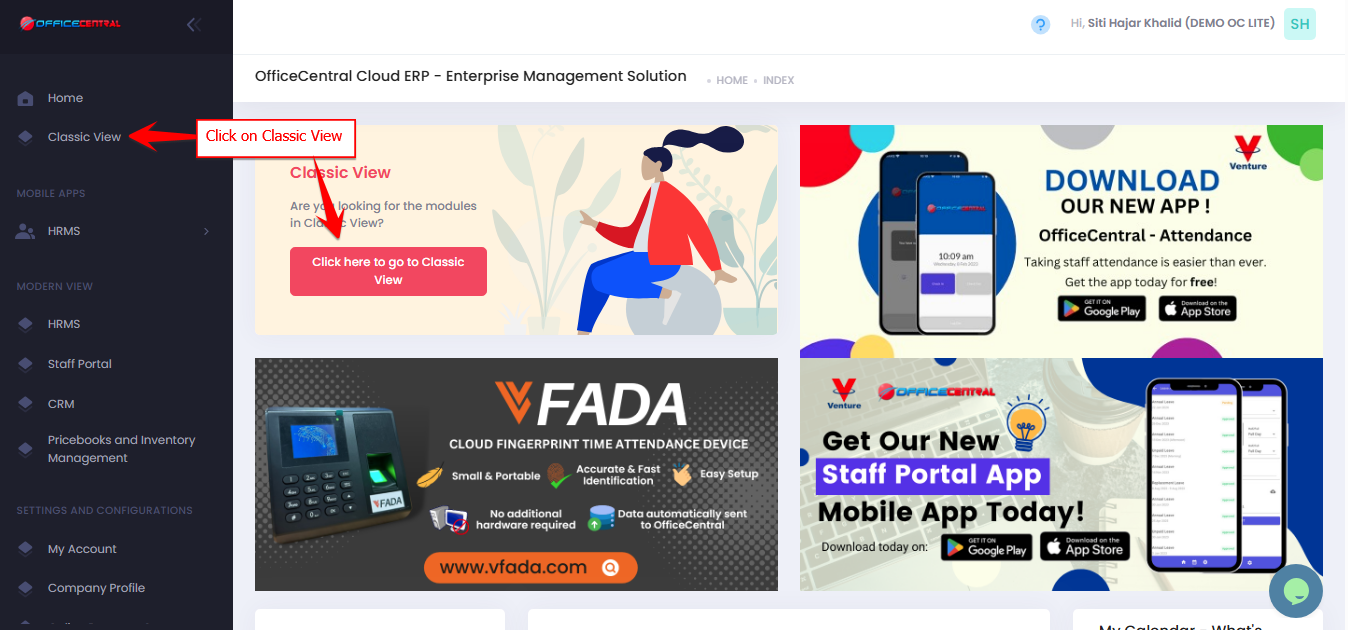
? Where to Access Payroll

▶️ Step 1: Start Salary Processing
Click the PROCESS button to begin generating salary slips.
Use the screenshot below to locate the button

? Step 2: Fill in Payroll Information
Enter the required details for the salary calculation.
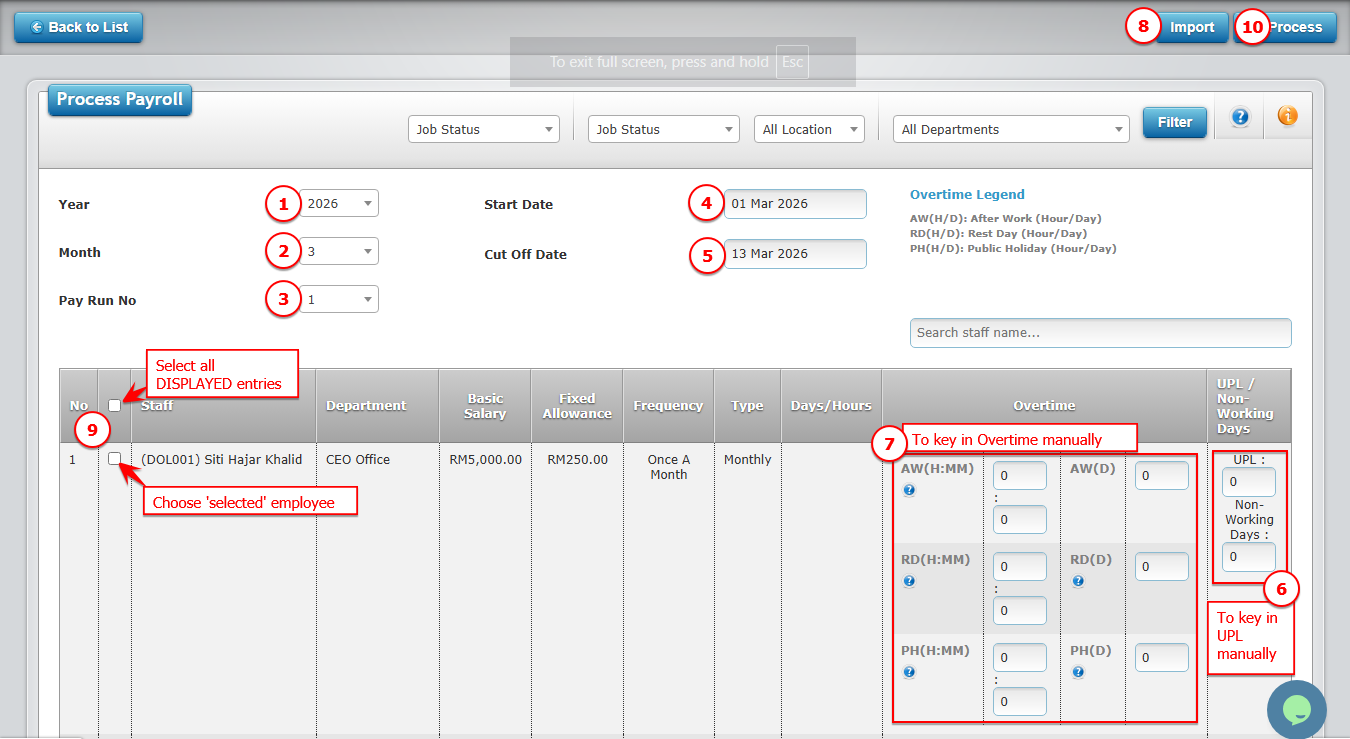
Please refer to the explanation below to help you complete the fields correctly.
| No. | Field | What to Enter |
|---|---|---|
| 1 | Year | Select the payroll year |
| 2 | Month | Select the payroll month |
| 3 | Pay Run Number | Choose the salary payment cycle (e.g., Pay Run 1 or Pay Run 2) |
| 4 | Start Date | Enter the start date for the payroll period |
| 5 | End Date | Enter the end date for the payroll period |
| 6 | Unpaid Leave Days | Enter total unpaid leave days for the staff (if any) |
| 7 | Overtime | Enter overtime details if applicable |
| 8 | Import | To import Unpaid Leave Days and Overtime from HRMS. Refer explanation below |
| 9 | Select entry(s) | Button for Step 3 |
| 10 | Process | Button for Step 4 |
Step 2a: Import Unpaid Leave and Overtime from HRMS (Field No. 8)
Please refer picture below the steps to import unpaid leave and overtime
⚠️ Important Notes Unpaid Leave
| Situation | What Happens |
|---|---|
| Payroll Group setting: Select unpaid leave deduction calculation type when salary changes between cut-off date. (Monthly only!): 1. Based on salary on the leave date. (Only take leaves in the HRMS Leave Application module) | System ONLY ACCEPT imported unpaid leave from HRMS Leave Application. The value cannot be edited manually. |
| Payroll Group setting: Select unpaid leave deduction calculation type when salary changes between cut-off date. (Monthly only!): 1. Default (Based on latest salary between cut-off date) 2. Based on average salary between cut-off date | You may import OR edit unpaid leave days manually if required. |
| After importing unpaid leave | The value cannot be edited to maintain data accuracy. |
⚠️ Important Notes Overtime
| Rule | Explanation |
|---|---|
| Overtime rate | Calculated based on the Payroll Group settings |
| Imported overtime | Cannot be edited after import |
| If no import | Admin can manually key in overtime if required |
? Step 3: Select Staff
Tick √ next to the staff name(s) whose salary you want to process.
⚙️ Step 4: Process Salary
Click the PROCESS button on the right side of the page.
? If you are processing payroll for many staff, the system may take a few moments to complete.
After processing salary slips
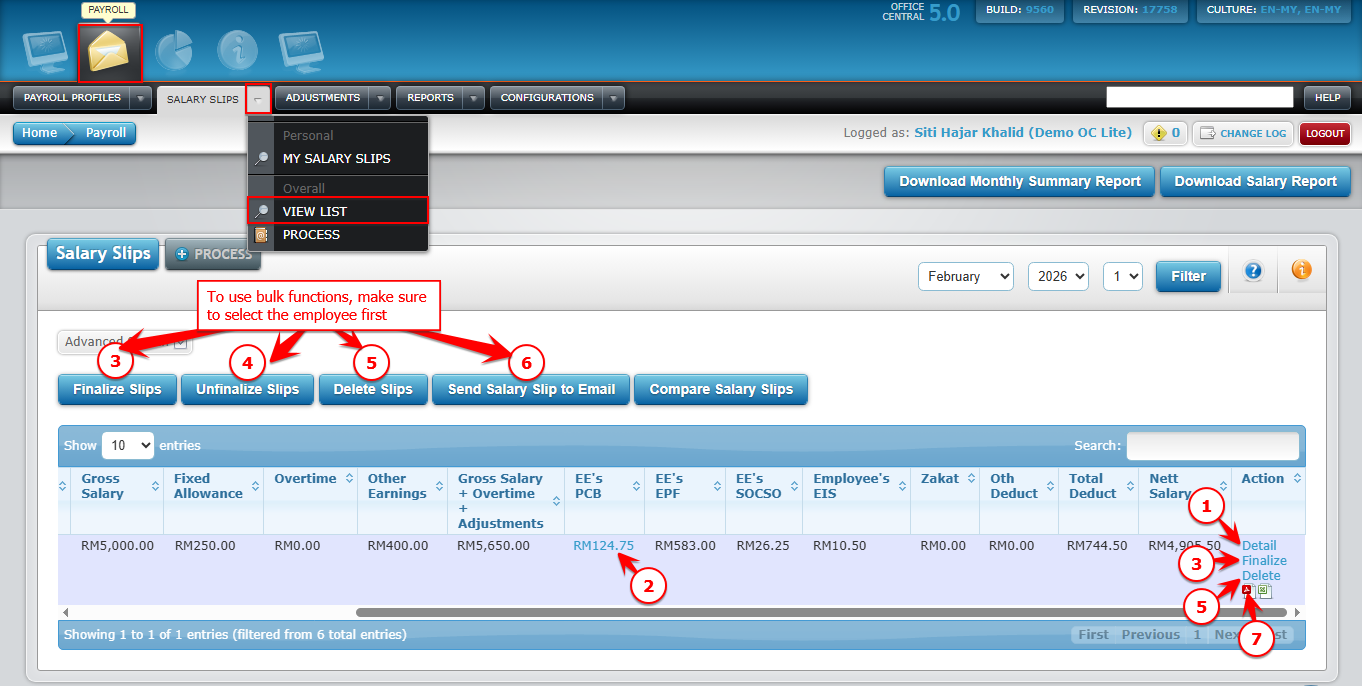
Once salary slips are processed, you can manage them using the options on the View List (Overall) page.
| No. | Button | Function | Important notes |
|---|---|---|---|
| 1 | Detail | View salary slip details for an individual staff | Shows all components like gross salary, deductions, net salary, unpaid leave, overtime, etc. |
| 2 | View PCB details | View staff’s PCB/MTD tax details | For tax verification purposes. |
| 3 | Finalize slips | Finalize salary slips in bulk | Once finalized, salary slips cannot be edited. Finalizing is required if you want staff to view their salary slip. |
| 4 | Unfinalize slips | Unlock finalized salary slips in bulk | Only use if you need to make adjustments before re-finalizing. |
| 5 | Delete | Delete salary slips in bulk | Only delete if you need to reprocess payroll. |
| 6 | Send salary slip to email | Send salary slip copy to staff via email | Charges apply to OC Credit. Make sure the account has sufficient OC Credit before sending. |
| 7 | Download individually | Download salary slip for a specific staff | PDF format (staff with access) and Excel/PDF for admin. |
Use the screenshot below to locate each button