
This module allows users to add, edit, or delete predefined options for various CRM entities such as Potential Types, Task Status, Lead Status, Lead Type, Lead Source, and Account Type.
These options are used throughout the CRM module to categorize leads, tasks, opportunities, and accounts consistently.
By default, the system comes with predefined options:
| Entity | Default Options |
|---|---|
| PotentialType | Tender, Direct Negotiation, Purchase |
| TaskStatus | Completed, Pending, New |
| PotentialStage | Closed Lost to Competition, Closed Lost, Closed Won, Negotiation/Review, Identifying Decision Makers, Value Proposition, Needs Analysis, Qualification, Request for Quotation/Proposal, New |
| LeadStatus | Prequalified, Not Contacted, Lost Lead, Junk Lead, Contacted, Contact in Future, Attempted to Contact, Closed, Open, New |
| LeadType | Cold, Warm, Hot |
| LeadSource | Public Relations, Web Research, Trade Show, Partner, Employee Referral, Cold Call, Advertisement, Words of Mouth, Newsletter, Online, Events |
| AccountType | Integrator, Distributor, Competitor, Supplier, Partner, Customer |
? Where to Access CRM
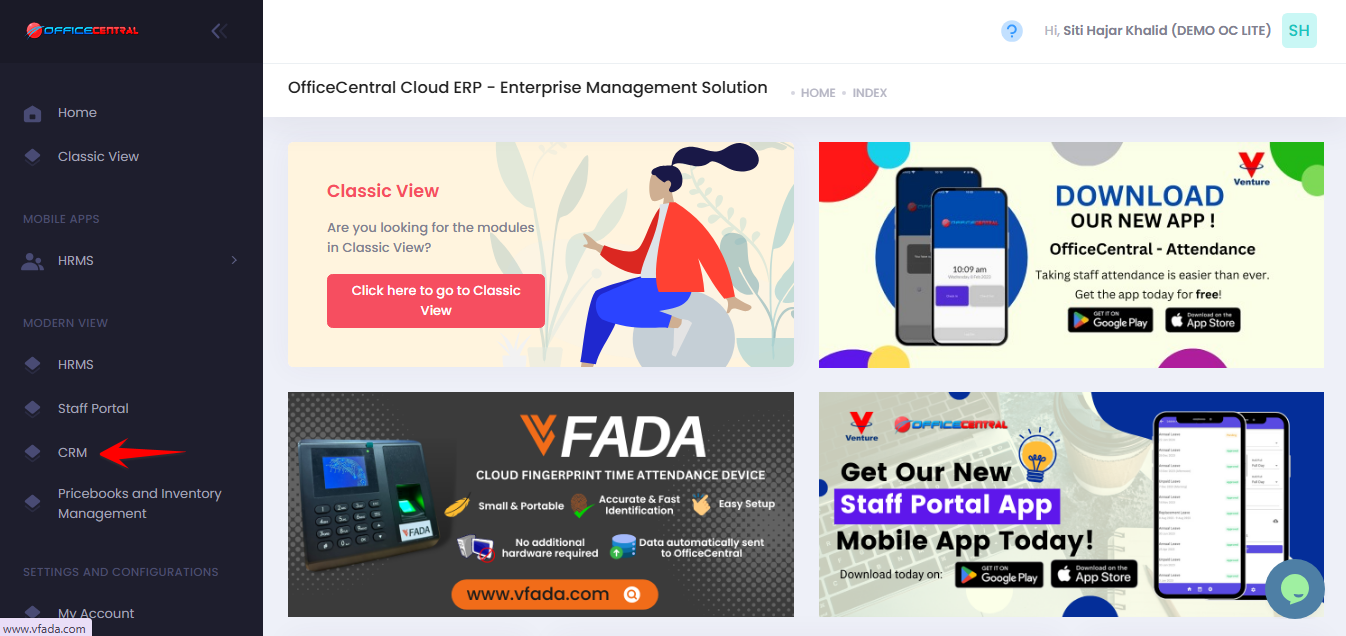
? Where to Access This Function
Go to CRM > Settings & Configurations > Base Selection Entities
In the Base Selection Entities page, you can:
| No. | Function | Description |
|---|---|---|
| 1 | Add | Add a new option to an entity type |
| 2 | Edit | Modify an existing option |
| 3 | Delete | Remove an option (only if it’s not used in existing CRM data) |
Use the screenshot below to locate these buttons.
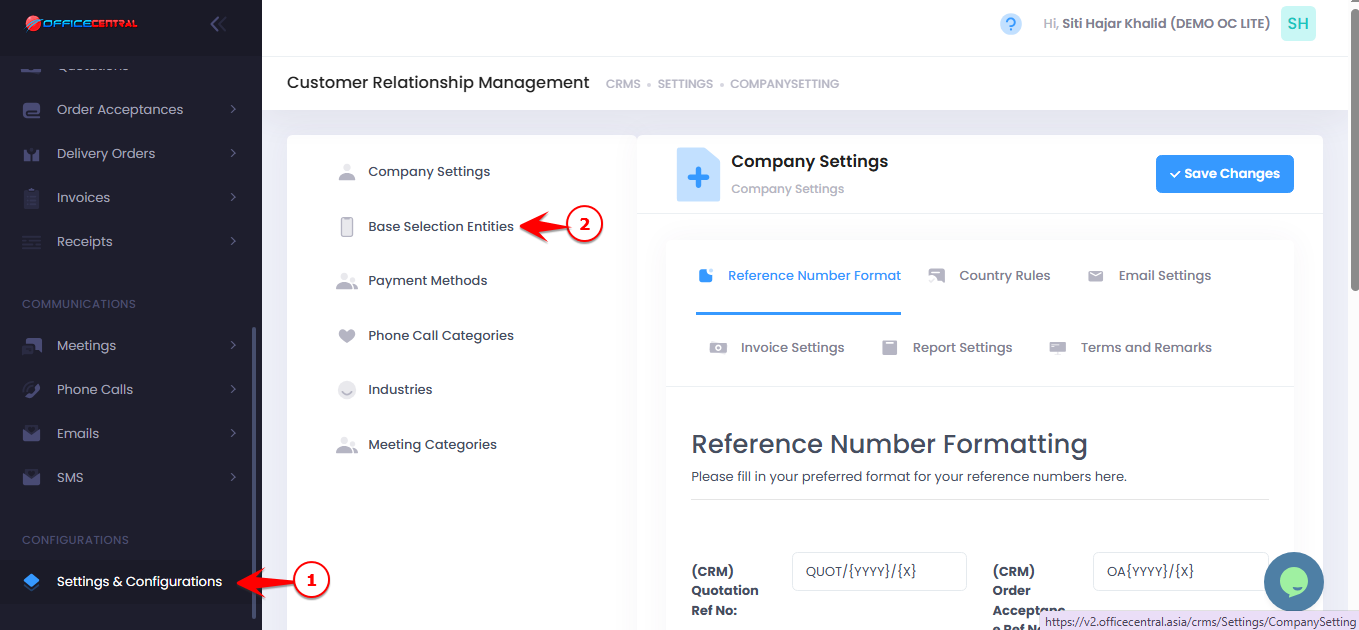
1️⃣ How to Add a New Option
Go to Base Selection Entities and click “Add”.
- Enter the Option Name (Base Selection Entities Name).
- Select the Entity Type (e.g., PotentialType, LeadStatus).
Click Save.
⚠️ Important Notes:
Choose meaningful names as these options will appear in dropdown lists throughout the CRM module.
Deleting options that are already used in records may affect existing data.
2️⃣ How to Edit an Option
Click Edit next to the option you want to modify.
Update the Option Name.
Click Save.
⚠️ Important Notes:
Editing an option will update it everywhere it is used in the CRM module.
Be cautious if it is already used in opportunities, leads, or tasks.
3️⃣ How to Delete an Option
Click Delete next to the option you want to remove.
Confirm the deletion.
⚠️ Important Notes:
You can only delete options that are not assigned to any records.
If the option is in use, the system will prevent deletion.