
This guide explains how to create, edit, delete, and finalize Order Acceptance in CRM.
An Order Acceptance is equivalent to Purchase order which it confirms that the customer has agreed to the quotation and the order is ready for processing.
? Where to Access CRM
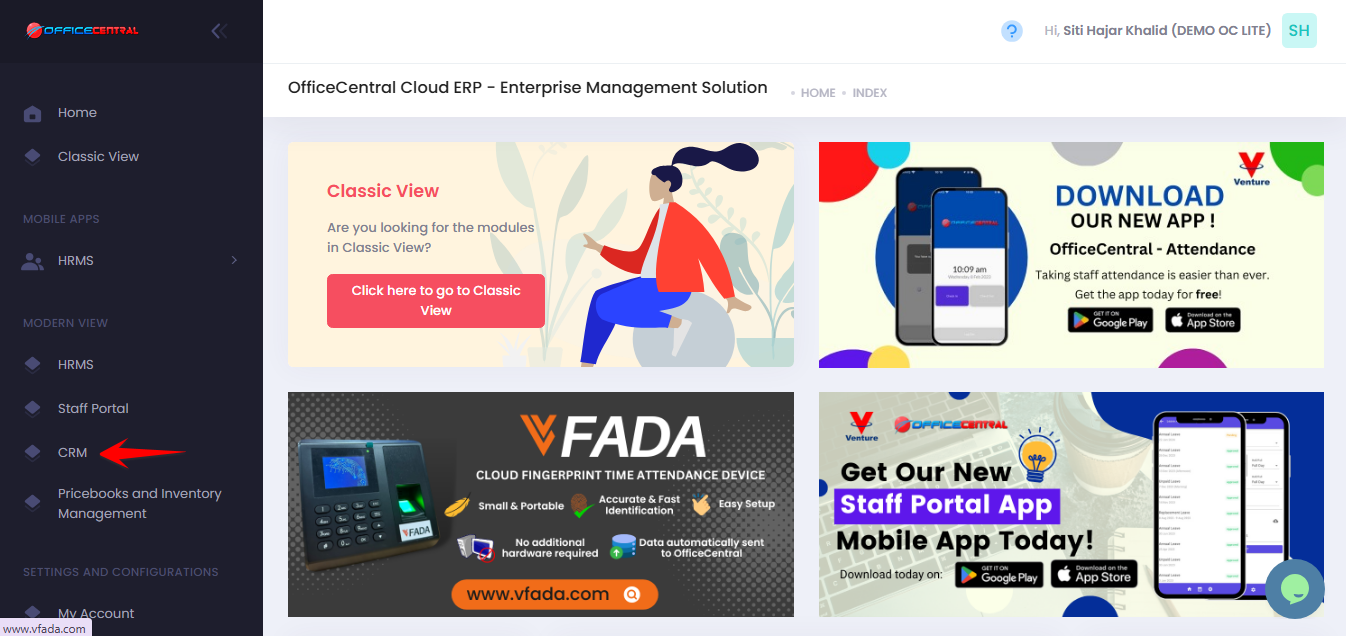
Where to Access This Function
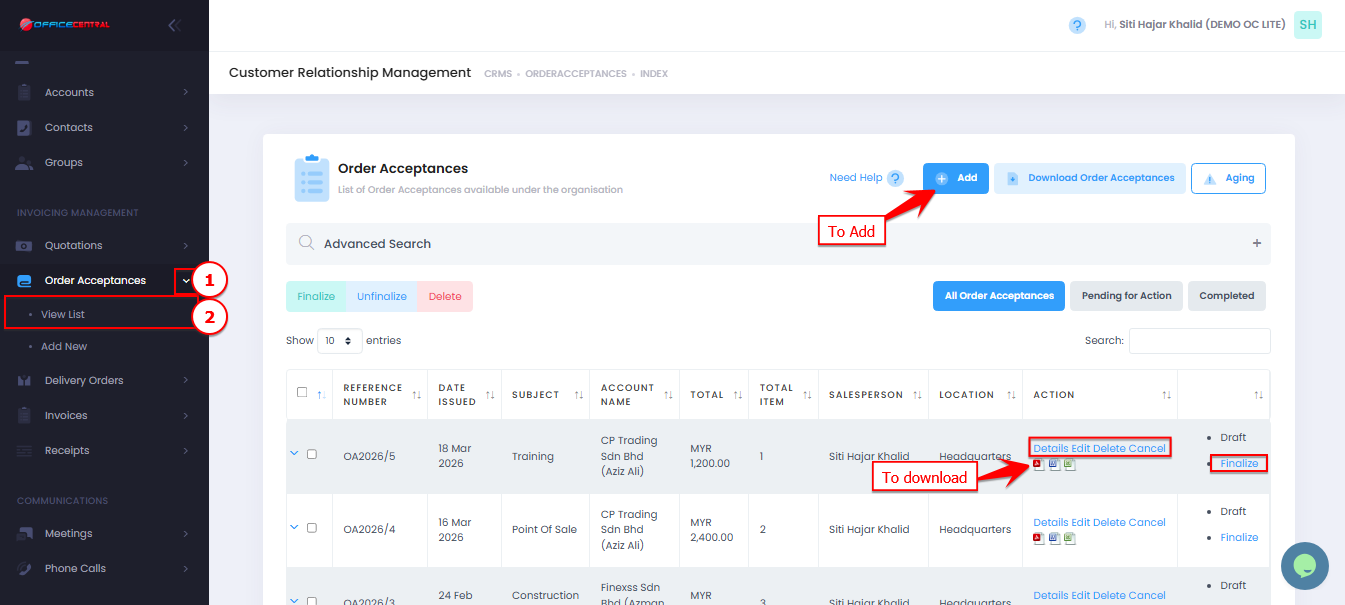
On the Order Acceptance > View List page, you will see:
| No. | Function | Description |
|---|---|---|
| 1 | Add | Create a new order acceptance |
| 2 | Edit | Modify existing order acceptance |
| 3 | Delete | Remove order acceptance permanently |
| 4 | Details | View full information of order acceptance |
| 5 | Cancel | Cancel order acceptance. The details of the order acceptance is not deleted from the database |
| 6 | Finalize | Confirm and lock the document |
| 7 | Download | Download order acceptance in PDF / Excel / Words |
Use the screenshot below to locate these buttons.
Ways to Create Order Acceptance
There are 2 methods:
| Method | Description |
|---|---|
| Generate from Quotation | Recommended method to carry forward all data |
| Create Directly | Manual creation without quotation |
Method 1: Generate from Quotation (Recommended)
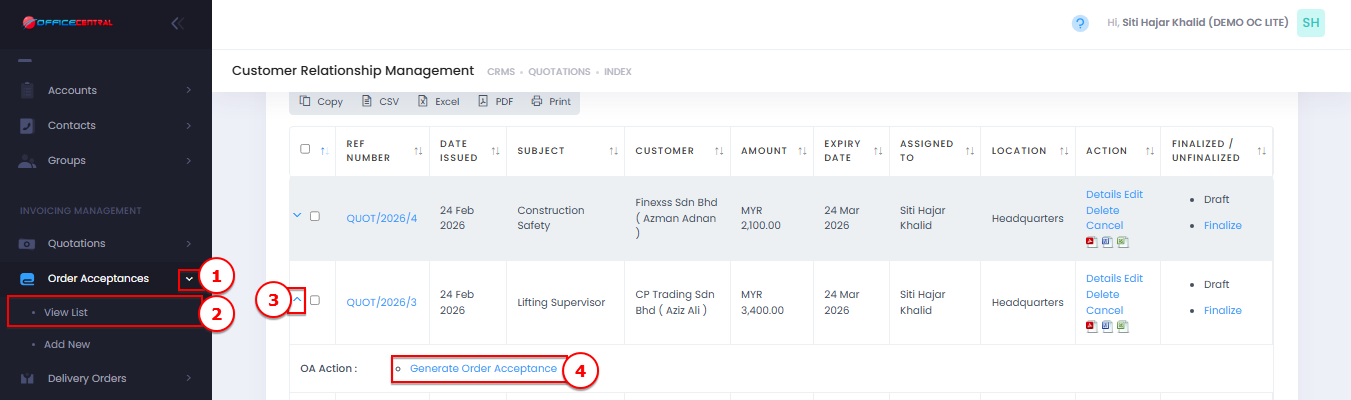
Go to Quotations > View List
Locate quotation that need order acceptance
Click Generate Order Acceptance
Review the details
Click Submit
Use the screenshot below to locate Generate Order Acceptance from Quotation module
Method 2: Create Order Acceptance
Add New Order Acceptance
Go to Order Acceptance > View List
Click Add
Fill in the required information
Click Submit
Fields to Fill
1. Order Information
| No. | Field | Description |
|---|---|---|
| 1 | Reference Number * | Auto-generated (e.g., OA/2026/5). It is recommended not to modify it, as any changes may disrupt the running number sequence. |
| 2 | Quotation Ref No | Optional. Select existing quotation |
| 3 | Date Issued * | Order date |
| 4 | Salesperson * | Staff in charge |
| 5 | Location * | Company location if applicable |
| 6 | Currency * | Default MYR |
| 7 | Exchange Rate * | Default 1 |
2. Customer Information
| No. | Field | Description |
|---|---|---|
| 1 | Customer | Select account |
| 2 | Add New Contact | Add new customer if needed |
3. Order Details
| Field | Description |
|---|---|
| Subject * | Order title |
| Discount | Tick if discount is in percentage |
| Tax Inclusive | Tick if price includes tax |
4. Items / Products
| Field | Description |
|---|---|
| Qty | Quantity of item |
| Unit | Unit of measurement (e.g. pax) |
| Custom Product | "Custom Product” as the default selection. To use an existing product, manually add it in Pricebook Management under the Pricebook section. |
| Code | Item code |
| Name | Item name. Auto generated if select pricebook |
| Description | Additional item details |
| Unit Price | Price per unit |
| Discount | Discount can be entered as an amount or a percentage. The percentage field is editable only when the “Discount in Percentage” checkbox is selected. |
| Tax | Applicable tax |
| Amount | Auto-calculated |
| Add Item | User can add more than 1 item |
5. Summary Calculation
| Field | Description |
|---|---|
| Amount Excl Tax | Total before tax |
| Discount | Total discount |
| Tax | Total tax |
| Amount Incl Tax | Final total amount |
6. Terms and Remarks
| Field | Description |
|---|---|
| Terms | Conditions for the quotation (visible to customer) |
| Remarks | Payment or additional notes (visible to customer) |
7. Internal Notes
| Field | Description |
|---|---|
| Internal Notes | For internal use only (not visible to customer) |
How to Edit
Go to Order Acceptance > View List
Click Edit next to the order acceptance
Update details if needed
Click Submit
Delete Order Acceptance
Go to Order Acceptance > View List
Click Delete next to the order acceptance
Confirm deletion
Cancel Order Acceptance
Go to Order Acceptance > View List
Click Cancel next to the order acceptance
Uncancel Order Acceptance
Go to Order Acceptance > View List
Click Details next to the order acceptance
Click Uncancel
Finalize Order Acceptance
Go to Order Acceptance > View List
Click Finalize next to the order acceptance
Confirm action
✅ Once finalized:
Cannot be edited / deleted / cancelled
Ready to generate Delivery Order or Invoice
Best Practices
Use Generate Order Acceptance from Quotation module whenever possible
Always verify item details and pricing
Finalize only when order is confirmed
Link documents properly for better tracking