
This guide explains how to create, edit, delete, and finalize Receipt in CRM.
A receipt is used to record payment received from customers and is the final step in the financial transaction process.
? Where to Access CRM
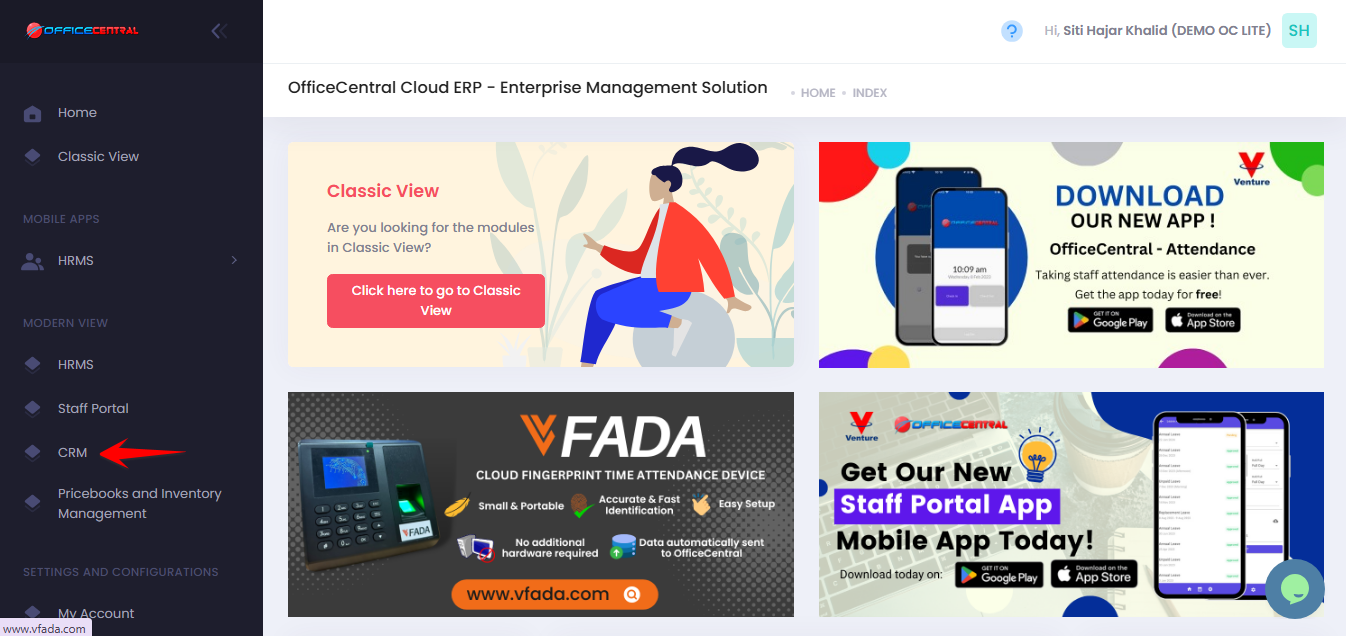
Where to Access This Function
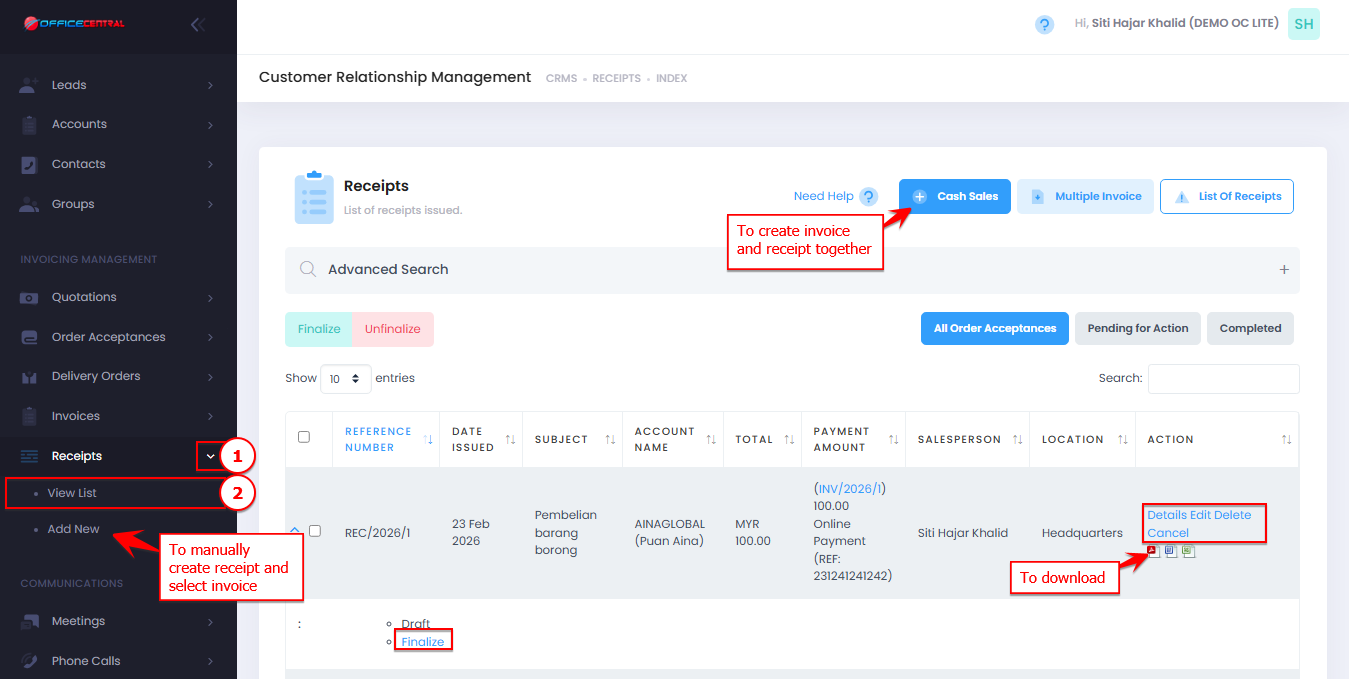
On the Receipts page, you will see:
| No. | Function | Description |
|---|---|---|
| 1 | Cash Sales | Create invoice and receipt together |
| 2 | Add New | Manually create receipt and select invoice |
| 2 | Edit | Modify existing receipt |
| 3 | Delete | Remove receipt permanently |
| 4 | Details | View full information of receipt |
| 5 | Cancel | Cancel receipt The details of the receipt is not deleted from the database |
| 6 | Finalize | Confirm and lock the document |
| 7 | Download | Download receipt in PDF / Excel / Words |
Use the screenshot below to locate these buttons.
Ways to Create Invoices
There are 3 methods:
| Method | Description |
|---|---|
| Generate from Invoice | Recommended method with auto-filled data |
| Create receipt and link invoice | Manually create receipt and select invoice |
| Create Cash Sales | Create invoice and receipt at the same time |
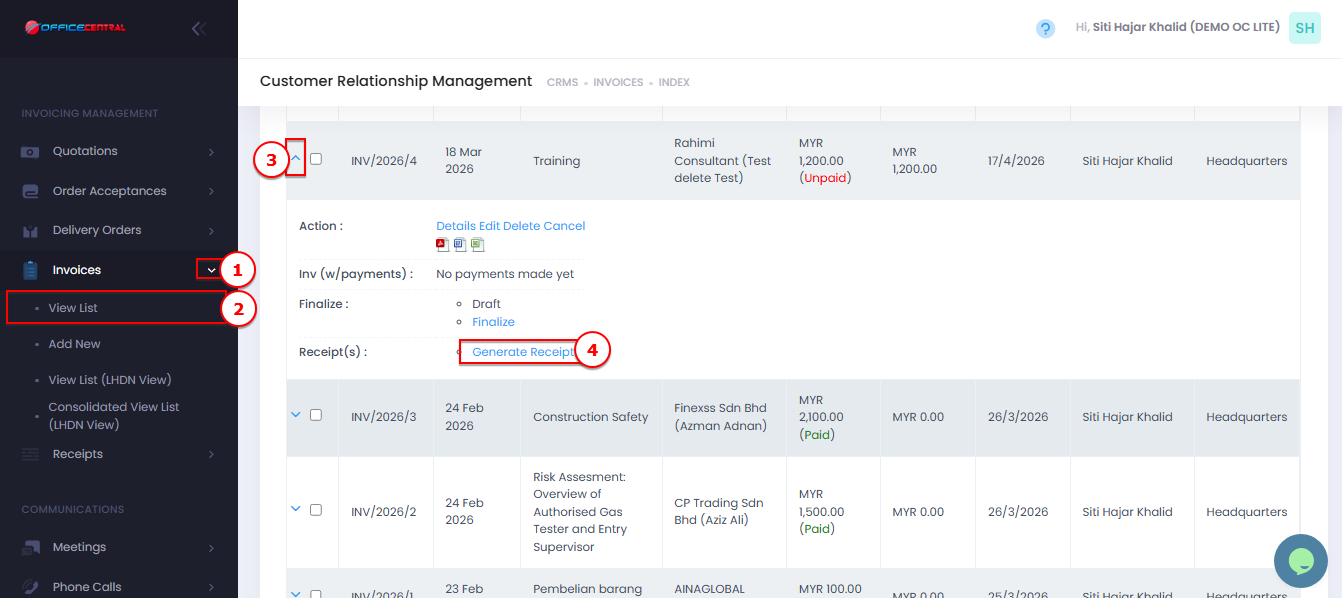
Method 1: Generate from Invoice
Go to Order Invoices > View List
Locate invoice that need receipt
Click Generate Receipt
Review the details
Click Save
Use the screenshot below to locate Generate Receipt from Invoices module
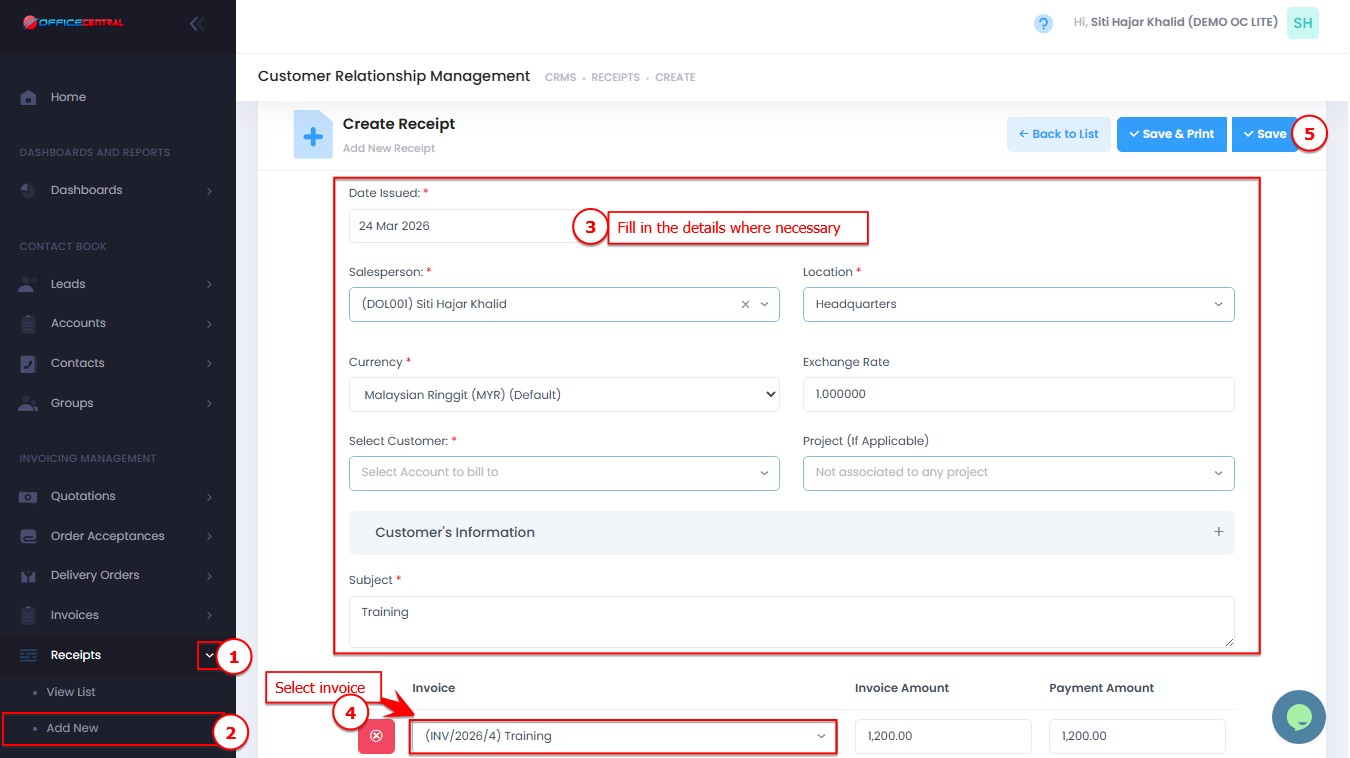
Method 2: Create Receipt and Link Invoice
Go to Receipts > Add New
Fill in the details
Select invoice
Click Save
Use the screenshot below to locate the button
Method 3: Cash Sales (Invoice + Receipt Together)
Go to Receipts > View List
Click Cash Sales
Fill in the required information
Click Save
Fields to Fill
1. Order Information
| No. | Field | Description |
|---|---|---|
| 1 | Reference Number * | Auto-generated (e.g., DO/2026/5). It is recommended not to modify it, as any changes may disrupt the running number sequence. |
| 2 | Order Acceptance Ref No | Optional. Select existing order acceptance |
| 3 | Date Issued * | Order date |
| 4 | Date Due | Due to pay |
| 5 | Salesperson * | Staff in charge |
| 6 | Location * | Company location if applicable |
| 7 | Currency * | Default MYR |
| 8 | Exchange Rate * | Default 1 |
2. Customer Information
| No. | Field | Description |
|---|---|---|
| 1 | Bill To * | Select account |
| 2 | Add New Contact | Add new customer if needed |
3. Order Details
| Field | Description |
|---|---|
| Subject * | Invoice title |
| Discount | Tick if discount is in percentage |
| Tax Inclusive | Tick if price includes tax |
4. Items / Products
| Field | Description |
|---|---|
| Qty | Quantity of item |
| Unit | Unit of measurement (e.g. pax) |
| Custom Product | "Custom Product” as the default selection. To use an existing product, manually add it in Pricebook Management under the Pricebook section. |
| Code | Item code |
| Name | Item name. Auto generated if select pricebook |
| Description | Additional item details |
| Unit Price | Price per unit |
| Discount | Discount can be entered as an amount or a percentage. The percentage field is editable only when the “Discount in Percentage” checkbox is selected. |
| Tax | Applicable tax |
| Amount | Auto-calculated |
| Add Item | User can add more than 1 item |
5. Summary Calculation
| Field | Description |
|---|---|
| Amount Excl Tax | Total before tax |
| Discount | Total discount |
| Tax | Total tax |
| Amount Incl Tax | Final total amount |
6. Optional – Auto Create Delivery Order
| Field | Description |
|---|---|
| Automatically create Delivery Order | Tick to auto-create DO |
⚠️ DO will only be created if:
- Invoice is NOT generated from DO or Order Acceptance
7. Payment Section
Fill in payment details:
| Field | Description |
|---|---|
| Bank | Select company bank account. Bank options can be added from Global Configuration. Please refer How to Manage Company Bank Account |
| Payment Status | Choose either to create invoice only or to create both invoice and receipt |
| Payment Amount | Enter amount received |
| Payment Method | Cash, bank transfer, etc. |
| Payment Ref Number | Reference (e.g., transaction ID) |
8. Terms and Remarks
| Field | Description |
|---|---|
| Terms | Conditions for the invoices (visible to customer) |
| Remarks | Payment or additional notes (visible to customer) |
9. Internal Notes
| Field | Description |
|---|---|
| Internal Notes | For internal use only (not visible to customer) |
How to Edit
Go to Receipts > View List
Click Edit next to the receipt
Update details if needed
Click Save
Delete Receipt
Go to Receipts > View List
Click Delete next to the receipt
Confirm deletion
Cancel Receipt
Go to Receipts > View List
Click Cancel next to the receipt
Finalize Invoice
Go to Receipt > View List
Click Finalize next to the receipt
Confirm action
✅ Once finalized:
Cannot be edited / deleted / cancelled
Best Practices
Use Generate Receipts from Invoices module
Always verify item details and pricing
Finalize only when receis confirmed
Link documents properly for better tracking