
This guide explains how to create and manage customer accounts (Debtors) in OfficeCentral Accounting.
Creating a debtor is mandatory before issuing invoices or receiving payments.
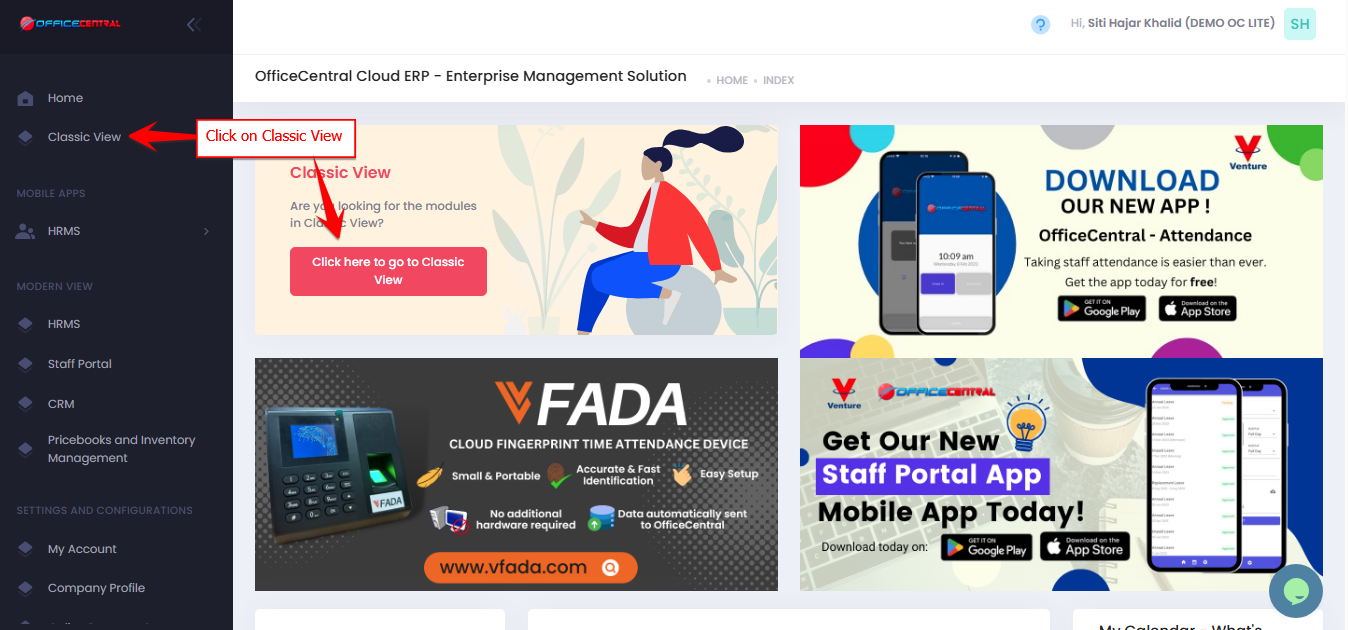
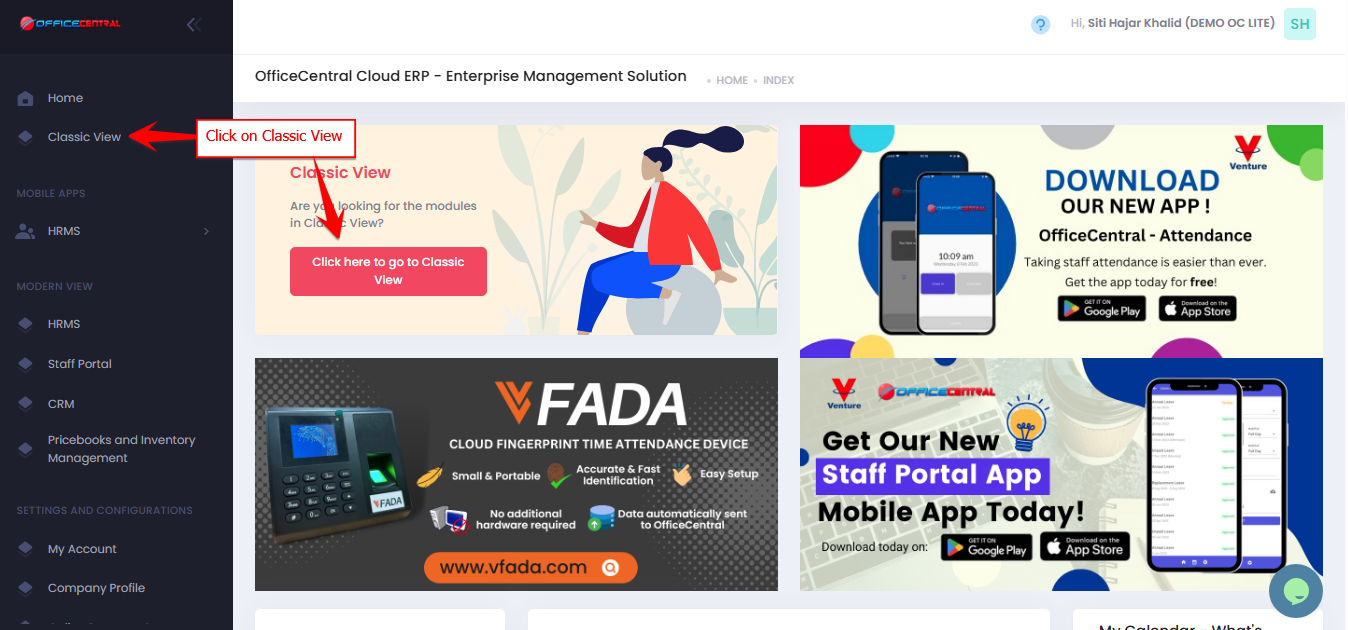
Where to Access Accounting

How to Create a New Customer / Debtor
Step 1: Access the Create Function
Go to Accounting > Revenues > Debtors > Add New
Use the screenshot below to locate these buttons.

Step 2: Fill in Account Information
| Field | Description |
|---|---|
| Registration Number | Customer / Company registration number |
| Account Type * | Usually set as Customer |
| Name * | Full customer/company name |
Step 3: Fill in LHDN e-Invoicing Information
| Field | Description |
|---|---|
| Registration Type | Default: Other |
| TIN | Tax Identification Number from LHDN (without space) |
| New Registration Number (For e-Invoicing use only!) | Make sure to use NEW Registration Number |
| Account MSIC Code (if applicable) | Optional |
? Detailed e-Invoice instructions are covered in a separate article.
Step 4: Fill in Contact Information
| Field | Description |
|---|---|
| Street 1 & 2 | Customer address |
| Postcode | Postal code |
| City / State / Country | Location details |
| Phone | Include country code |
| Fax | Optional |
| For sending invoices (OC credit chargeable) |
Step 5: Fill in Bank Information
| Field | Description |
|---|---|
| Payable To | Name of account holder for payments |
| Bank Name | Customer’s bank |
| Bank Account No | Customer’s bank account number |
Step 6: Fill in SST Information
| Field | Description |
|---|---|
| SST No | SST registration number |
| Date SST Verified | Date SST number was verified |
Step 7: Fill in Optional E-Invoicing Payment Information
| Field | Description |
|---|---|
| Payable To | Optional alternate bank account for e-invoicing payments |
| Bank Name | Optional |
| Bank Account No | Optional |
Step 8: Fill in Other Information (MUST)
| Field | Description |
|---|---|
| Location * | Choose location for financial report. OC Lite users: limited to headquarters only |
| Map To Chart of Account * | Map this customer to Debtors in Chart of Accounts. Please refer image below |

Step 9: Save the Customer
Review all details
Click Submit at the top of the page
How to View Customer / Debtor Details
Go to Accounting > Revenues > Debtors > View List
Search customer name
Click on "Click here to edit Account"
Note: In View list page, user can also access customer's / debtor's transaction info (General Ledger, Account Statement, Statement of Account, Debtor Statement)
How to Edit Customer / Debtor
- Go to Accounting > Revenues > Debtors > View List
- Search customer name
- Click on "Click here to edit Account"
- Make necessary modification
- Click Save
⚠️ Important Notes
Map the customer correctly to Debtors Chart of Accounts for accurate financial reporting