
The Approver submodule allows you to assign approval workflows for:
Leave
Course
Movement
Compensatory Time Off
Recruitment
Overtime
Overtime Application
? Where to Access HRMS
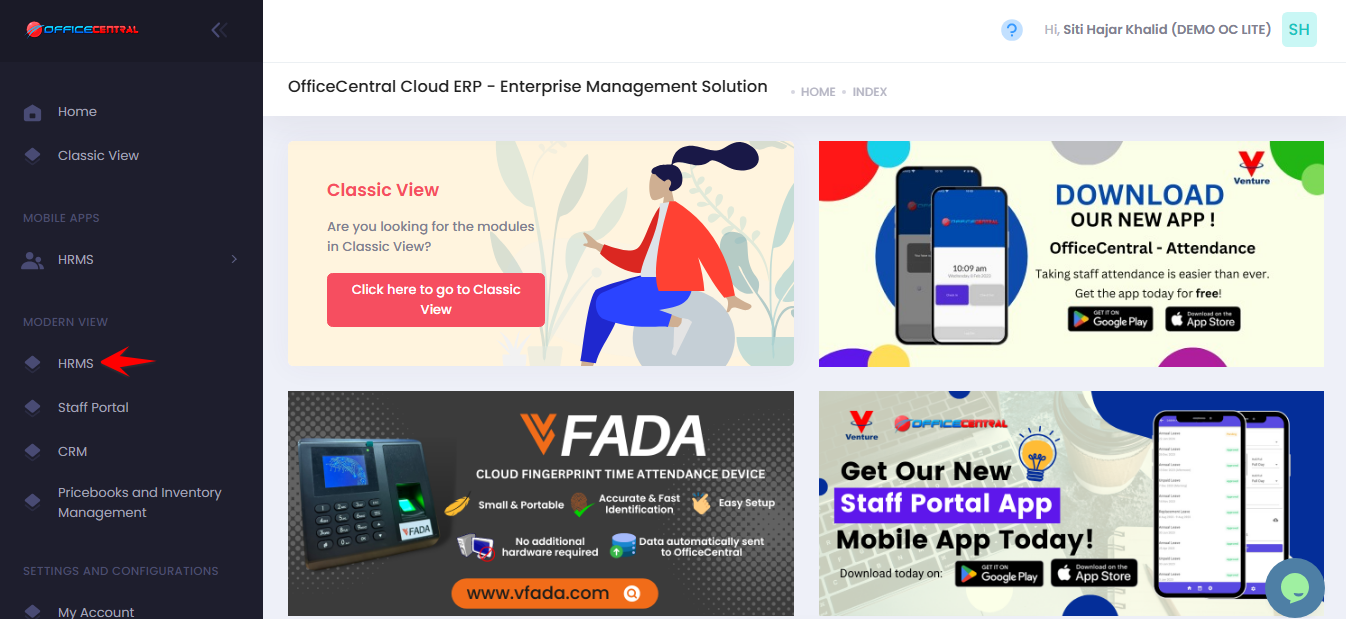
? Where to Access This Function
Go to Configurations
Click Approver
Click Set Staff Approver
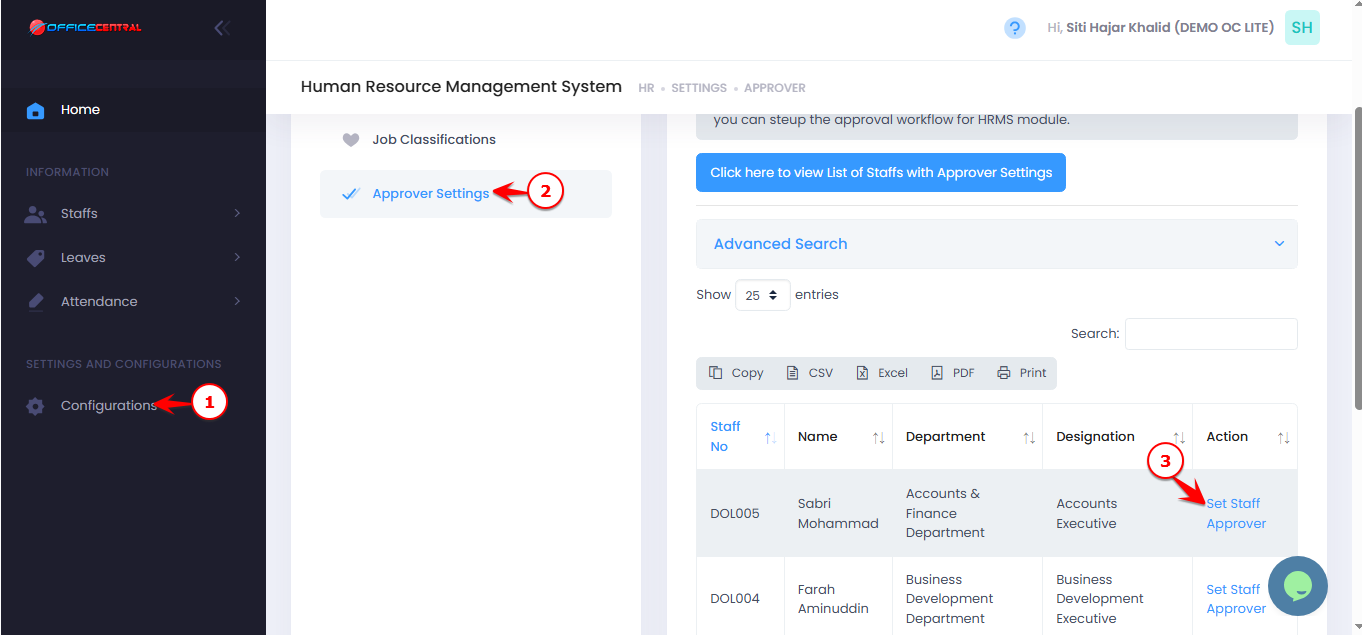
From here you can:
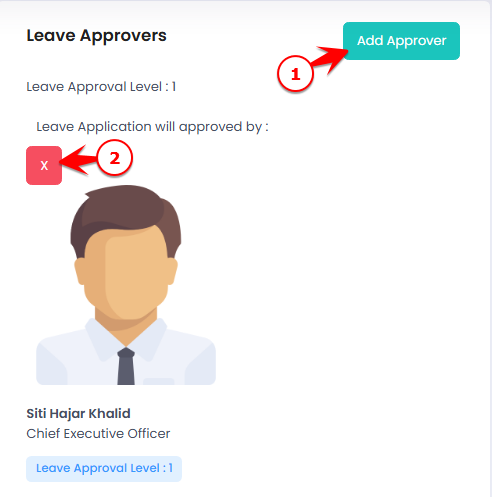
| No. | Action | Description | Button / Location |
|---|---|---|---|
| 1 | Add Approver | Add new approver | Click Add Approver |
| 2 | Delete | Remove approver | Click Delete |
Use the screenshot below to locate each button.
How to Set an Approver
Click Add Approver
Fill in the details:
| No. | Field | What to Enter |
|---|---|---|
| 1 | Approver Level | Enter approval level number |
| 2 | Approver | Select the staff who will approve |
| 3 | Staff To Be Approved | Select the staff who requires approval |
Click Submit to submit
❓ What Does “Approval Level” Mean?
Approval Level determines the sequence and structure of approval.
? Sequential Approval (Different Levels)
| Level | Meaning |
|---|---|
| 1 | First approver |
| 2 | Second approver (after Level 1 approves) |
| 3 | Third approver (after Level 2 approves) |
If Level 1 rejects → request is rejected immediately.
Level 2 will only receive the request after Level 1 approves.
? Parallel Approval (Same Level)
You can assign multiple approvers at the same level.
If multiple approvers are set at the same level number:
Only one of them needs to approve for the request to proceed.
If any one of them rejects, the request will be rejected.
Example:
| Approver | Level |
|---|---|
| Manager A | 1 |
| Manager B | 1 |
Either Manager A or Manager B can approve the request.
⚠️ Special Notes
1️⃣ Movement Auto-Approval Rule
If no approver is assigned for Movement, the system will automatically approve the movement request.
If you want movement requests to go through approval, you must assign at least one approver.
2️⃣ Important Rule About Approver Timing
Approvers must be configured before the staff submits the application (e.g., leave application).
If an approver is assigned after the application has already been submitted:
The configured approver will not be able to approve that existing application.
Only a user with Admin access can approve the application.
✅ Best Practice: Always ensure approvers are properly configured before staff start submitting applications.