
The Job Classifications submodule in OfficeCentral allows your company to:
Classify staff based on tiers or roles
Manage different leave entitlements
Ensure accurate application of leave rules and HR policies
⚠️ Note: If all employees have the same leave entitlements, you can skip this setup and use the default “Executive” classification.
? Where to Access HRMS
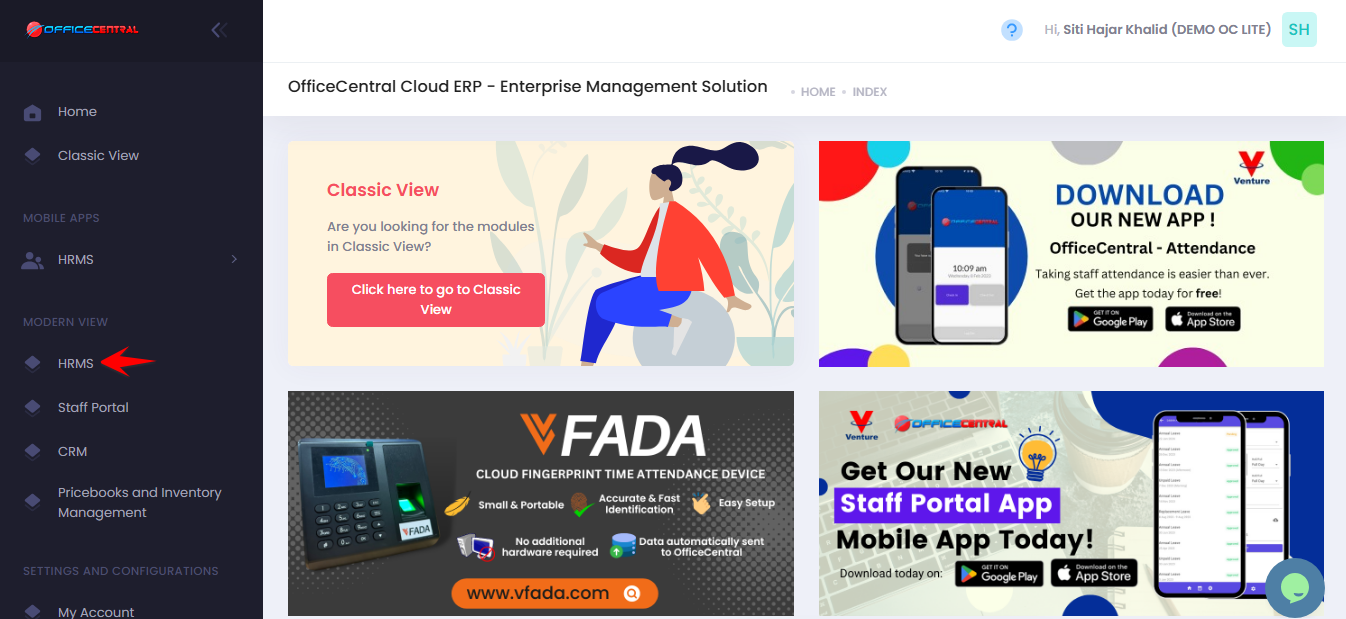
? Where to Access This Function
Go to Configurations
Click Job Classifications
From here, you can:
| No. | Action | Description | Button / Location |
|---|---|---|---|
| 1 | Add | Create a new job classification | Click New Record at the top of the page |
| 2 | Edit | Modify an existing job classification | Click Edit next to the classification in the list |
| 3 | Delete | Permanently remove an unused classification | Click Delete next to the classification (only available for unused data) |
| 4 | Deactivate | Temporarily disable a designation without deleting it | Click Deactivate next to the job classification in the list |
Use the screenshot below to locate each button:
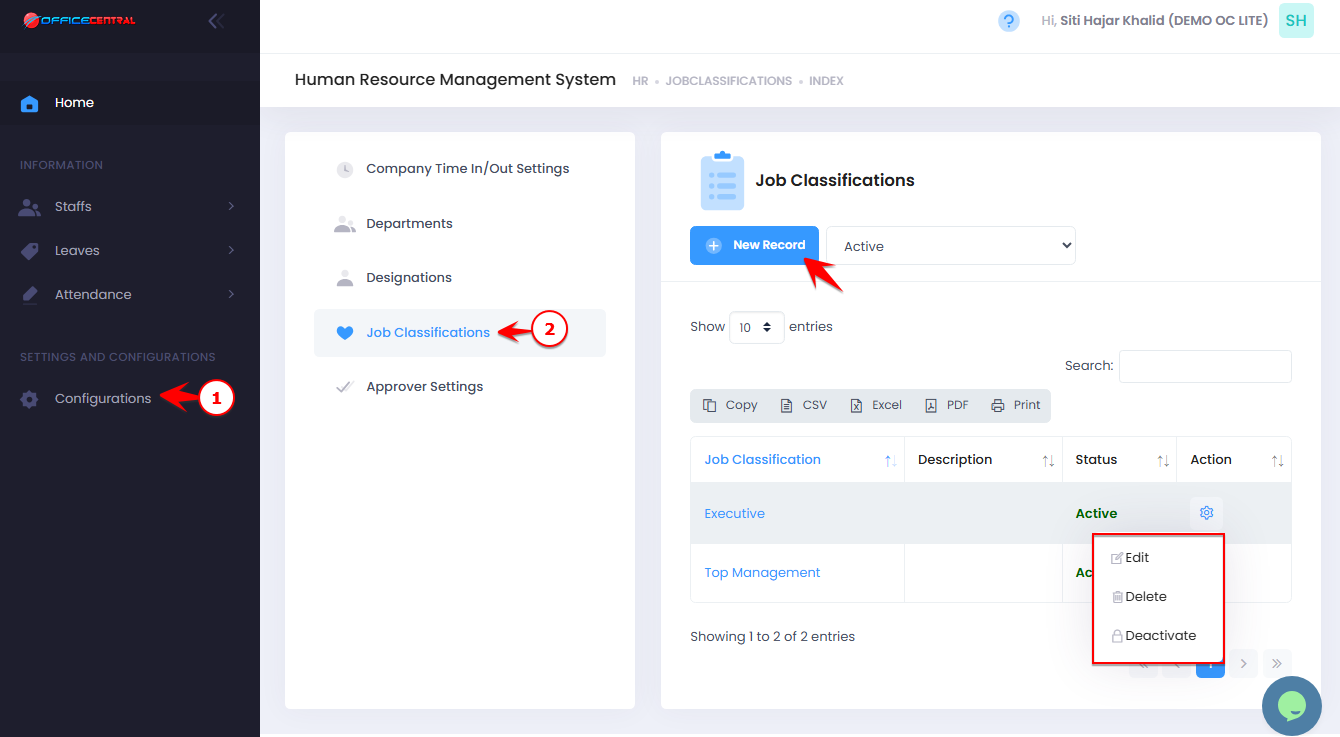
⚠️ Tip: Deleted job classifications cannot be recovered, so ensure you only delete data that is not used.
1️⃣ Add a New Job Classification
Click New Record
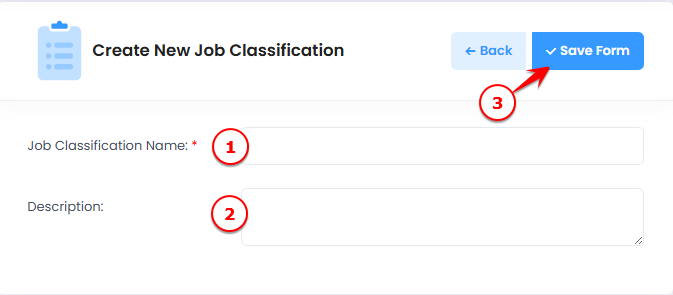
Fill in the job classification details:
| No. | Field | What to Enter |
|---|---|---|
| 1 | Job Classification Name | Name of the classification (e.g., Executive, Manager, Senior Staff) |
| 2 | Description | Optional notes describing the classification |
Click Save Form to create the job classification
Use the screenshot below to locate all fields and the Save button.
2️⃣ Edit an Existing Job Classification
Click Edit next to the classification you want to update
Modify the name or description as needed
Click Save to apply changes
Use the screenshot below to locate the Edit button.
3️⃣ Delete an Unused Job Classification
Click Delete next to the classification you want to remove
Confirm the deletion
⚠️ Only unused job classifications can be deleted. Deleted data cannot be recovered, so check carefully before deleting.