
❓ Accessing Location Settings
1️⃣ Go to Settings → Locations
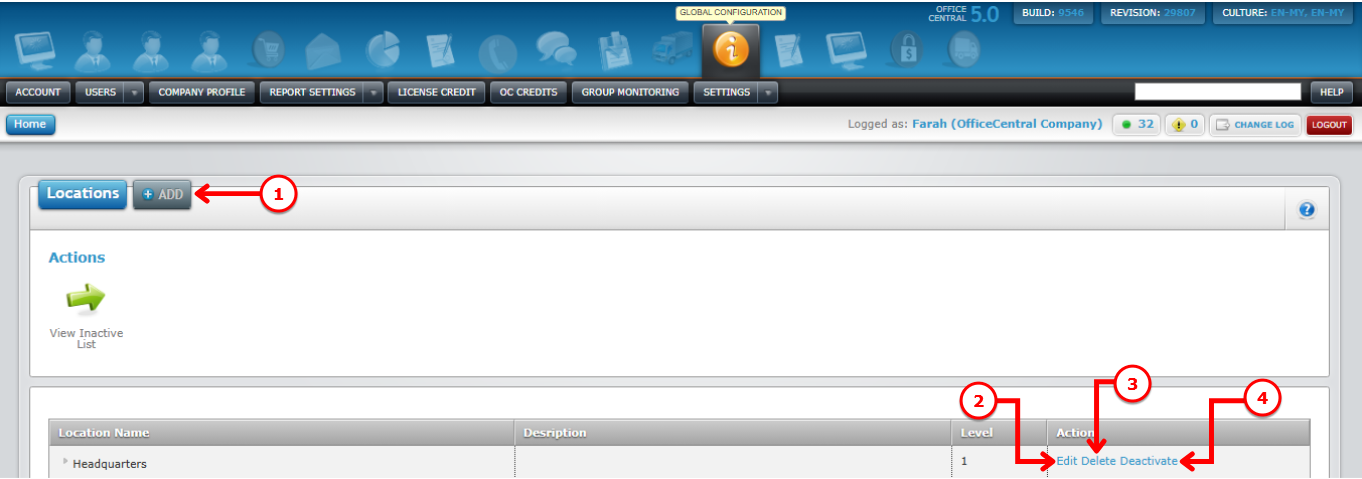
2️⃣ You will see the Locations List with the following buttons:
| No | Button | Function |
|---|---|---|
| 1 | Add | Add a new location |
| 2 | Edit | Update existing location information |
| 3 | Delete | Remove a location (only if it’s not linked to employees or modules) |
| 4 | Deactivate | Temporarily disable a location without deleting it |
Use the screenshot below to locate each button:
➕ How to Add a LocationClick Add
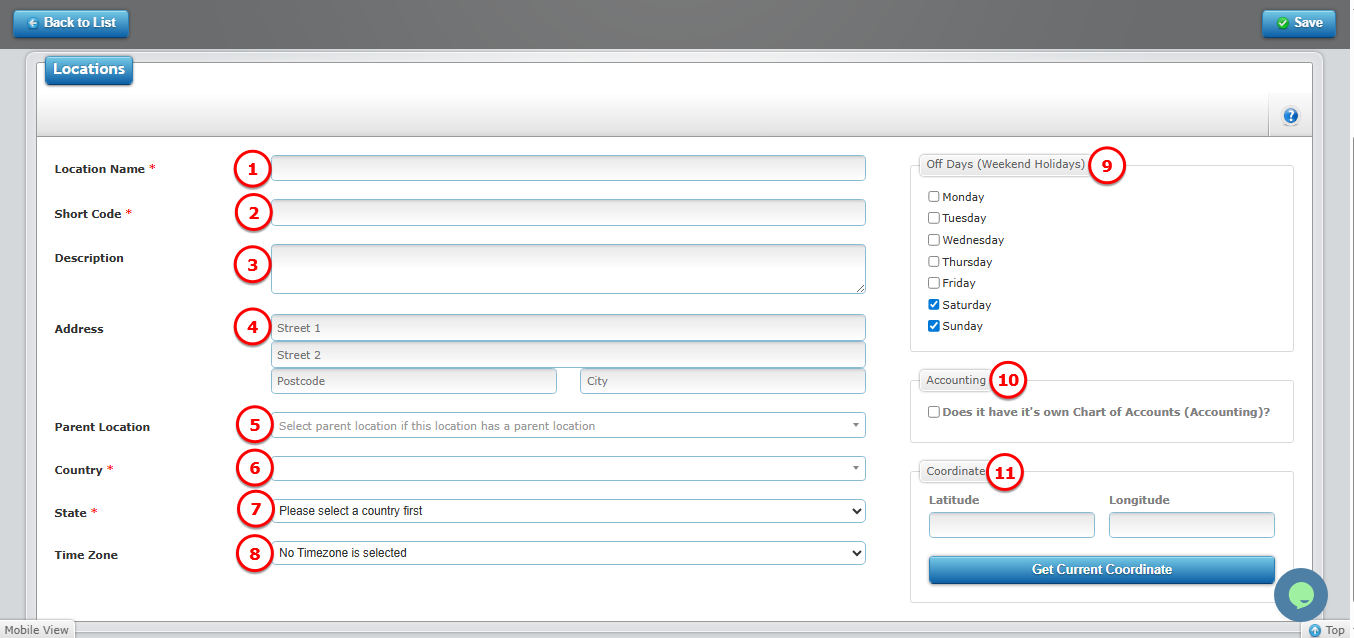
Fill in the required fields: Name, Short Code, Description, Address, Parent Location (if any), Country, State, Off-Days, Separate Accounting, Geolocation
No Field What to Enter Why it Matters 1 Location Name Full name of the location (e.g., “Head Office”)
2 Short Code Abbreviation or short code for the location
3 Description Optional notes about the location
4 Address Full address of the office or branch If your company has multiple branches, you can choose which branch address to use in financial transactions. 5 Parent Location If this location is under another branch, select the parent
6 Country Select the country for this location. This will be used for Used to apply Public Holidays for employees at this location 7 State Select the state for this location Used to apply State Holidays for employees at this location 8 Time Zone Select the time zone for this location
9 Off-Days Define weekly off-days for this location
10 Accounting Select if this location has its own Chart of Accounts Generate individual accounting reports if needed 11 Coordinate Click to fetch the office’s latitude & longitude automatically Used for attendance tracking, to measure how far staff check in from this location
Use the screenshot below to locate each button:
Click Add
Fill in the required fields: Name, Short Code, Description, Address, Parent Location (if any), Country, State, Off-Days, Separate Accounting, Geolocation
| No | Field | What to Enter | Why it Matters |
|---|---|---|---|
| 1 | Location Name | Full name of the location (e.g., “Head Office”) | |
| 2 | Short Code | Abbreviation or short code for the location | |
| 3 | Description | Optional notes about the location | |
| 4 | Address | Full address of the office or branch | If your company has multiple branches, you can choose which branch address to use in financial transactions. |
| 5 | Parent Location | If this location is under another branch, select the parent | |
| 6 | Country | Select the country for this location. This will be used for | Used to apply Public Holidays for employees at this location |
| 7 | State | Select the state for this location | Used to apply State Holidays for employees at this location |
| 8 | Time Zone | Select the time zone for this location | |
| 9 | Off-Days | Define weekly off-days for this location | |
| 10 | Accounting | Select if this location has its own Chart of Accounts | Generate individual accounting reports if needed |
| 11 | Coordinate | Click to fetch the office’s latitude & longitude automatically | Used for attendance tracking, to measure how far staff check in from this location |
Use the screenshot below to locate each button:
3. Click Save
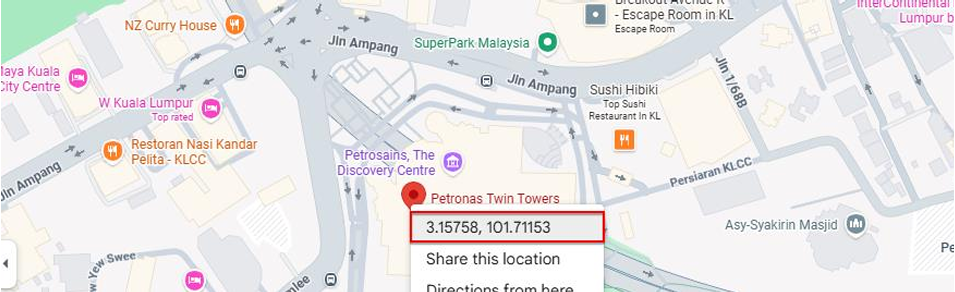
Note: You may verify your office location by visiting Google Map then right click to your office location as shown below:
✏️ How to Edit a Location
Click Edit next to the location you want to modify
Update any information
Click Save
? How to Delete a Location
Click Delete next to the location
Confirm deletion
⚠️ You can only delete a location if it is not attached to any employee or module.
⛔ How to Deactivate a Location
Click Deactivate next to the location
The location will remain in the system but will be inactive for assignment or payroll calculations
Useful if a branch temporarily closes but you don’t want to lose historical data.