
⚠️ Important: The system does not automatically update holidays every year, because:
Some holidays change dates yearly.
Not all companies follow the same public holidays.
You need to update your company’s holiday list each year.
Note: Some public holidays may already be included under the State Holidays function, depending on the state. Check the State Holidays list to avoid duplicates.
? Access Public Holiday Settings
1️⃣ Go to Global Configurations → Settings → Public Holidays > View List

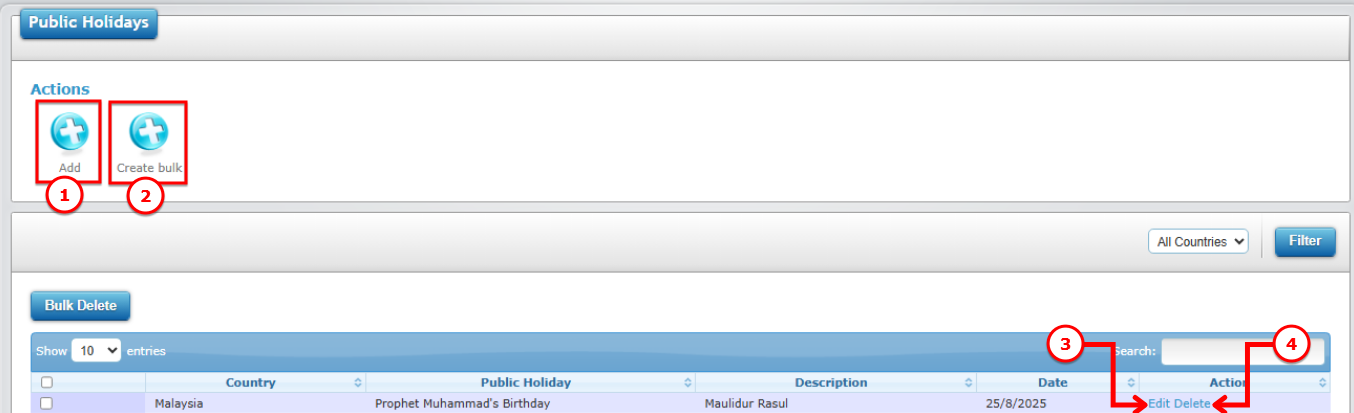
You will see the list of existing public holidays and buttons for managing them:
| No | Button | Function |
|---|---|---|
| 1 | Add | Add a single public holiday |
| 2 | Create Bulk | Add multiple holidays at once (recommended for annual setup) |
| 3 | Edit | Update existing holiday information |
| 4 | Delete | Remove a holiday from the system |
Use the screenshot below to locate the buttons:
? How to Add Public Holidays in Bulk (Recommended)
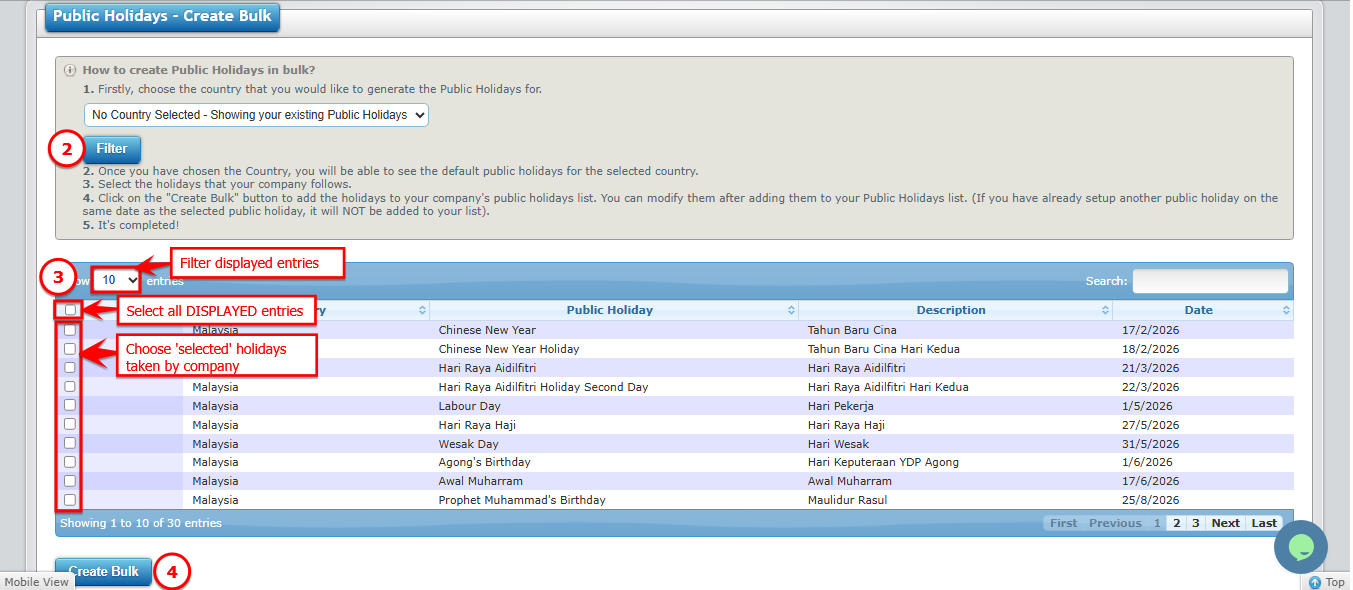
Adding all holidays for the year at once saves time and prevents errors.
Steps:
1️⃣ Click Add Bulk
2️⃣ Filter the country your company operates in
3️⃣ Select your list of holidays for the year
4️⃣ Click Create Bulk
? Tip: Prepare a full list of your company’s public holidays at the start of the year to ensure accurate leave calculations.
➕ How to Add a Single Public Holiday
If you only need to add one holiday:
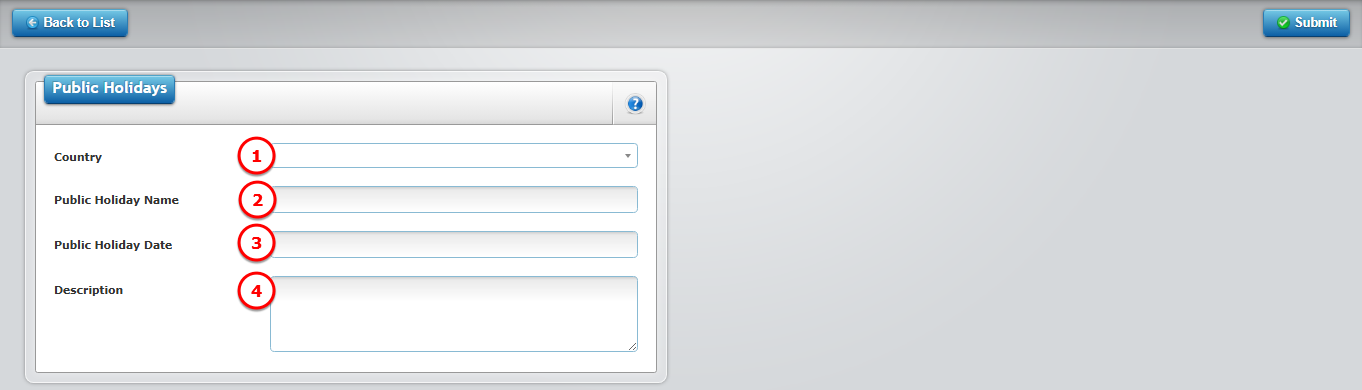
1️⃣ Click Add
2️⃣ Fill in the fields:
| No | Field | What to Enter |
|---|---|---|
| 1 | Country | Select the country for the holiday |
| 2 | Public Holiday Name | Name of the holiday (e.g., Labour Day) |
| 3 | Public Holiday Date | Select the date of the holiday |
| 4 | Description (Optional) | Any notes about the holiday |
3️⃣ Click Submit
✏️ How to Edit a Public Holiday
1️⃣ Click Edit next to the holiday you want to modify
2️⃣ Update the details (name, date, description)
3️⃣ Click Save
? How to Delete a Public Holiday
1️⃣ Click Delete next to the holiday
2️⃣ Confirm deletion
⚠️ Deleting a holiday will remove it from leave calculations, so ensure it’s no longer observed by the company before deleting.