
You can set up your company’s bank accounts in this section.
The bank information entered here will be used for:
Showing bank details on invoices
Payroll processing (if selected)
Accounting and reporting purposes
? Where Can I Access Bank Settings?
1️⃣ Go to Global Configurations > Settings > Banks > View List
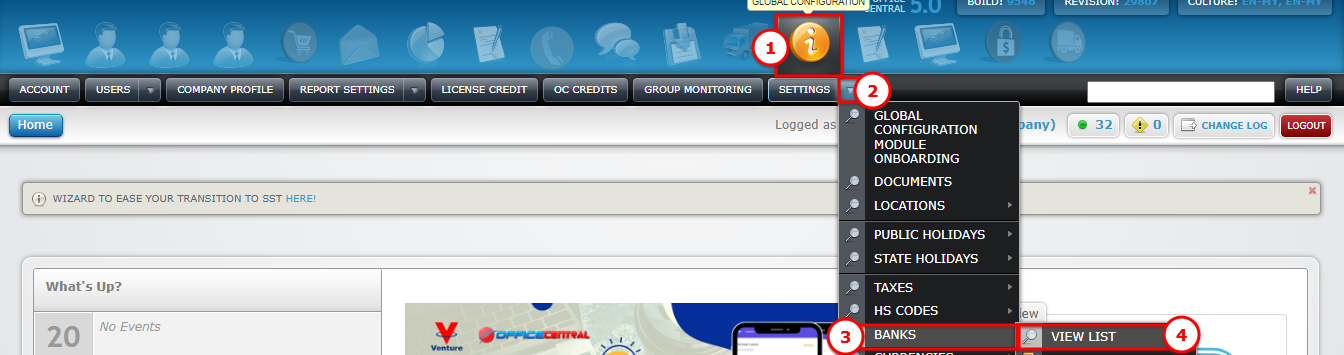
You will see the list of existing public holidays and buttons for managing them:
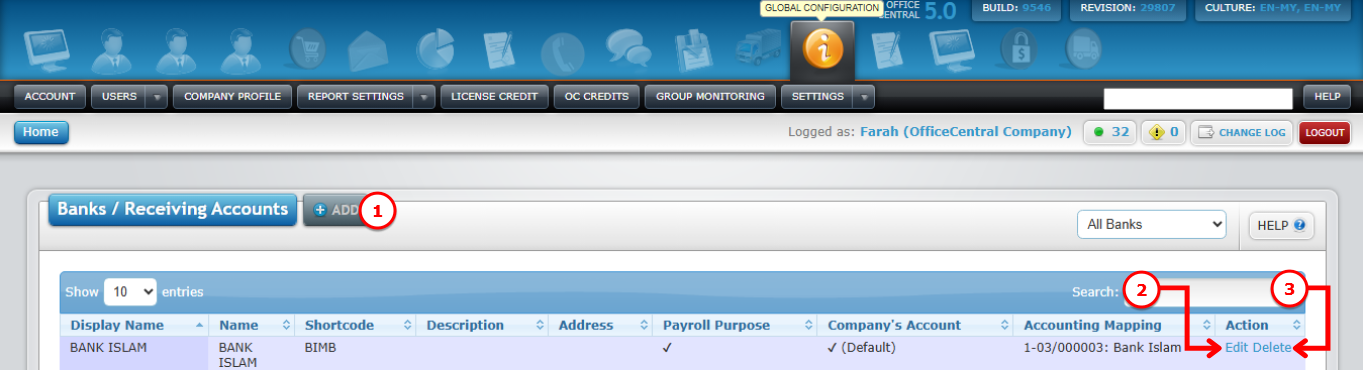
| # | Button | Function |
|---|---|---|
| 1 | Add | Add a new bank account |
| 2 | Edit | Modify existing bank details |
| 3 | Delete | Remove a bank account |
Use the screenshot below to locate the buttons:
➕ How to Add a New Bank Account
1️⃣ Click Add
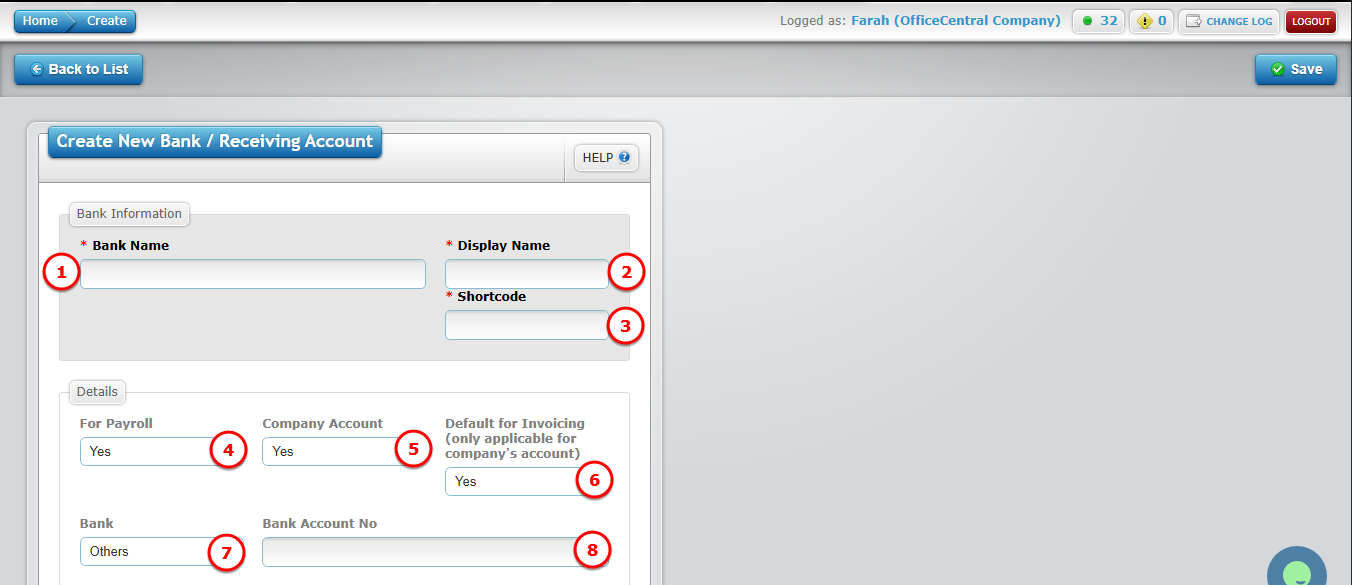
2️⃣ Fill in the required information:
| # | Field | What to Enter | Remarks |
|---|---|---|---|
| 1 | Bank Name | Name of the bank account (e.g., Maybank) | |
| 2 | Display Name | Name of the bank account (it can be same as bank name) | |
| 3 | Short Code | Short name to identify the bank (e.g., MBB for Maybank) | |
| 4 | Use for Payroll | Select Yes or No | Select Yes if any staff receive salary through this bank |
| 5 | Company Account | Select Yes or No | Select Yes if this is the company’s bank account. You must fill in Bank Name and Bank Account Number |
| 6 | Default for Invoicing | Select Yes or No (This bank will appear in CRM invoices if set as default) | Select Yes if this bank will be used as the default bank for CRM financial transactions |
| 7 | Bank | Select Maybank, CIMB, or Others | Required only if it is a company bank |
| 8 | Bank Account Number | Enter your company’s bank account number | Required only if it is a company bank |
? Select Chart of Account (Important Step)
After filling in the bank details:
1️⃣ Scroll to the bottom of the page
2️⃣ Select the Chart of Account for the bank
⚠️ Only accounts under Current Assets (Bank Accounts) will be available for selection.
? Important:
If you do not see any account under Current Assets (Bank Accounts), you must complete the Accounting Setup first.
3️⃣ Click Save
✅ Your new bank account is now successfully added.

✏️ How to Edit a Bank Account
1️⃣ Click Edit next to the bank account
2️⃣ Update the necessary information
3️⃣ Click Save
? How to Delete a Bank Account
1️⃣ Click Delete next to the bank account
2️⃣ Confirm deletion
⚠️ Make sure the bank account is not linked to active invoices, payroll, or accounting entries before deleting.
format template so everything looks uniform and professional.