
This guide explains how to apply for leave and manage your leave applications in the Staff Portal.
Objective
This function allows employees to:
Apply for leave
Track leave application status
View leave history and balance
For approvers, it also allows:
Approve or reject leave applications
Where to Access Staff Portal
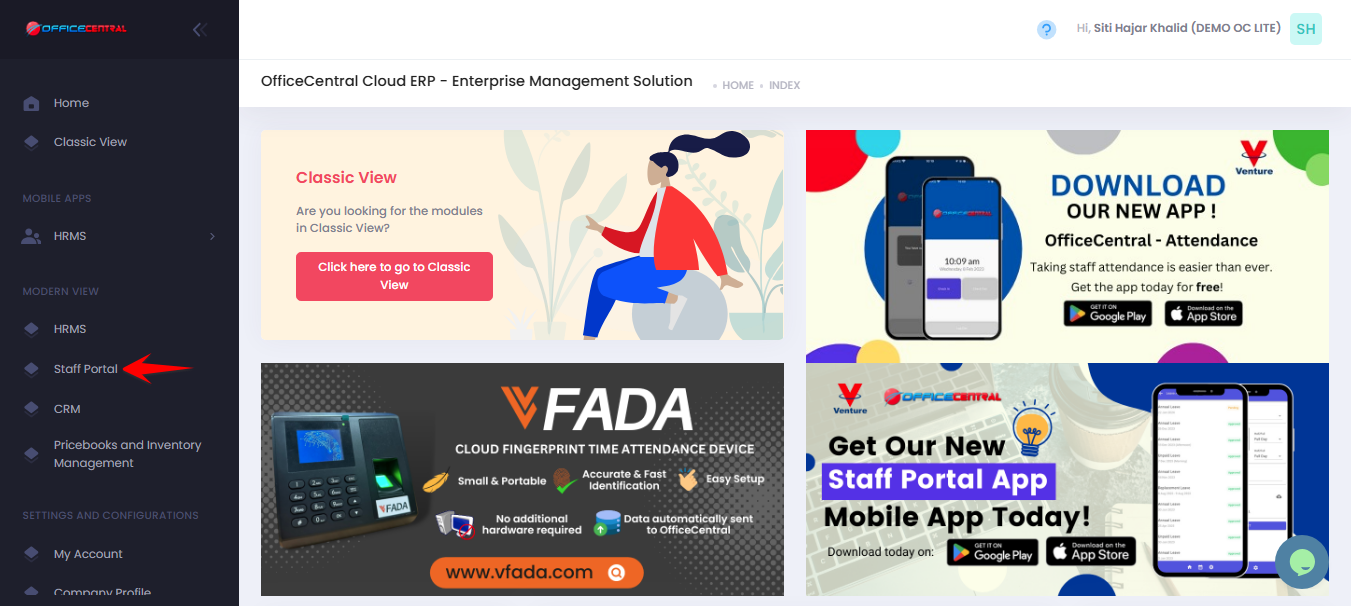
1️⃣ How to Apply Leave
Step 1: Access Leave Application
Go to Staff Portal > My Leave > Apply
Use the screenshot below to locate these buttons
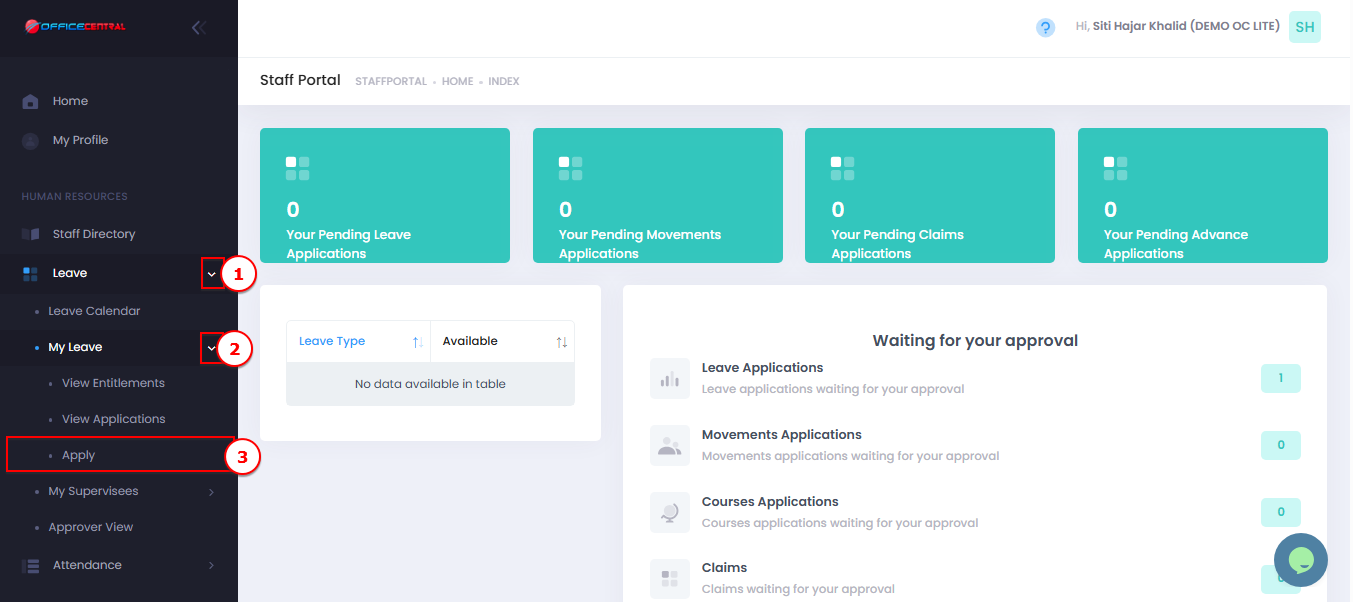
Step 2: Fill in Leave Details
Enter the required information:
| Field | Description |
|---|---|
| Leave Type * | Select type (e.g., Annual Leave, Medical Leave) |
| Date From * | Start date of leave |
| Date To * | End date of leave |
| Duration | All day / Half day (if applicable) |
| Reason * | Brief explanation for leave |
Step 3: Submit Application
Review the details
Click Save Form
? Your leave application will be sent for approval
2️⃣ How to Manage Leave
View Leave Status
Go to Staff Portal > My Leave > View Applications
View list of applications
You can check status such as:
Pending – Waiting for approval
Approved – Leave confirmed
Rejected – Not approved
Edit or Cancel Leave
Go to Staff Portal > My Leave > View Applications
Click Edit or Cancel on the action column
⚠️ Note:
- Approved leave may require approver action to modify
- You may edit pending leave applications only
- User can only cancel leave before the leave's start date