
OC Credit is required for:
SMS messages sent to staff
Emails sent to staff (e.g., notifications, payslips)
Accounting reports sent by email (e.g., General Ledger, Aging reports)
Financial documents sent to customers:
Quotation
Order Acceptance
Invoice
Receipt
Delivery Order
Any feature that uses AI functions
⚠️ Tip: Make sure your account has enough OC Credit before enabling features that consume credits.
? Where to Access This Function
Go to Global Configuration
Click OC Credit
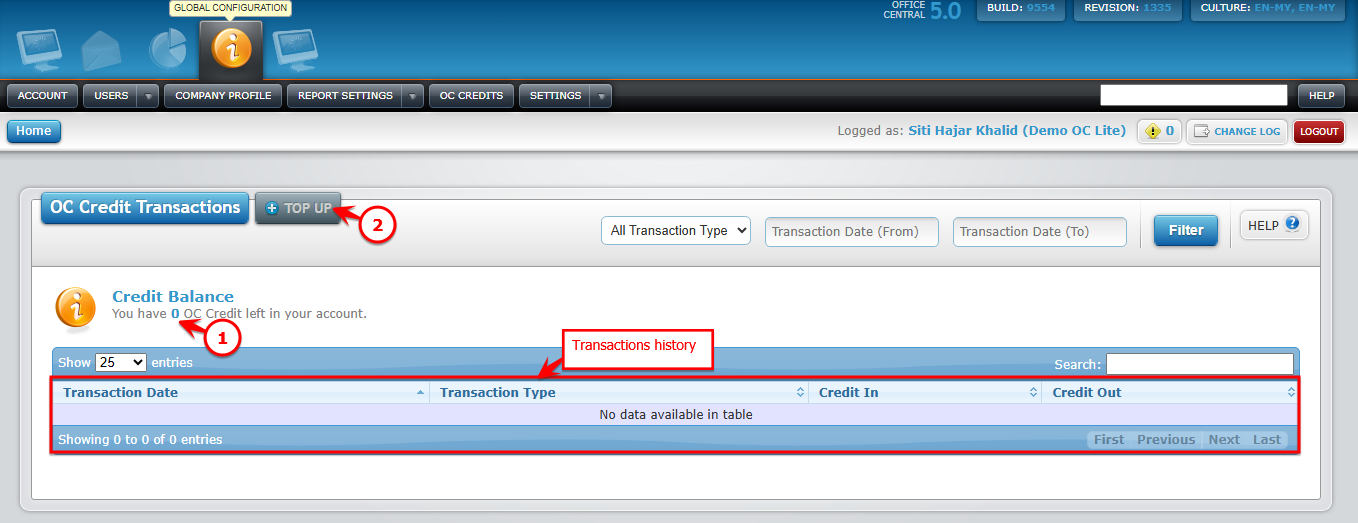
Use the screenshot below to locate each button:

Steps to Top-Up OC Credit
1️⃣ Check Current Credit Balance
The top section of the page shows your current OC Credit balance.
Make note of your remaining credit before topping up.
2️⃣ Click Top-Up
Locate the Top-Up button and click it.
Use the screenshot below to locate each button:
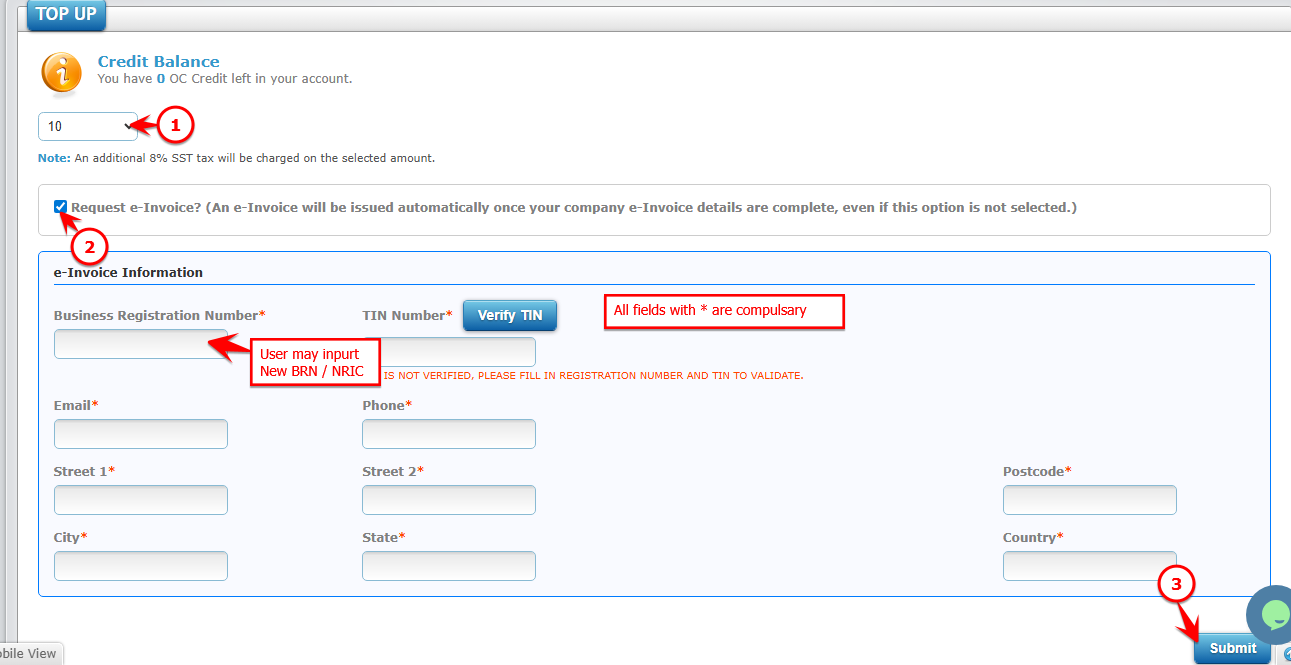
3️⃣ Choose Top-Up Amount & Request e-Invoice
| No. | Field | What to Do |
|---|---|---|
| 1 | Top-Up Amount | Select or enter the number of OC Credits to purchase |
| 2 | Request e-Invoice | Check this option if you need an official e-Invoice for your purchase |
| 3 | Submit | Click Submit to proceed to next step |
4️⃣ Confirm Payment
System will direct user to FPX, please select bank
Click Confirm to proceed
5️⃣ Verify Top-Up
Once payment is processed, your OC Credit balance will update automatically
Check the transaction history section to confirm