
This article explains how to manage staff status in OfficeCentral. It clarifies the difference between Resign, Deactivate, Suspend, and Unassign, and when to use each action.
? Where to Access HRMS
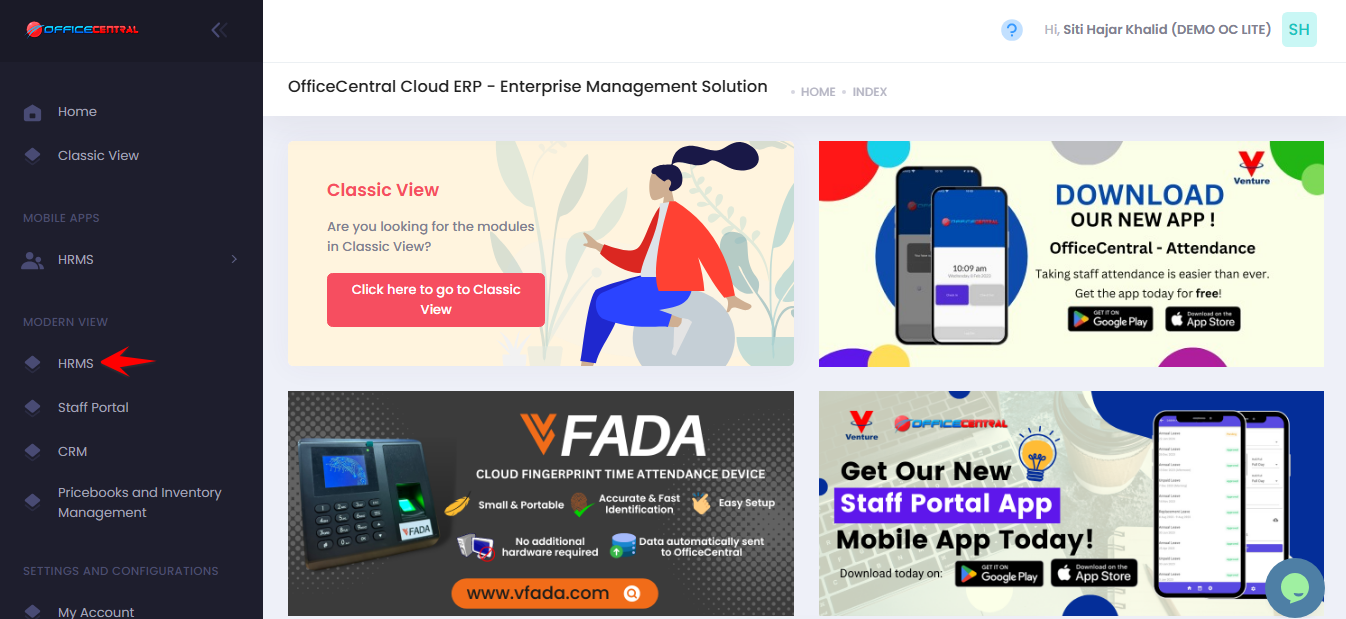
? How to set staff as resign / deactivate / suspend / deactivate & unassign
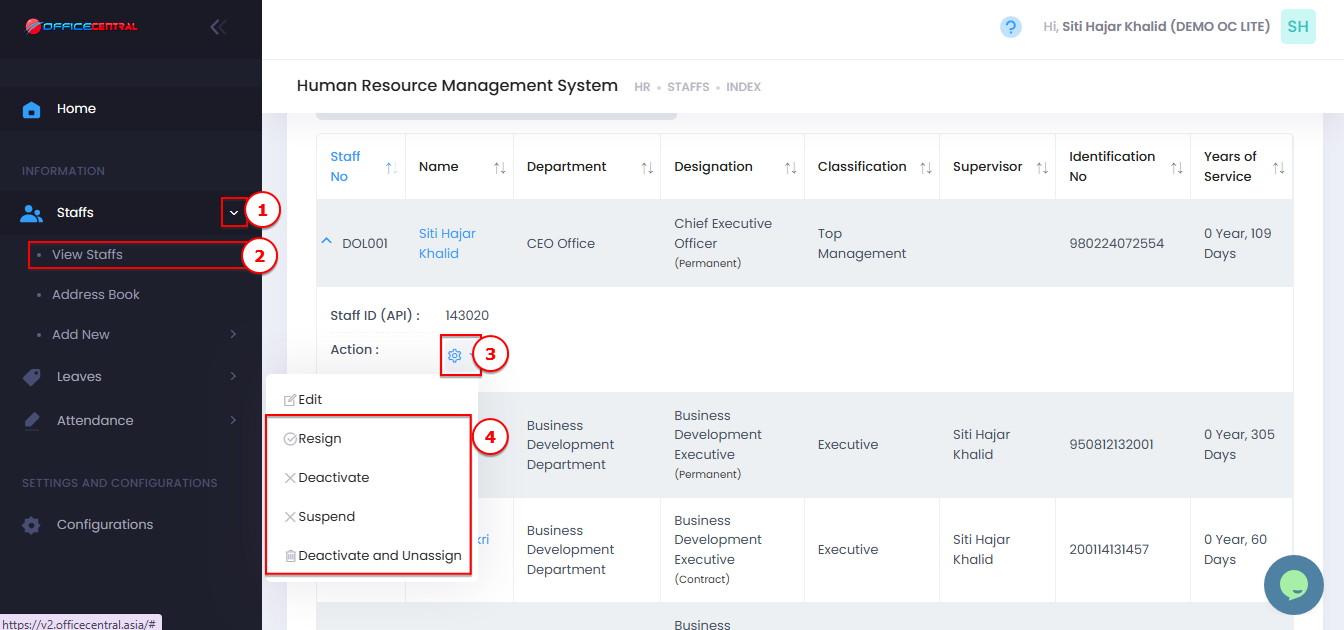
Go to Staff
Click View List
Search for the staff name
Click Action Button
Click Resign / Deactivate / Suspend / Deactivate and Unassign
Update the necessary information
Always click Save or Submit after making any update.
Use the screenshot below to identify the buttons.
? Comparison Table
| Action | When to Use | Staff Visible in List? | Payroll Processing | Can Log In? | Data Deleted? | Reversible? | Notes |
|---|---|---|---|---|---|---|---|
| Resign | Staff leaves company permanently | ✅ Yes (active) | ✅ Yes | ✅ Yes (if have access) | ❌ No | ❌ No | Only used to fill resignation details; no other restrictions applied |
| Deactivate | Hide resigned or inactive staff | ✅ Yes (filtered to inactive) | ❌ No | ✅ Yes (if have access) | ❌ No | ✅ Yes (can reactivate) | Suitable for ex-staff records retention |
| Suspend | Temporary unpaid leave / payroll hold | ✅ Yes (active) | ❌ No | ✅ Yes (if have access) | ❌ No | ✅ Yes (can unsuspend) | Only affects payroll; system access remains if enabled |
| Deactivate & Unassign | Staff should lose system access completely | ✅ Yes (filtered to inactive) | ❌ No | ❌ No | ❌ No | ✅ Yes (can reassign) | Unassign removes all OfficeCentral access regardless of role; to remove partial access, admin should adjust in Global Configuration → Role Groups |