
The Attendance Report module allows users to:
View Daily Attendance (all staff based on selected date)
View Summary by Staff (monthly or custom date range)
Filter by date
Download reports in CSV, Excel, or PDF format
? Where to Access HRMS
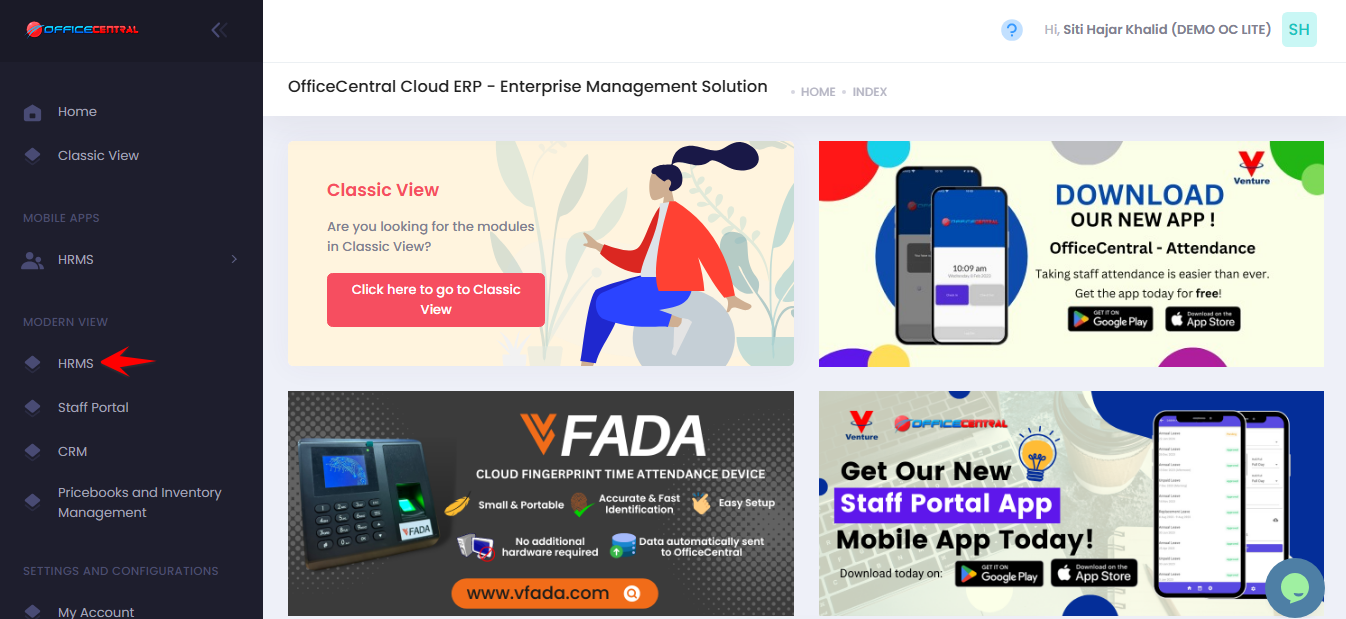
1️⃣ Where to Access This Function
Go to:
Attendance → Attendance Report
You will reach the Attendance Report page where you can select report type.
Use the screenshot below to locate the buttons.
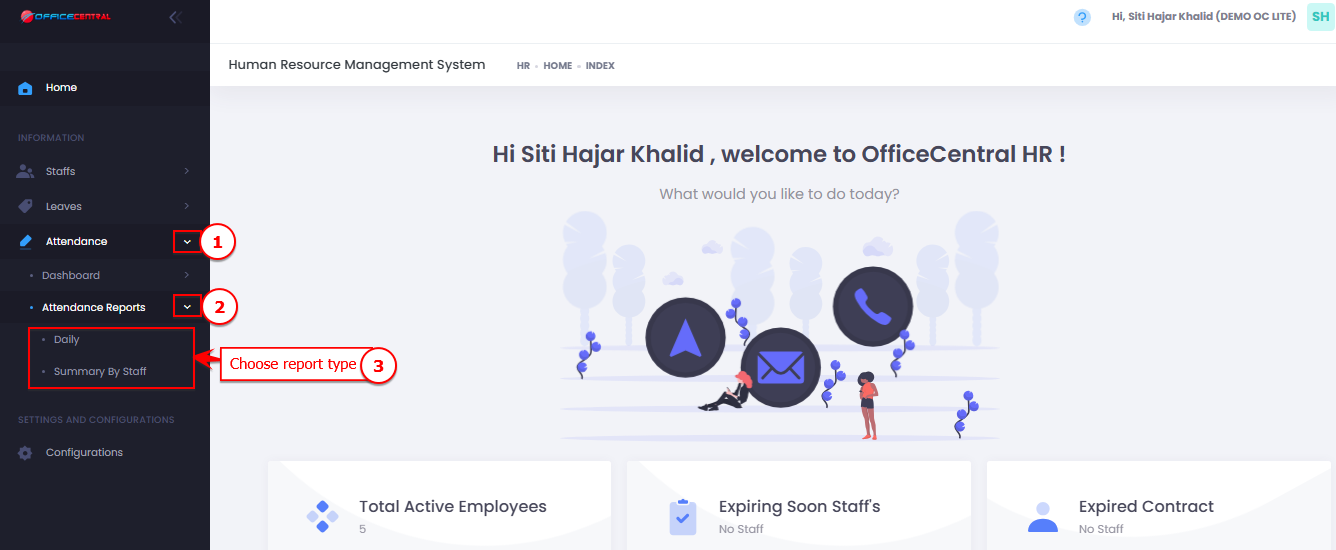
? Step 1: Select Report Type
You may choose one of the following:
Daily Attendance
Summary by Staff
? Daily Attendance Report
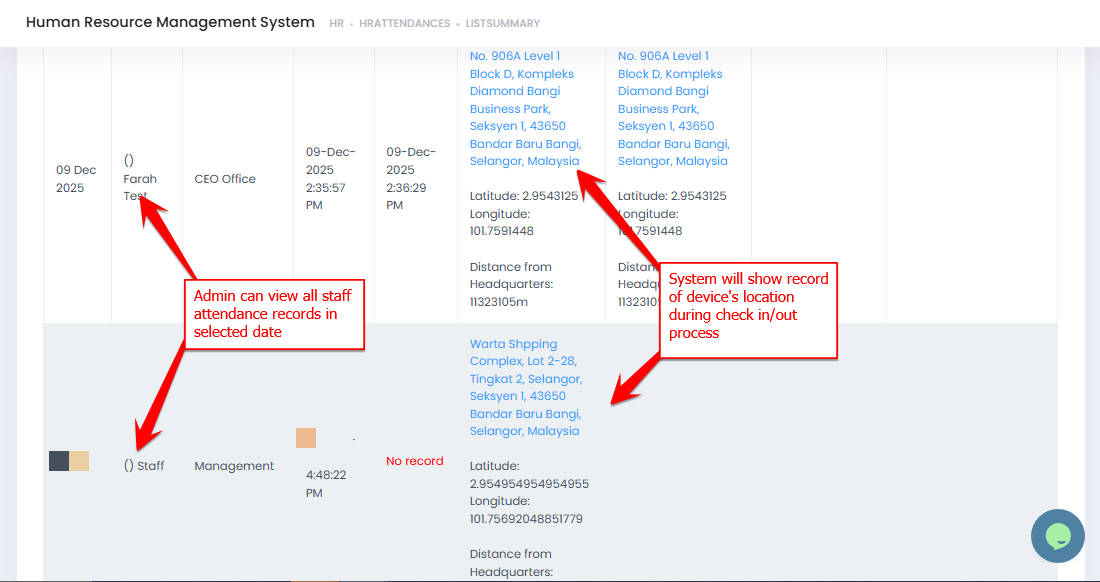
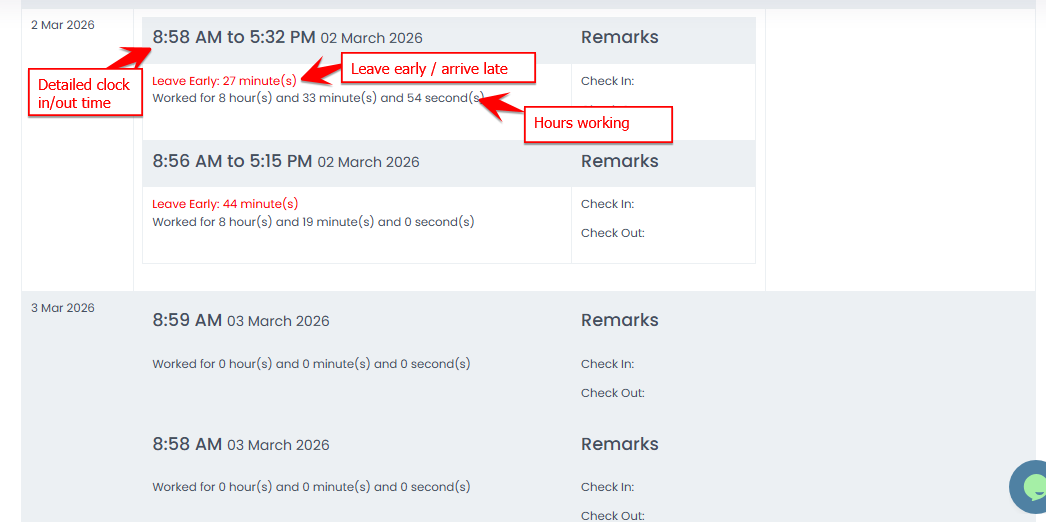
The Daily Attendance Report displays attendance records for all staff based on selected date(s).
? What It Shows
Staff Name
Clock In Time
Clock Out Time
Approved Leave Applications (if any)
? How to Generate
1️⃣ Select Daily Attendance
2️⃣ Click Advanced Search
3️ Choose the Date or date range
4️⃣ Click Filter
The system will display attendance for all staff on the selected date(s).
? Summary by Staff Report
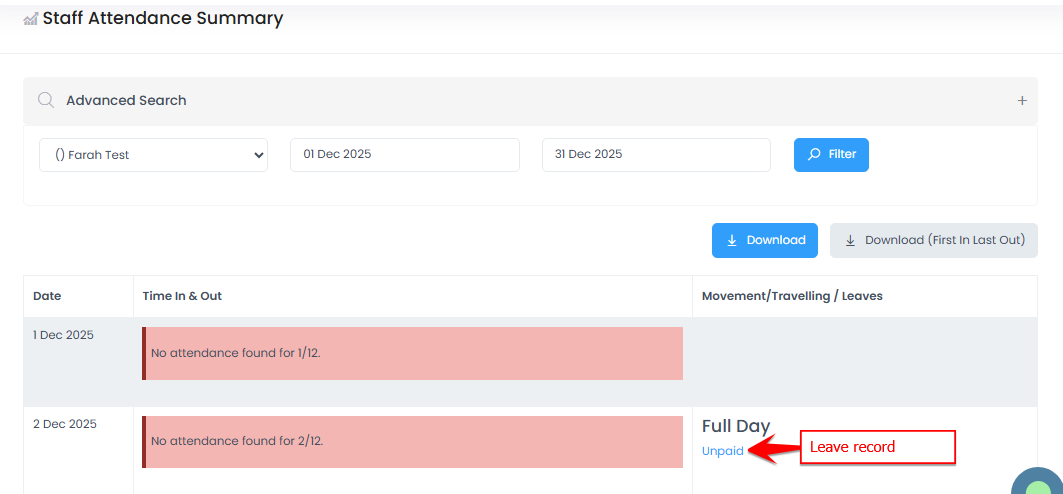
The Summary by Staff report shows attendance totals grouped by individual staff for a selected period.
? What It Shows
Clock In Time
Clock Out Time
Total Late
Total Leave
Approved Leave Applications (if any)
? How to Generate
1️⃣ Select Summary by Staff
2️⃣ Click Advanced Search
3️⃣ Filter Dates & Staff
3️⃣ Click Filter
The system will generate a summary report per staff for the selected period.
? Downloading Attendance Reports
Before downloading (Daily report), you must select how many entries to display per page:
10 entries
25 entries
50 entries
100 entries (Maximum)
⚠️ Important: Make sure you select the correct number of entries before downloading to ensure all required records are included.
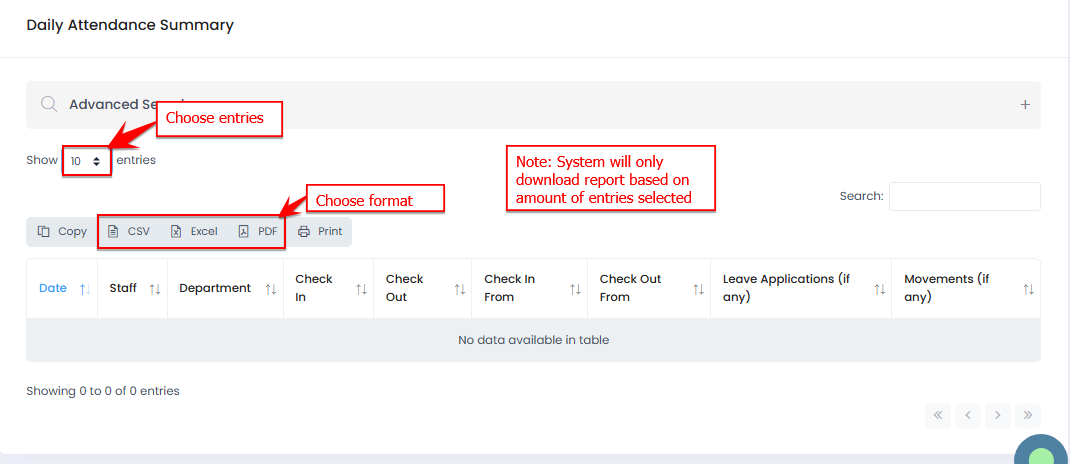
? Available Download Formats
Reports can be downloaded in:
CSV - Daily only
Excel - Daily only
PDF
Steps:
1️⃣ Select the desired number of entries
2️⃣ Click the preferred download format
3️⃣ The report will be exported based on selected filters
? Interface Comparison
| Feature | Daily Attendance | Summary by Staff |
|---|---|---|
| Report Type | Date-based | Staff-based |
| Data Level | Detailed daily clock-in/out | Monthly or period total summary |
| Shows All Staff | Yes (by selected date) | Yes (grouped by staff) |
| Best For | Monitoring daily attendance | Payroll & monthly reporting |
Daily Attendance Report
Summary by Staff Report
✅ Best Practice
Use Daily Attendance for checking specific attendance records.
Use Summary by Staff for payroll processing.
Always confirm date filters and entry settings before downloading.