
The Pricebook Category module allows you to organize your products and services into categories for easier management, filtering, and assignment in the Pricebook.
? Where to Access Pricebooks and Inventory Management
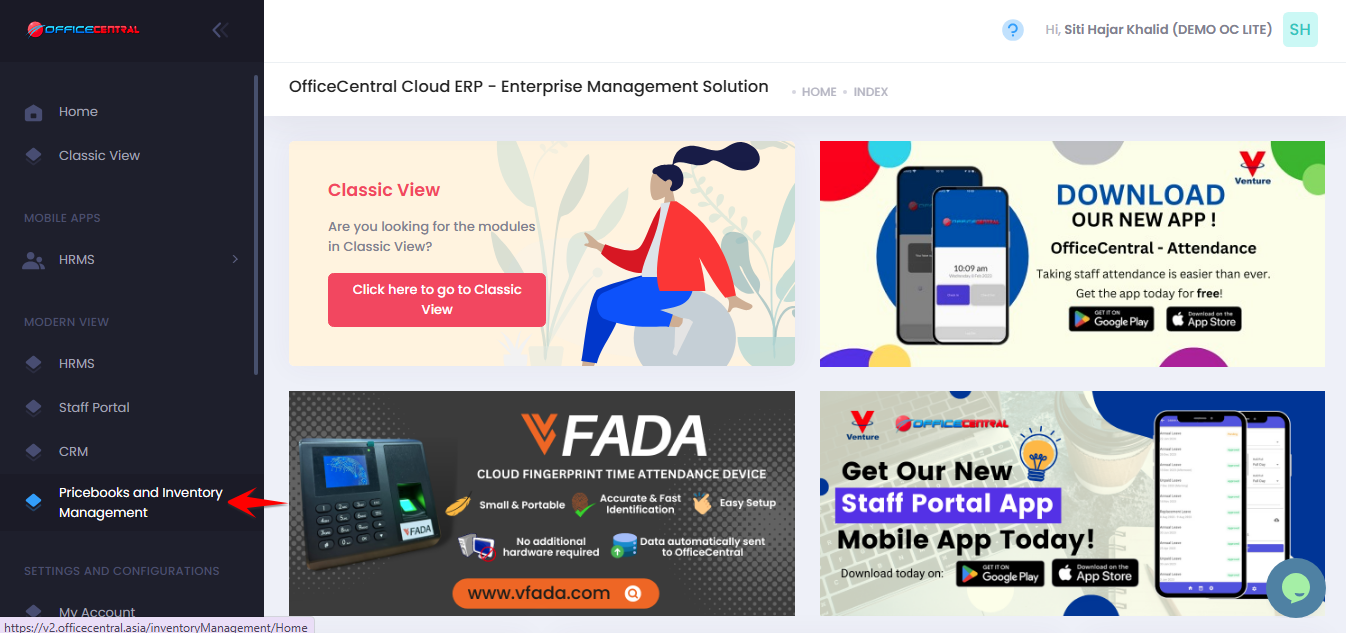
? Where to Access This Function
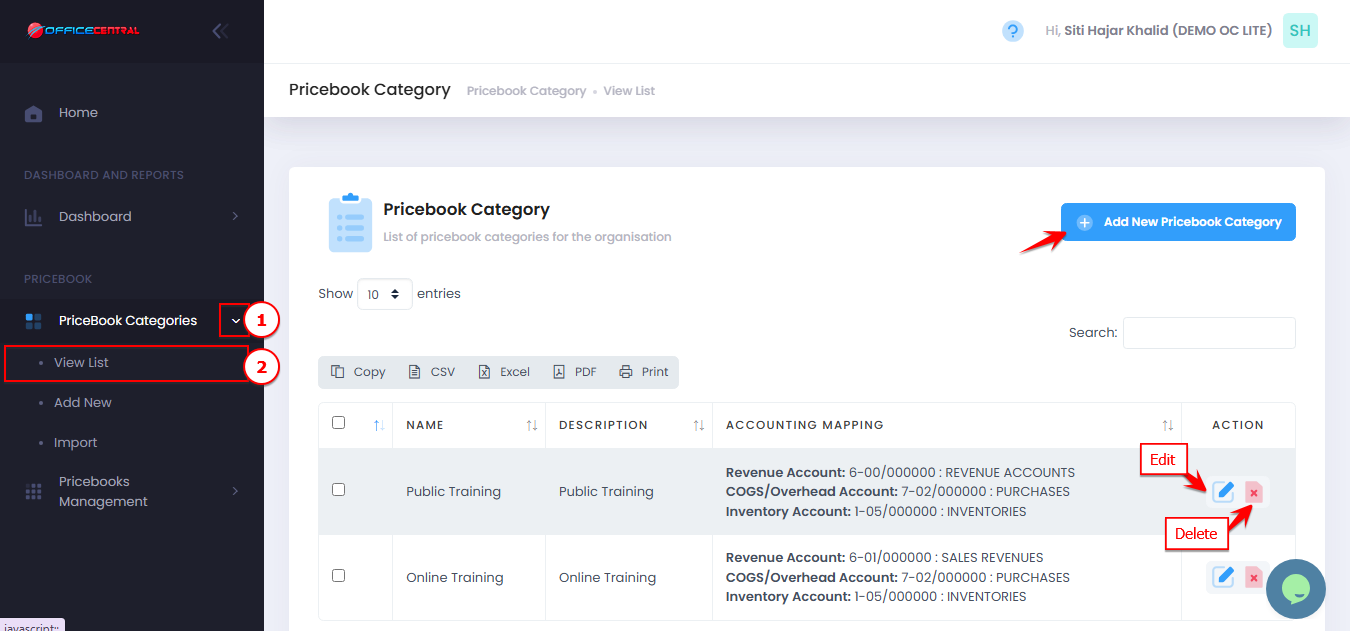
Go to Pricebook Categories
Click View List
Here you can see all existing categories and access the following buttons:
| No | Button | Function |
|---|---|---|
| 1 | Add | Add a new category |
| 2 | Edit | Modify details of an existing category |
| 3 | Delete | Remove an unused category |
Use screenshot below to locate the buttons
Add New Category
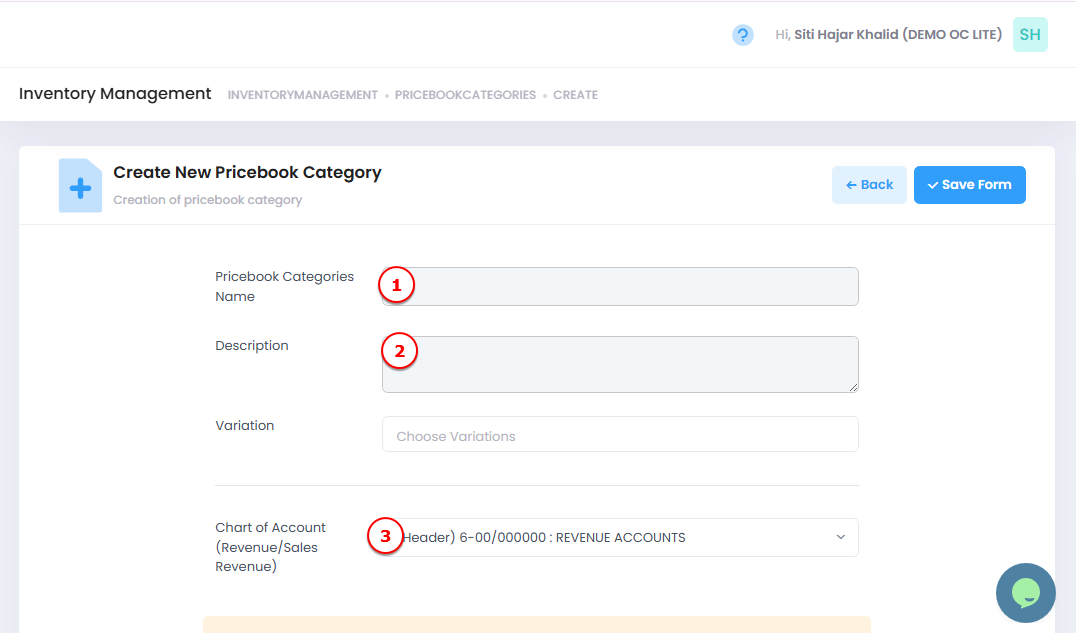
Click the Add New Pricebook Category button.
Fill in the following fields:
| No | Field | Description |
|---|---|---|
| 1 | Name | Enter the category name (e.g., “Electronics”) |
| 2 | Description | Optional: short description of the category |
| 3 | Chart of Account (Revenue / Sales Revenue) | Fully automated:Leave blank if you already set up automated accounting in Accounting Module. The system will create accounts automatically. Header account: System creates a new account for any new products/services under this category. Detail account: System maps new products/services to the selected account. |
Click Save Form to create the category.
Edit Category
In the View List, find the category you want to edit.
Click Edit next to it.
Update the fields as needed (Name, Description, Chart of Account).
Click Save Form to apply changes.
Delete Category
In the View List, find the category you want to delete.
Click Delete next to it.
Confirm deletion in the pop-up dialog.
⚠️ Important Notes:
Only delete categories that are not linked to any products.
Deleted categories cannot be recovered, so verify before confirming.