
This module allows users to configure important CRM system settings such as reference number format, email automation, invoice behaviour, tax report settings, and default terms and remarks.
These configurations help ensure CRM transactions such as quotations and invoices follow consistent numbering, communication, and reporting standards.
? Where to Access CRM
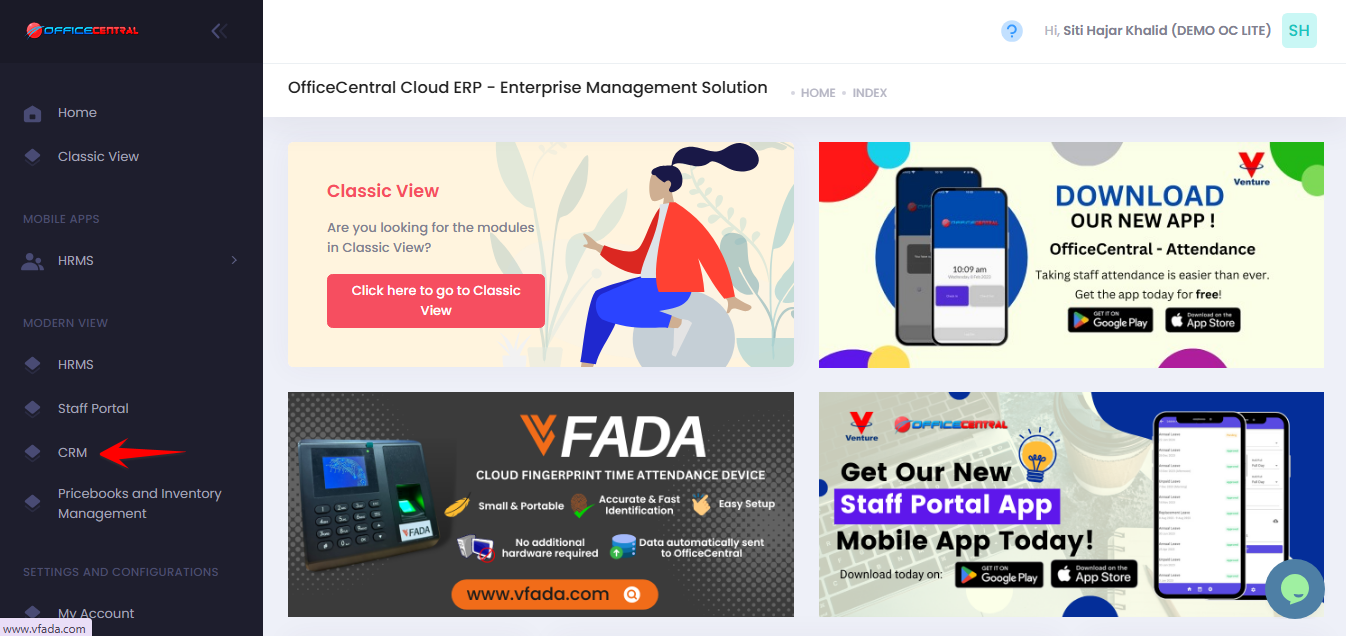
? Where to Access This Function
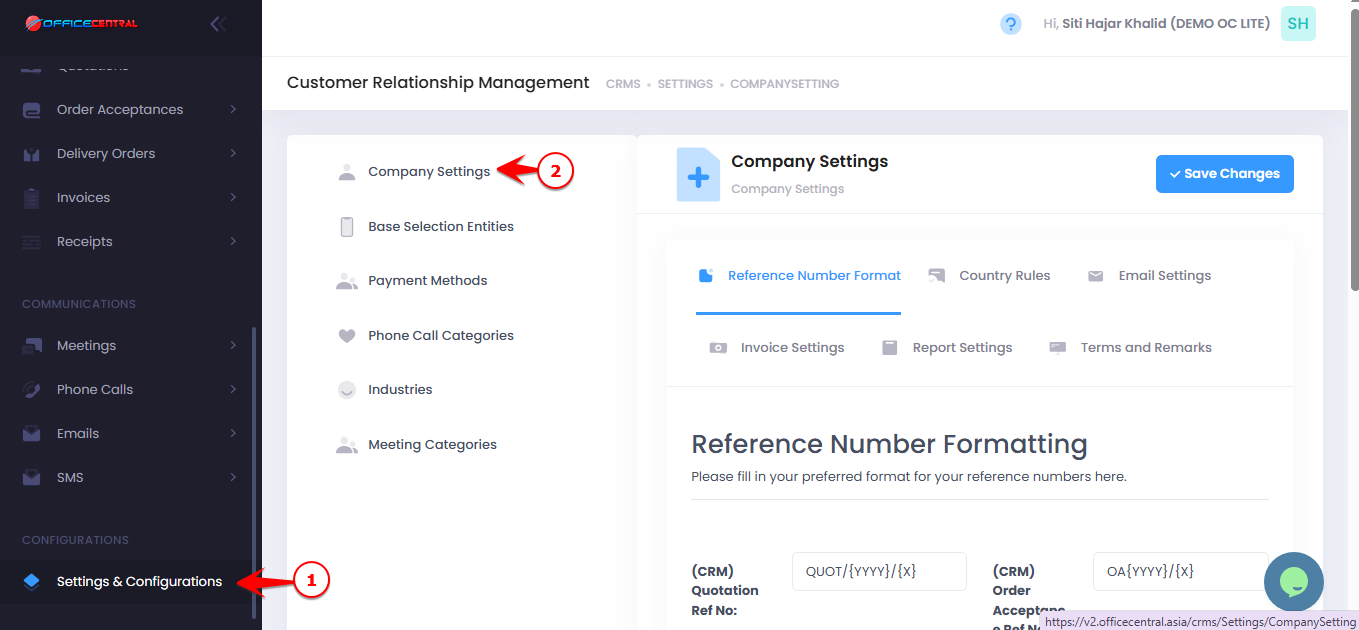
Go to CRM > Settings & Configurations > Company Settings
In the Company Settings page, you can configure the following settings:
| No. | Setting | Description |
|---|---|---|
| 1 | Reference Number Format | Define how transaction reference numbers are generated |
| 2 | Country Rules | Set system rules based on country |
| 3 | Email Settings | Configure automatic email sending for finalized transactions |
| 4 | Invoice Settings | Set default invoice and quotation behaviours |
| 5 | Report Settings | Configure tax report due date display |
| 6 | Terms and Remarks | Set default terms and remarks for CRM documents |
Use the screenshot below to locate these buttons.
1️⃣Reference Number Format
This setting controls how reference numbers for CRM transactions (such as Quotations, Invoices, Delivery Orders, etc.) are generated.
Reset Period
You can configure when the running number resets.
| Setting | Explanation |
|---|---|
| By Year INV/{YYYY}/{X} | The running number resets every year. Example: INV/2026/1, INV/2026/2 → next year becomes INV/2027/1 |
| By Month INV/{YYYY}/{MM}/{X) | The running number resets every month. Example: INV/2026/01/1, INV/2026/01/2 → next month becomes INV/2026/02/1 |
This helps maintain organized numbering based on accounting or reporting periods.
Running Number Format
The system uses a standard running number format.
| Example | Result |
|---|---|
| Running number | 1, 2, 3, 4 |
| Not supported | 001, 0001, 01, 00001 |
The same rule applies to larger numbers.
| Example | Result |
|---|---|
| Number 11 | 11 |
| Not supported | 011, 0011, 00011 |
Important Recommendation
Once the reference number format is configured, users are recommended not to manually edit the reference number when creating transactions.
Manual changes may cause the running number to skip.
Example:
Reference format:INV/{yyyy}/{x}
Expected sequence:
INV/2026/1 INV/2026/2 INV/2026/3
If a user manually edits the number:
INV/2026/3 ← manually edited "INV/2026/3 - PROJECT ABC"
This may create gaps in the numbering sequence.
⚠️ Best practice: Allow the system to generate reference numbers automatically.
2️⃣ Country Rules
This setting defines the country configuration used by the CRM system.
| Setting | Description |
|---|---|
| Default Country | Malaysia |
⚠️ Currently, the system supports Malaysia as the default country rule.
3️⃣Email Settings
This setting allows the system to automatically send email notifications when CRM transactions are finalized.
When enabled, the system will send the document to the email registered in:
Contact Book → Account / Contact
Example
When a user finalizes an invoice, the system will automatically send the invoice to the customer's registered email.
⚠️ Important Notes
| Setting | Explanation |
|---|---|
| Email Automation | Emails will be sent automatically when transactions are finalized |
| OC Credit Usage | Each email sent will consume OC Credit |
Ensure your company has sufficient OC Credit balance before enabling this feature.
4️⃣ Invoice Settings
This section allows users to configure default behaviour for invoicing and quotations.
| Setting | Description |
|---|---|
| Default Deliverer | Select the default salesperson responsible for delivery. This list is retrieved from staff records in the HRMS module |
| Invoicing Report Address | Define the address that will appear on invoice reports |
⚠️ Note for OC Lite Users
The OC Lite package supports only one company location.
Therefore, it is recommended to use the company address as the invoicing report address.
Quotation Approval Setting
Users can choose whether quotation approval is required before finalizing.
| Option | Result |
|---|---|
| Approval Required | Quotations must be approved by a supervisor or approver |
| No Approval Required | Quotations can be finalized directly |
5️⃣ Report Settings
This setting allows users to configure whether tax report due dates should appear in reports.
| Setting | Description |
|---|---|
| Tax Report Due Date | Select Yes or No to determine whether tax report due date will be displayed |
6️⃣Terms and Remarks
This section allows users to configure default terms and remarks for CRM transactions.
These terms will automatically appear in:
Quotations
Invoices
CRM transaction documents
⚠️ Important Note
The terms and remarks configured here will also appear in invoices within the Accounting module, ensuring consistent information across both modules.