
Contacts are linked to an Account and represent individuals from the company / organization who handle communications, transactions, or follow-ups.
How Contacts Are Created
Contacts (PICs) can be created in multiple ways:
| Method | Explanation | Remarks |
|---|---|---|
| Add Manually in Contact Book | Manually add a new contact without linking to an account | See 3.3 How to Manage Contacts |
| Add via Account (PIC) | Add a Person-In-Charge (PIC) directly under an Account | Contacts added here will also appear in the main Contact Book list. Each account can have unlimited PICs/contacts |
? Where to Access CRM
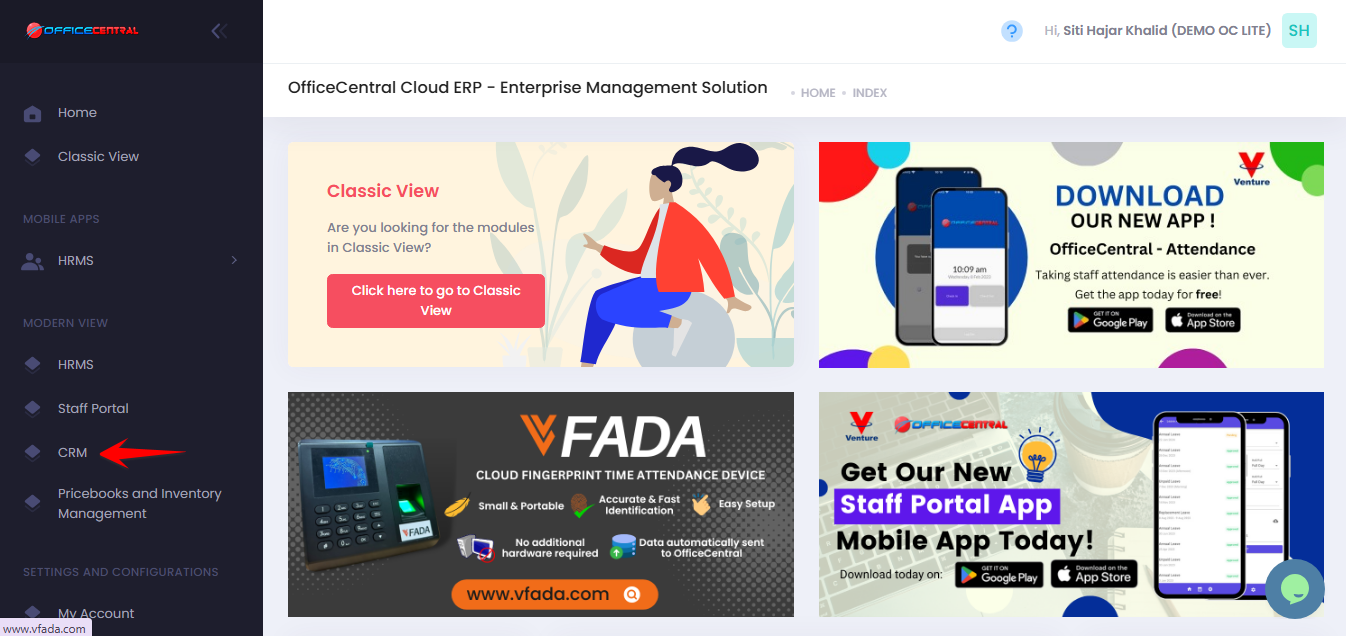
Where to Access Functions
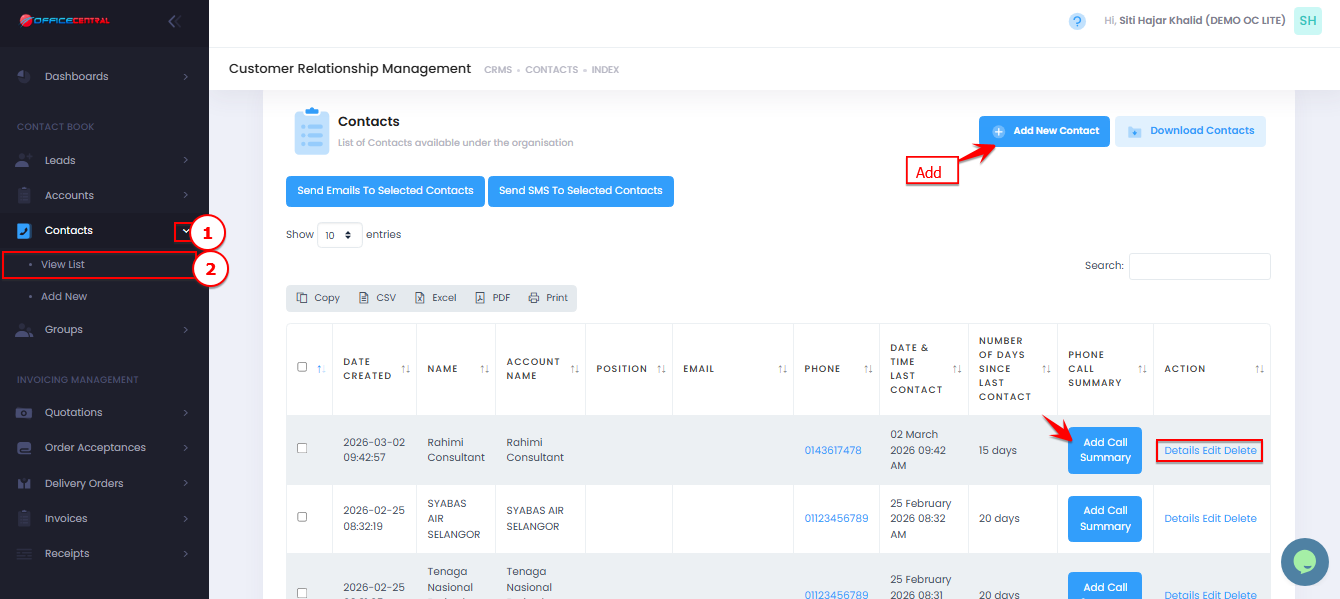
- Go to CRM > Contacts > View List
- Pn the Contacts tab, you will see the following functions:
| No. | Function | Description |
|---|---|---|
| 1 | Add New Contact | Add a new contact (PIC) under the account |
| 2 | Details | View full information of the contact |
| 3 | Edit | Update contact information |
| 4 | Delete | Remove contact from the account and list |
| 5 | Add Call Summary | User can take note call summary. The call summary will be recorded in Communications > Phone Calls |
Use the screenshot below to locate these buttons.
How to Add a New Contact
Go to Contacts > View List
Click Add New Contact.
Fill in the required fields:
| Field | Description |
|---|---|
| Account * | Users can only select an existing account. If the account, organization, or company doesn’t exist, they must create one first. |
| Title | Mr, Mrs, Madam, Dato’, etc. |
| Contact Name * | Contact’s first name |
| Contact Last Name * | Contact’s last name |
| Phone | Include country code (e.g., 60) |
| Mobile | Include country code (optional) |
| Contact email | |
| Position | Optional role or job title |
| Tags | Optional labels for grouping |
| Identification Number | Optional |
| Date of Birth | Optional |
| Date of Anniversary | Optional |
| Religion | Optional |
| Race | Optional |
| Gender | Male or Female |
| Social Media Information | Optional |
| Address Information | Recommended |
Click Save.
⚠️ Important Notes:
Ensure email and phone are accurate for communication
Multiple contacts can be added under one account
Contacts will be used in financial transactions
How to View Contact Details
From Contacts list, click Details next to the contact.
You can see full contact info including email, phone, position, and tags.
How to Edit a Contact
From Contacts list, click Edit next to the contact.
Update required information.
Click Save.
How to Delete a Contact
From Contacts list, click Delete next to the contact.
Confirm deletion.
⚠️ Important Notes:
Deleted contacts cannot be recovered