Guide to complete the initial accounting setup, ensuring accurate financial reporting, tax compliance, and system configuration.
? Where to Access Accounting
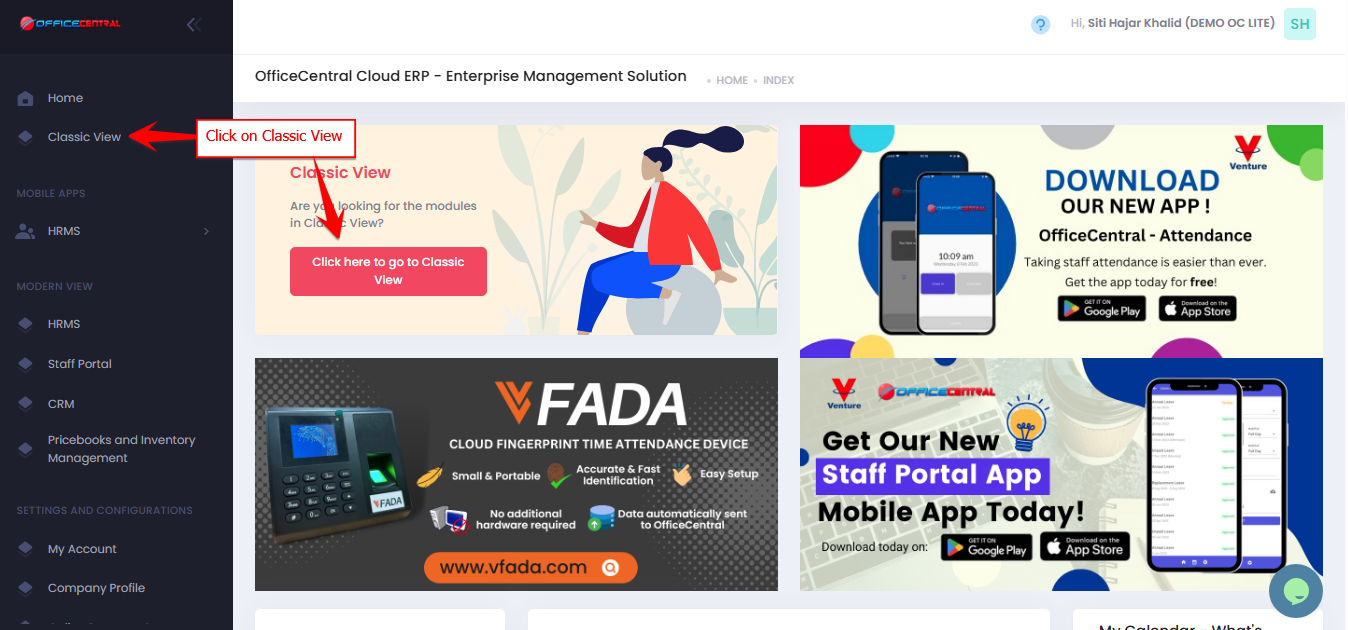

Where to Access This Function
Go to Accounting > Wizards
On the wizard page, you will see 7 steps to complete the accounting setup:
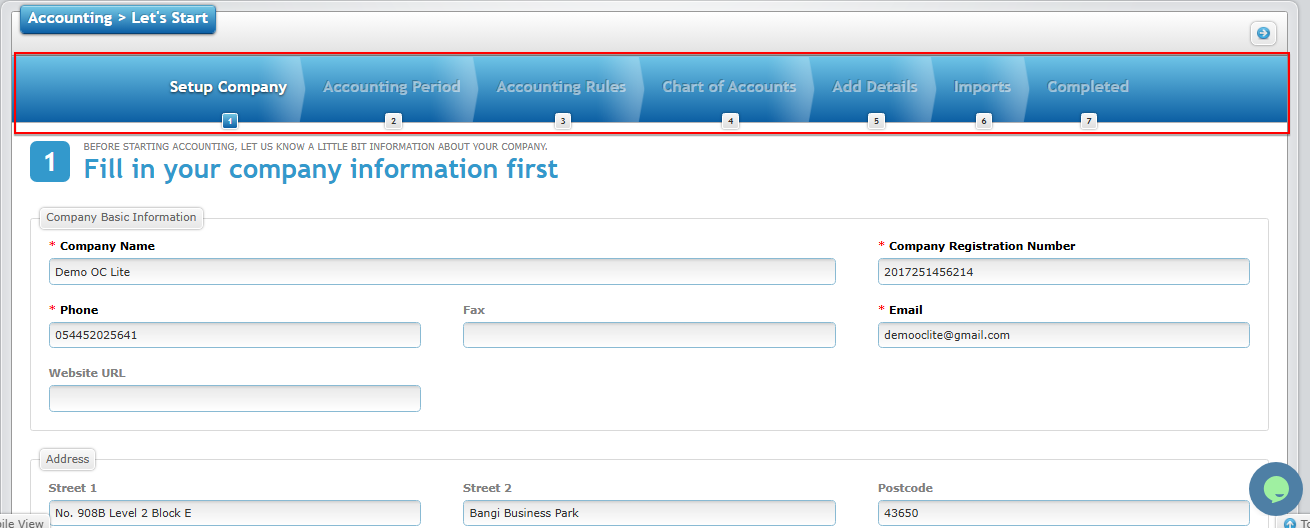
Please refer explanation below:
| No. | Step | Description |
|---|---|---|
| 1 | Setup Company | Fill in your company information, address, tax registration, currency, and location settings |
| 2 | Accounting Period | Define your financial year (start and end date) for financial reporting |
| 3 | Accounting Rules | Select accounting country, enable reference number format for documents |
| 4 | Chart of Accounts | Create and manage your account structure for financial reporting |
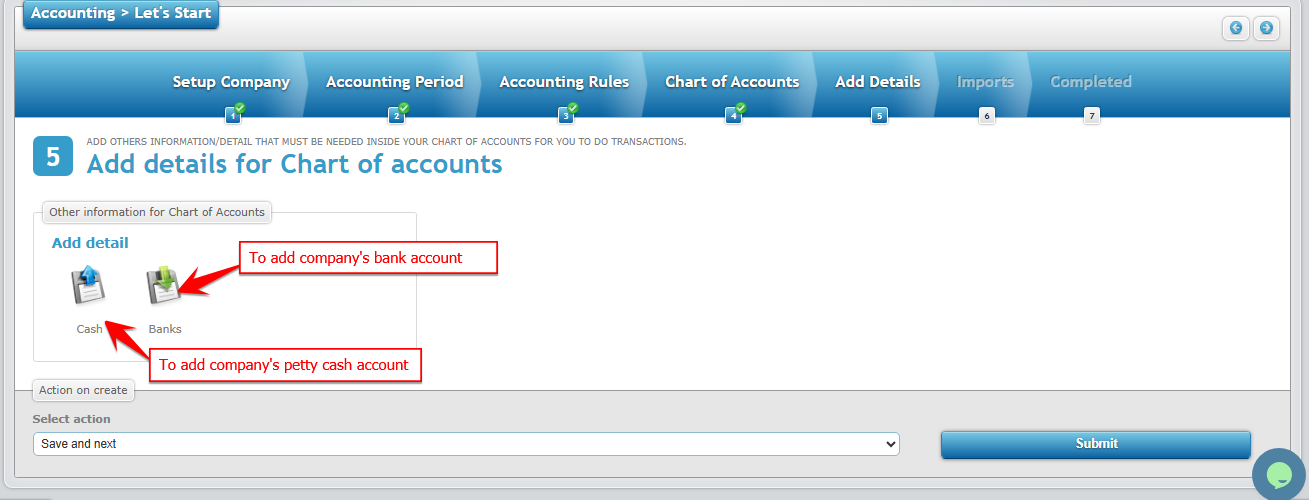
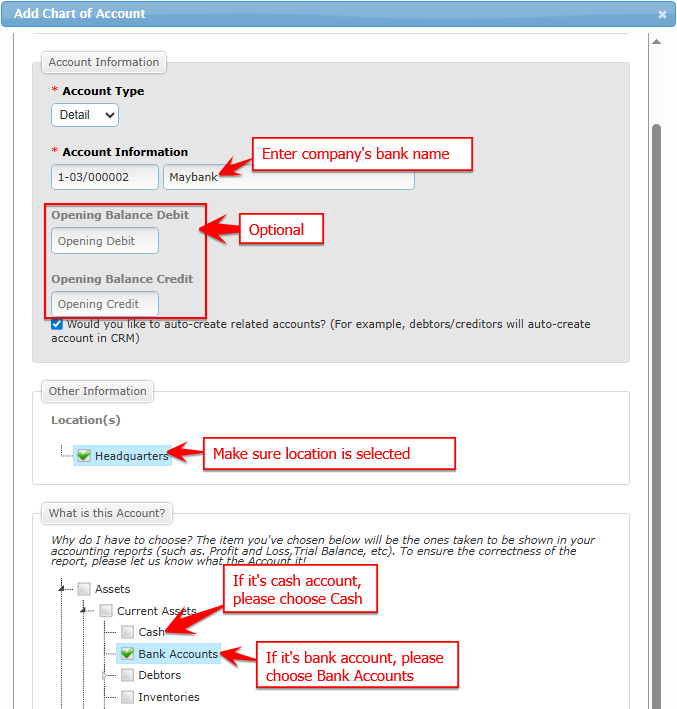
| 5 | Add Details | Set up cash and bank accounts with all necessary details |
| 6 | Imports | Import existing data of Debtor (Customer) / Creditor (Supplier) |
| 7 | Complete | Accounting module is ready to use |
Section 1: Setup Company
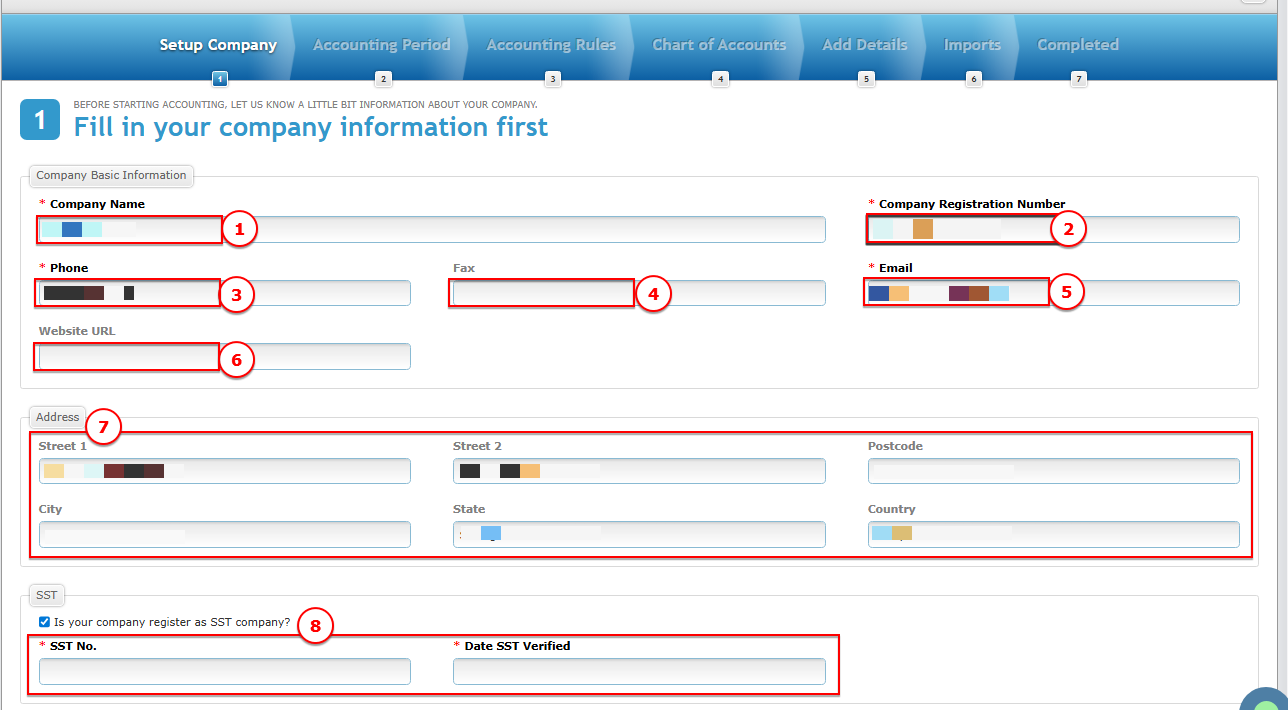
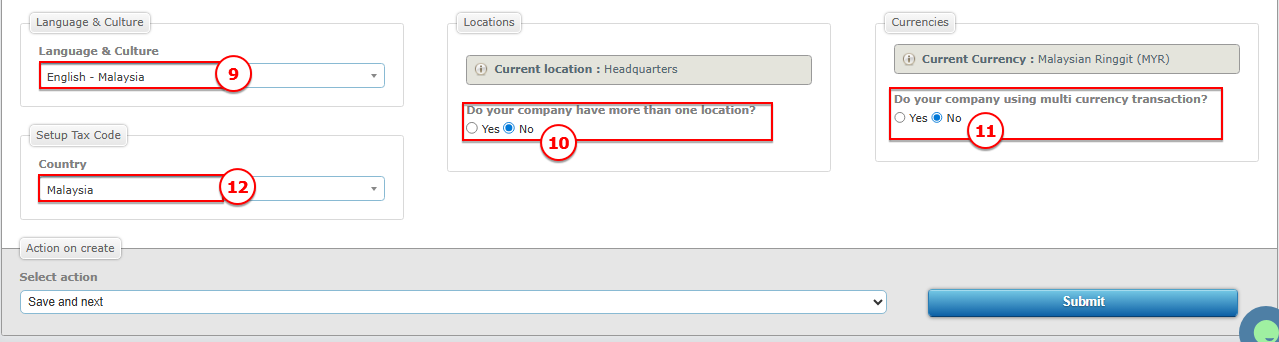
Please refer explanation below:
| No. | Field | Description |
|---|---|---|
| 1 | Company Name | Official company name |
| 2 | Company Registration Number | Registration or business number |
| 3 | Phone | Main company phone number |
| 4 | Fax | Company fax number (optional) |
| 5 | Company email address | |
| 6 | Website URL | Company website (optional) |
| 7 | Address | Company Address. This address will be used in any template that includes company details. |
| 8 | SST | Tick if registered for SST. This is compulsory if you need to download the tax report. |
| 9 | Language & Culture | Preferred language and system culture |
| 10 | Locations | Headquarters or multiple branches. For OC lite users, the location is limited to headquarters only. |
| 11 | Currencies | Default: MYR. For OC lite users, the currency is limited to MYR only. |
| 12 | Setup Tax Code | Default country: Malaysia. |
Section 2: Accounting Period
| No. | Field | Description |
|---|---|---|
| 1 | Start Date | Beginning of the financial year |
| 2 | End Date | End of the financial year |
Section 3: Accounting Rules
Accounting Rules
| No. | Field | Description |
|---|---|---|
| 1 | Accounting Country | Country standard for accounting (Default: Malaysia) |
Reference Number Setup
This setting controls how reference numbers for Accounting transactions (such as Invoice, Receipt, Credit Note, Debit Note, Payment Voucher, Self Invoice etc.) are generated.
Reset Period
You can configure when the running number resets.
| Setting | Explanation |
|---|---|
| By Year INV/{YYYY}/{X} | The running number resets every year. Example: INV/2026/1, INV/2026/2 → next year becomes INV/2027/1 |
| By Month INV/{YYYY}/{MM}/{X) | The running number resets every month. Example: INV/2026/01/1, INV/2026/01/2 → next month becomes INV/2026/02/1 |
This helps maintain organized numbering based on accounting or reporting periods.
Running Number Format
The system uses a standard running number format.
| Example | Result |
|---|---|
| Running number | 1, 2, 3, 4 |
| Not supported | 001, 0001, 01, 00001 |
The same rule applies to larger numbers.
| Example | Result |
|---|---|
| Number 11 | 11 |
| Not supported | 011, 0011, 00011 |
Important Recommendation
Once the reference number format is configured, users are recommended not to manually edit the reference number when creating transactions.
Manual changes may cause the running number to skip.
Example:
Reference format:INV/{yyyy}/{x}
Expected sequence:
INV/2026/1 INV/2026/2 INV/2026/3
If a user manually edits the number:
INV/2026/3 ← manually edited "INV/2026/3 - PROJECT ABC"
This may create gaps in the numbering sequence.
⚠️ Best practice: Allow the system to generate reference numbers automatically.
Section 4: Chart of Accounts
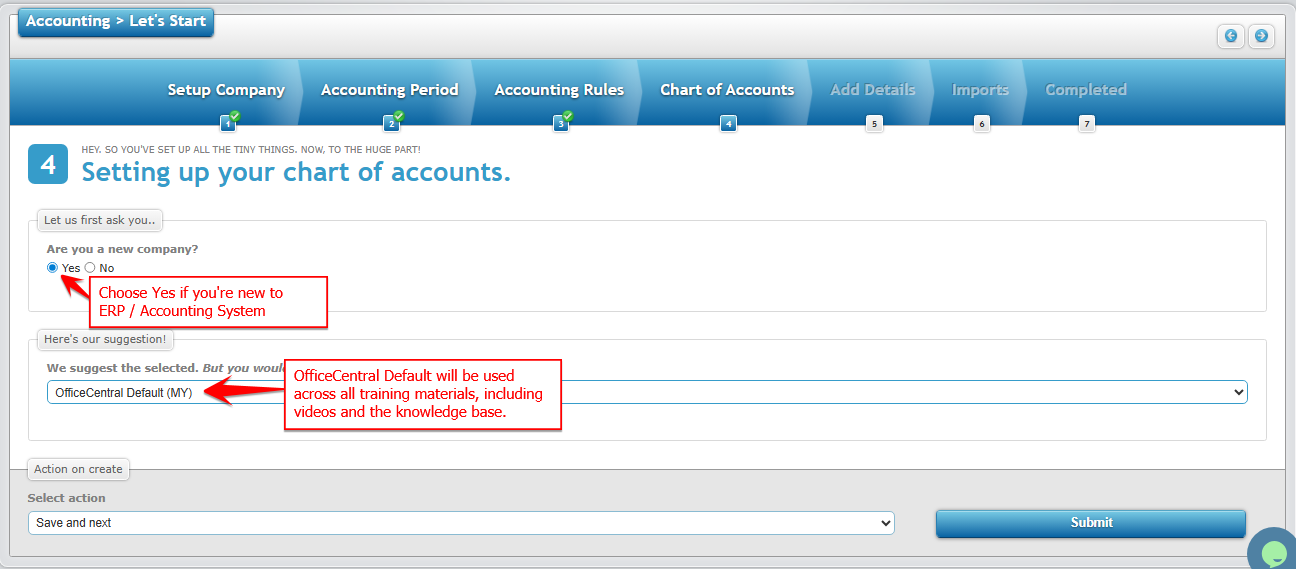
| No. | Field | Description |
|---|---|---|
| 1 | Are you a new company? | Choose Yes if you're new to ERP / Accounting system |
| 2 | Chart of Account format | Suggestion: OfficeCentral Default. This will be used across all training materials including videos and knowledge base |
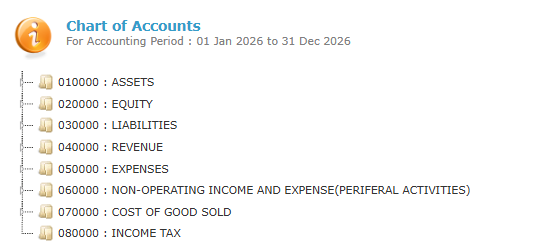
Example Chart of Account format: OfficeCentral Default (MY)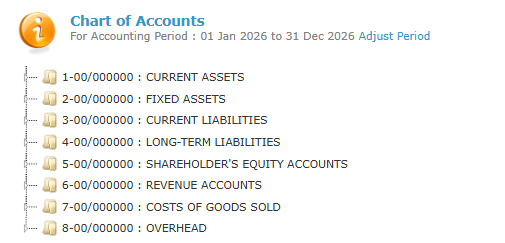
Example Chart of Account format: Financial Report Standard Default (MY)
Section 5: Add Details of Cash and Bank Accounts
The purpose of creating details in the Chart of Accounts is to link transactions to the correct account in financial reports.
When users record a transaction, they only need to select the relevant account (e.g. bank or petty cash). The system will then automatically post the transaction to the appropriate account, ensuring accurate financial reporting.