
This guide explains how to view leave entitlement.
Where to Access Staff Portal
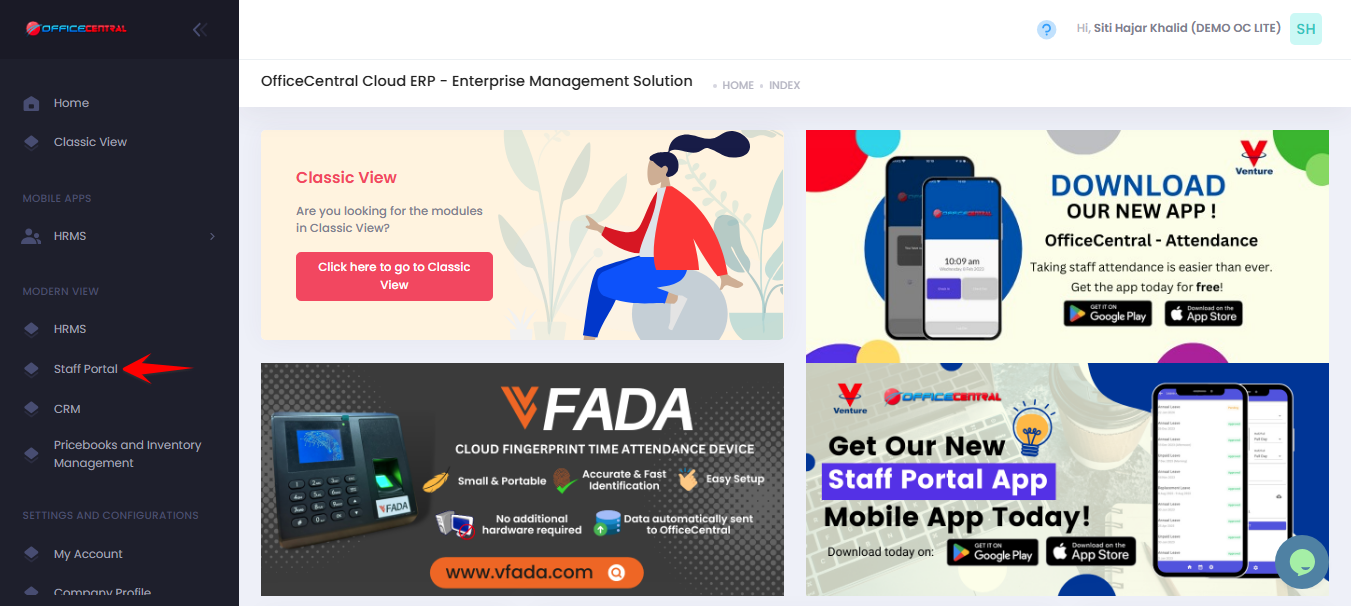
How to View Leave Balance
- Go to to Staff Portal > Leave > My Leave > View Entitlement
- Your leave entitlement (balance) will be displayed in this page
This may include:
| Item | Description |
|---|---|
| Year | The calendar or leave year that the entitlement applies to. |
| Leave Type | The category of leave (e.g., annual leave, sick leave, unpaid leave). |
| Entitled | The number of leave days allocated for the year. |
| Brought Forward | Unused leave days carried over from the previous year, based on company policies and system configuration set by the administrator. |
| Total | The total leave balance, including entitled days and brought forward leave. |
| Used | The number of leave days already taken. |
| Pending | - Leave days that have been applied for but not yet approved. - Leave days that have not yet been earned (for companies with leave configurations set on a daily or monthly basis) |
| Available | The remaining leave balance that can still be used (excluding pending & unearned leave, if applicable). |
| Available (Pro-rate as at Resignation Date) | The adjusted leave balance based on the employee’s service period up to their resignation date. This is only visible to staff who have a resignation date set by HR or the administrator. |
? Always check your balance before applying leave