
This guide explains how to create and complete a sales transaction using the OfficeCentral POS module.
Sales transactions allow users to record customer purchases, process payments, and generate receipts.
Before Starting
Ensure that:
✅ Counter has been created.
✅ Counter has been opened.
✅ Required items and Pricebook are available.
Where to Access
POS > Point of Sale (POS)
How to Create a Sales Transaction
Step 1: Access POS Screen
After opening the counter, the POS sales screen will be displayed.
The following functions are available:
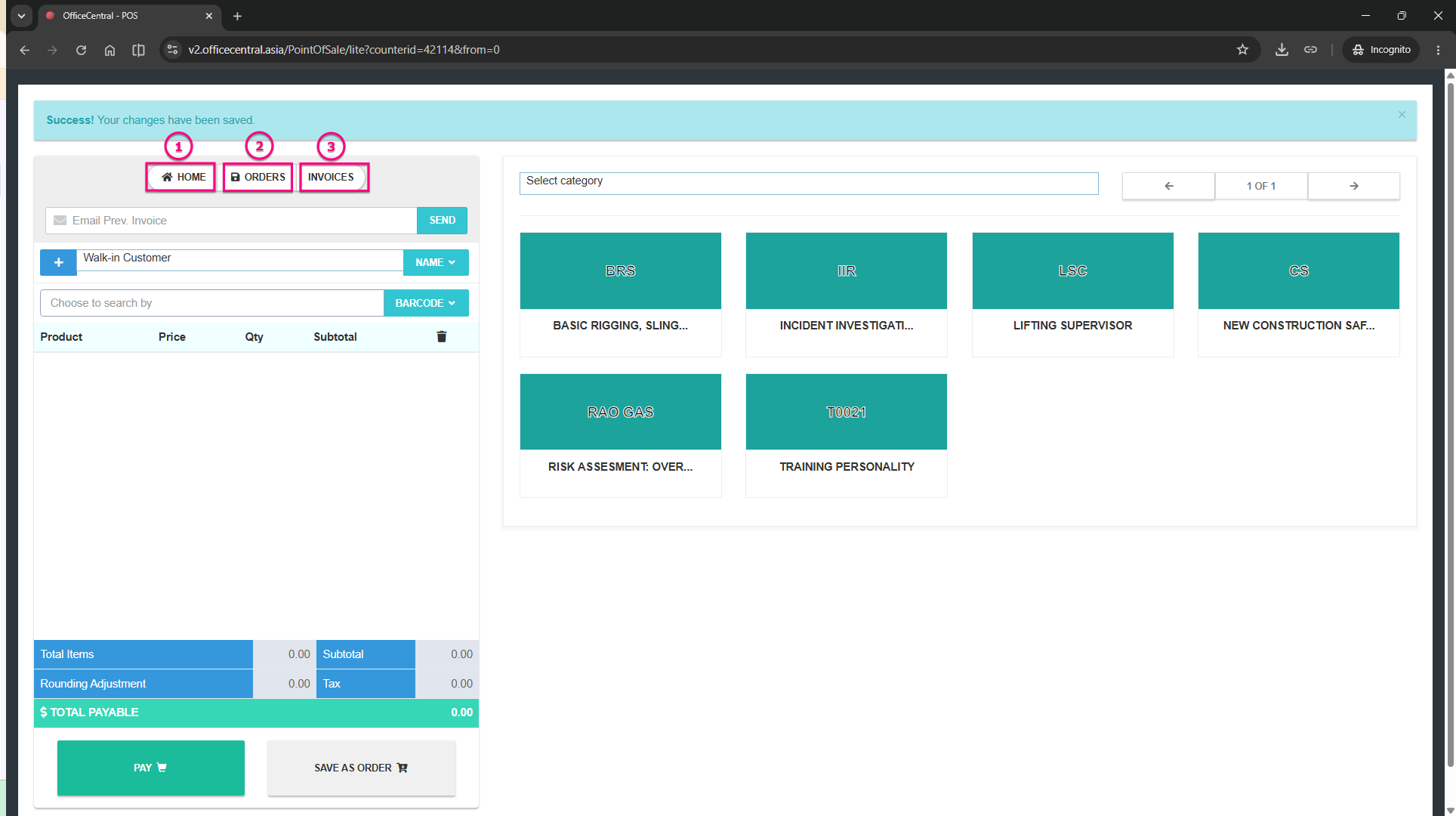
No. | Menu | Function |
1 | Home | Return to counter list |
2 | Orders | View previously saved orders |
3 | Invoices | View completed sales transactions |
Step 2: Select Pricebook
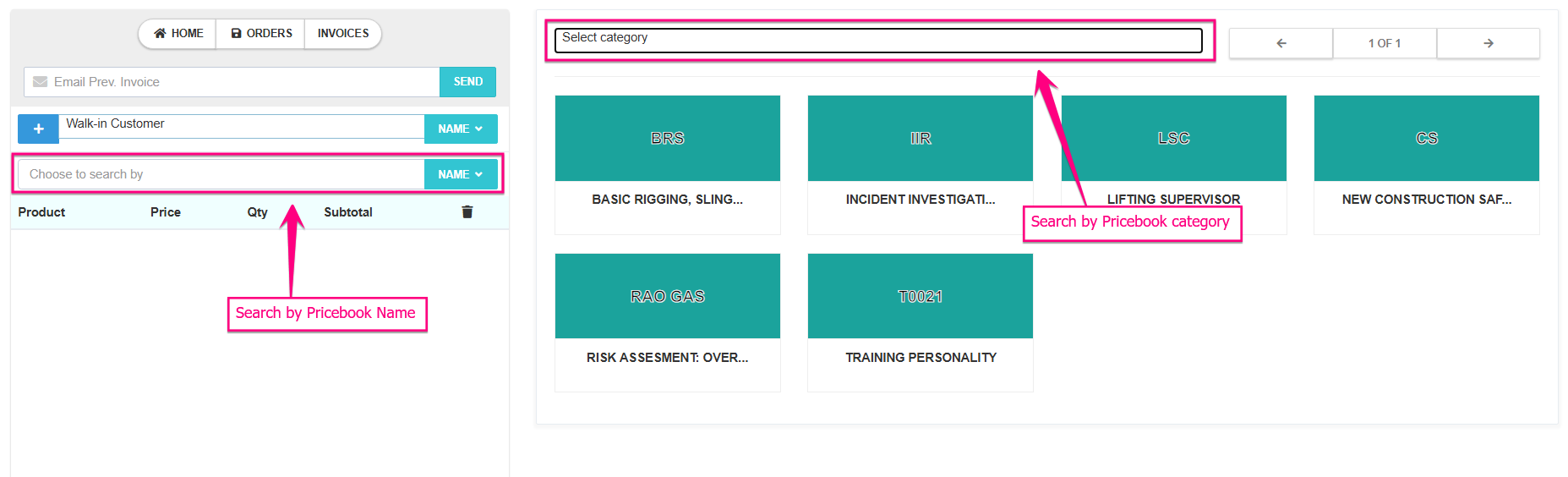
Select the required Pricebook from the right panel.
Users may also search for Pricebook using:
- Pricebook Category
- Pricebook Name
Step 3: Add Items into Cart
Select the required items from the Pricebook.
Users can perform the following actions:
- Change item quantity
- Apply discount
- Remove items using the delete icon
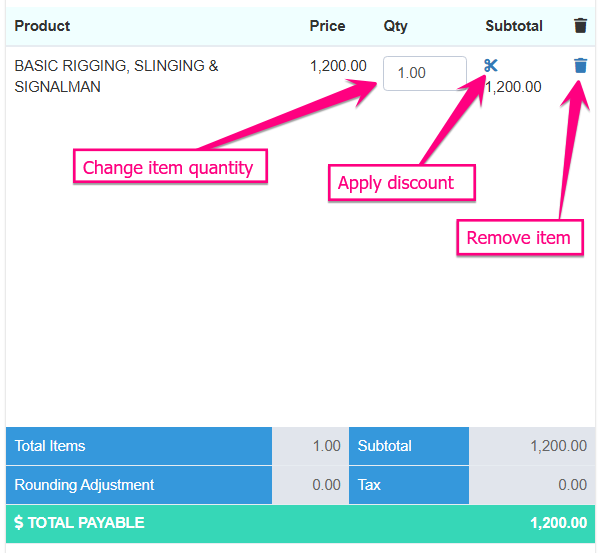
Review all items before proceeding.
Step 4: Save Order (Optional)
If payment is not required immediately:
- Click Save as Order.
- The system will create an Order Acceptance record.
The order can be reviewed later from the Orders section.
Step 5: Proceed Payment
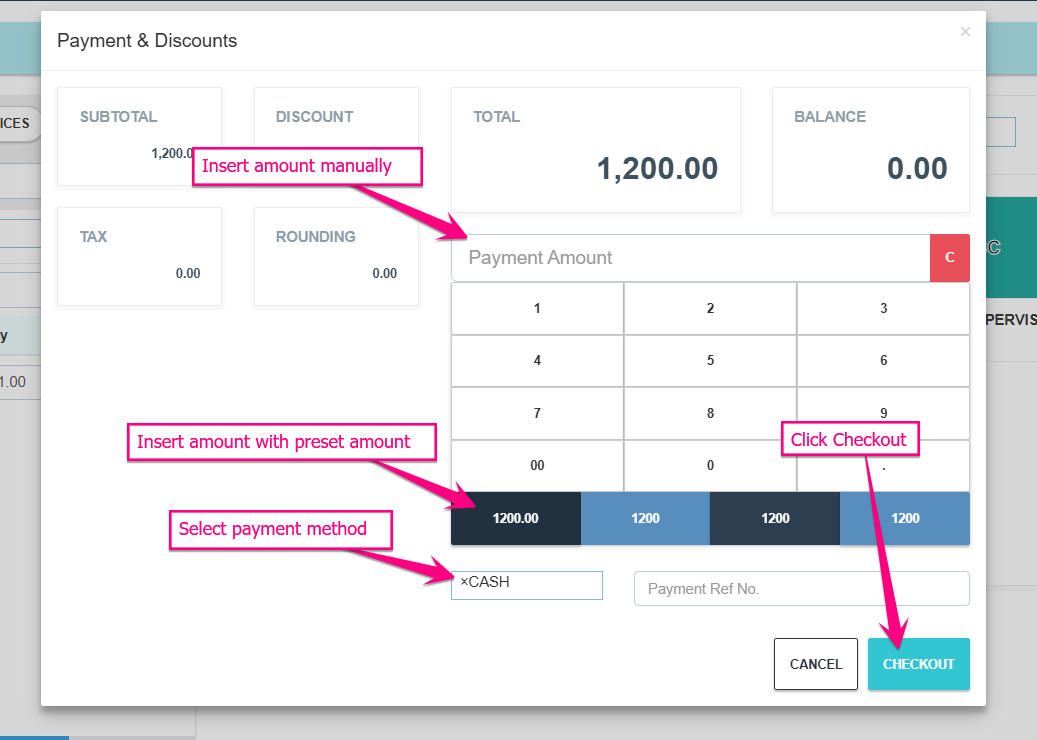
To complete the transaction:
- Click Pay.
- Enter the payment amount.
- Select payment method.
- Enter payment reference number (if applicable).
- Click Checkout.
Step 6: Print Receipt
After successful payment:
- The receipt print preview will appear.
- Click print to generate the customer receipt.
Step 7: View Completed Transactions
To view recent transactions:
- Click Invoices.
- The invoice list will display completed sales transactions.
Important Notes
⚠️ Saving an order is optional. Users may proceed directly to payment if the transaction is completed immediately.
⚠️ Stock availability must be sufficient before completing a sales transaction.
⚠️ Receipt printing is only available after successful payment completion.
Summary
Action | Result |
Add Item | Adds product into transaction |
Save as Order | Creates order acceptance |
Pay | Starts payment process |
Checkout | Completes transaction |
Print Receipt | Generates customer receipt |
Invoice | Stores completed sales record |