This guide explains how to create, view, edit, and delete meetings in CRM.
Meetings help you track discussions, appointments, and follow-ups with leads, accounts, or contacts.
? Where to Access CRM
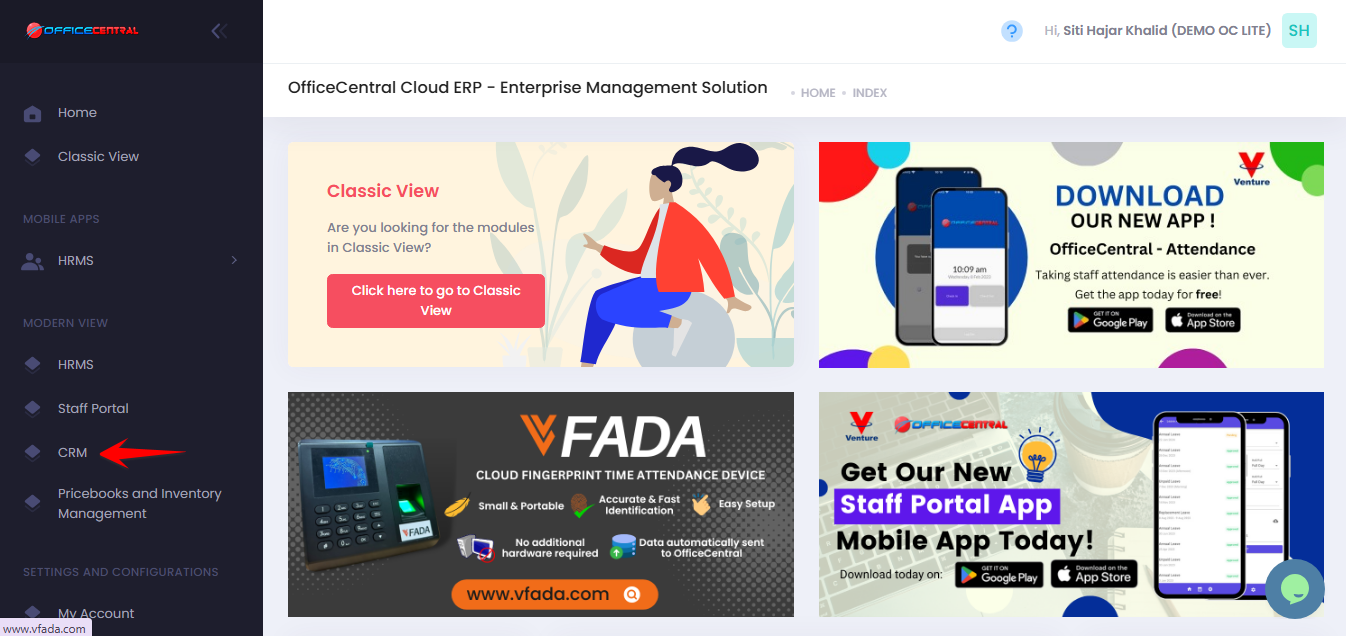
Where to Access This Function
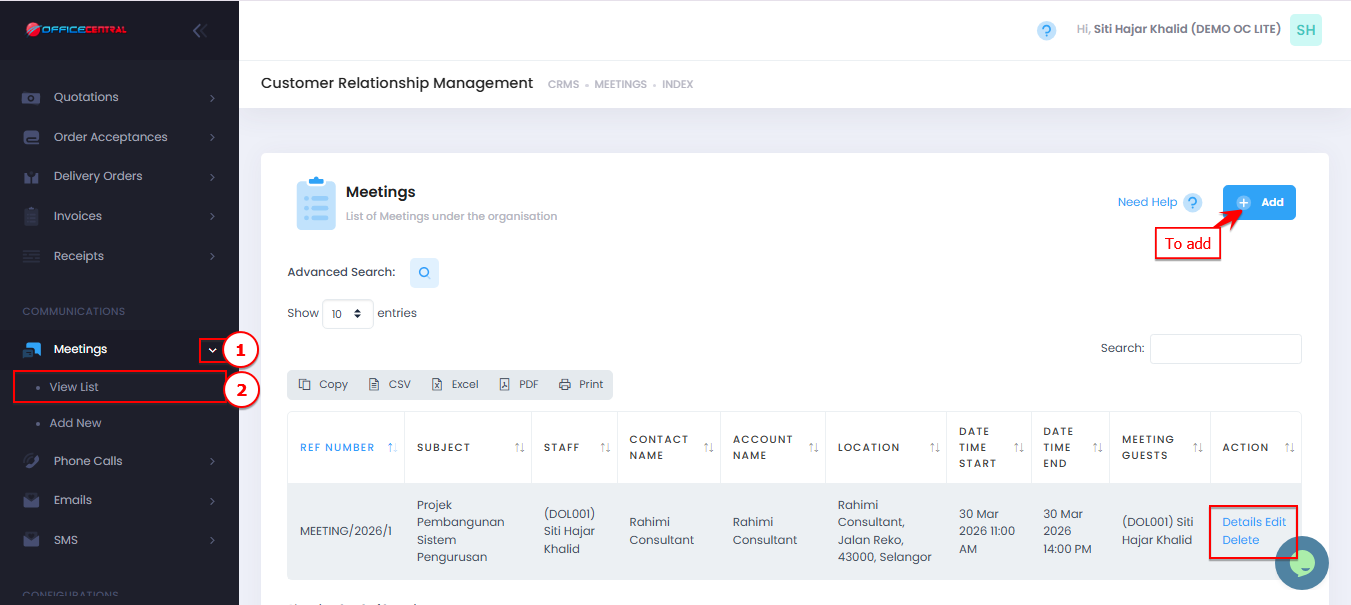
On the Meetings > View List page, you will see:
| No. | Function | Description |
|---|---|---|
| 1 | Add | Create a new meeting |
| 2 | Edit | Update selected meeting details |
| 3 | Delete | Remove a meeting |
| 4 | Details | View full meeting information |
Use the screenshot below to locate the buttons.
How to Add New Meeting
- Go to Meetings > View List
- Click Add at the top right of the page
- Fill in the required information below:
1. Meeting Information
| No. | Field | Description |
|---|---|---|
| 1 | Meeting Name * | Title of the meeting |
| 2 | Description | Brief details about the meeting |
| 3 | Category * | Select meeting category (e.g., Project Meeting). For additional meeting category options, please refer to CRM Configurations – Meeting Categories. |
| 4 | Create Meeting for Others | Tick if you are creating the meeting for another staff (you will not attend) |
2. Meeting Details
| No. | Field | Description |
|---|---|---|
| 1 | Start Date * | Meeting start date and time |
| 2 | End Date * | Meeting end date and time |
| 3 | Location * | Meeting location (physical or online). You can include the online meeting link here if the meeting is held virtually. |
| 4 | Report | Meeting outcome or summary (can be filled after meeting) |
3. Contact Details
| Field | Description |
|---|---|
| Contact * | Link meeting to contact (PIC) or account. If a meeting is held for a lead, the lead must first be converted into an account. |
4. Invites
| Field | Description |
|---|---|
| Staff | List of staffs is retrieved from HRMS - Staff |
5. Meeting Attachment
| Field | Description |
|---|---|
| Pictures | Upload images related to the meeting |
| Caption | Description for each image |
4. Click Save Form after completing all required fields (*).
View Meeting Details
Go to Meetings > View List
Click Details next to the meeting
You can review:
Meeting information
Contact / PIC details
Report
Attachments
Location
Date & Time
How to Edit Meeting
- Go to Meetings > View List
Click Edit next to the meeting
You can update the following fields only:
| No. | Field | Description |
|---|---|---|
| 1 | Meeting Name | Update meeting title |
| 2 | Start Date | Change meeting start date/time |
| 3 | End Date | Change meeting end date/time |
| 4 | Description | Update meeting details |
| 5 | Location | Change meeting location |
Click Save Form
How to Delete Meeting
- Go to Meetings > View List
Click Delete next to the meeting
Confirm deletion
⚠️ Deleted meetings cannot be recovered.
? Notifications & Visibility
| Feature | Explanation |
|---|---|
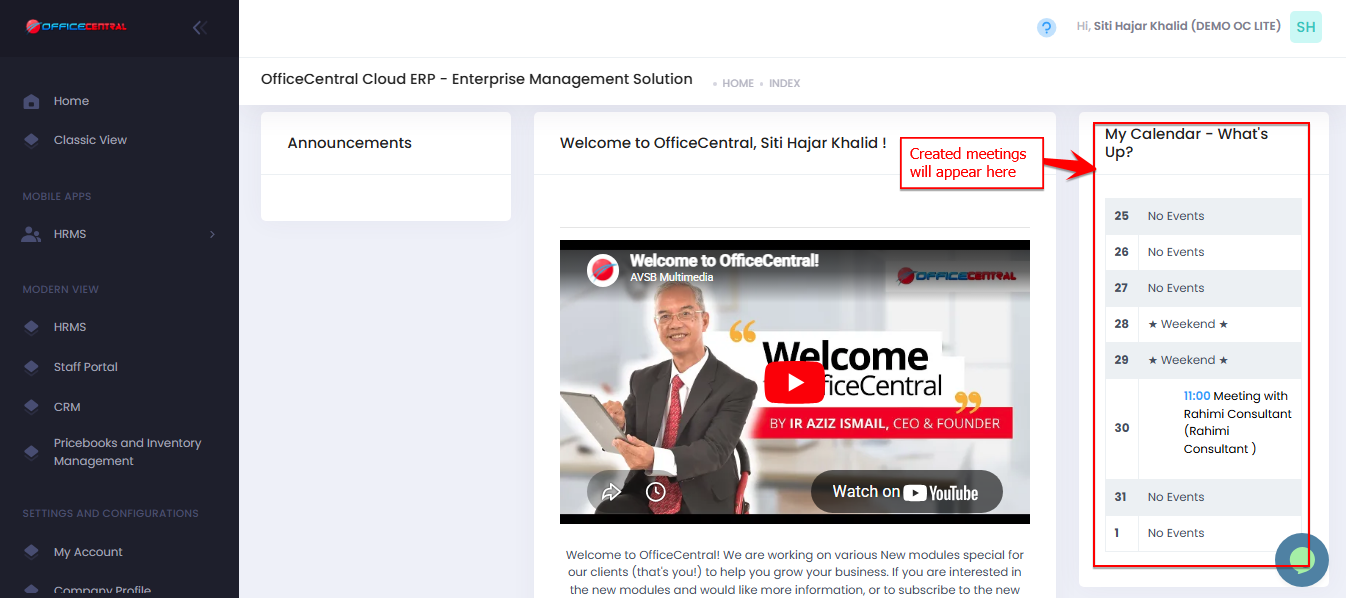
| Dashboard Calendar | Upcoming meetings will appear in the Dashboard Calendar |
| Email Invitation | Participants will receive meeting invitations via email |
| Email Requirement | Email will only be sent if the contact has a valid email in the system. |
Dashboard Calendar