
An Account represents a company / organization / individual (e.g., customer, supplier, partner) and is required to perform financial transactions such as quotations, invoices, and payments.
How Accounts Are Created
Accounts can be created in three ways:
| Method | Explanation | Remarks |
|---|---|---|
| Convert from Lead | Convert a qualified lead into an account | 2.1.2 Convert Lead to Account |
| Create from Debtor / Creditor Module | Account is automatically created when added in accounting modules | |
| Add Directly from Accounts Module | Manually create a new account from Contact Book | 2.2 How to Manage Accounts |
? Where to Access CRM
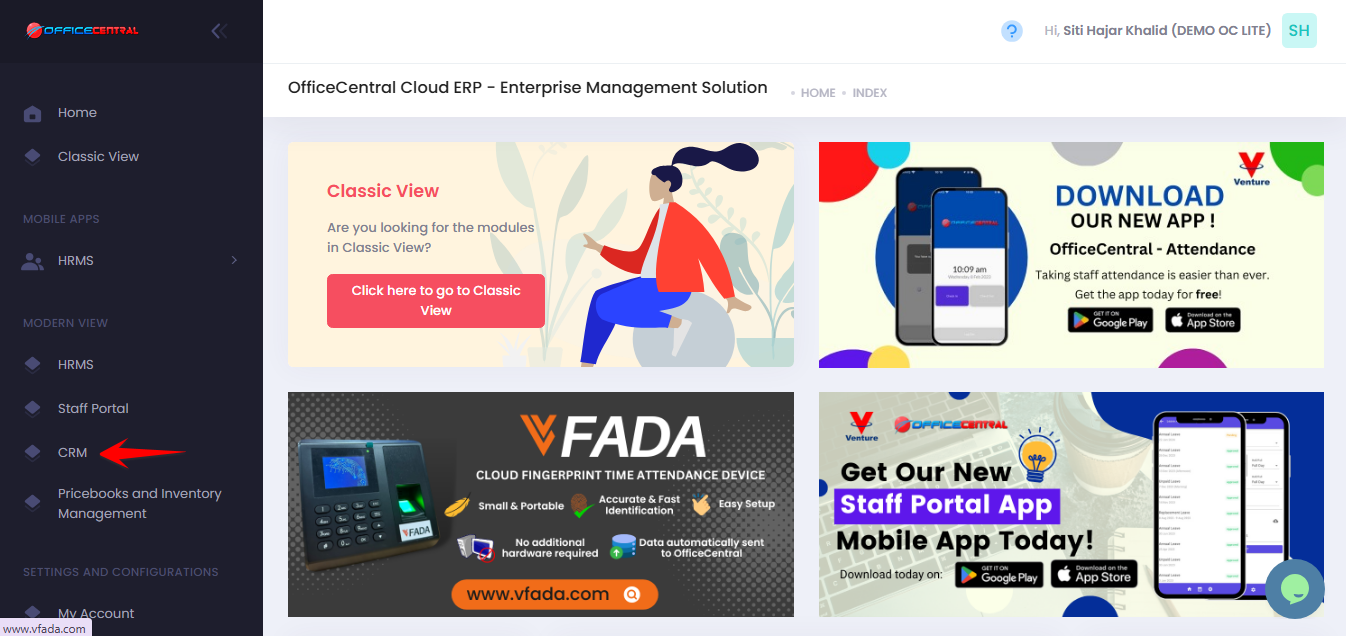
Where to Access This Function
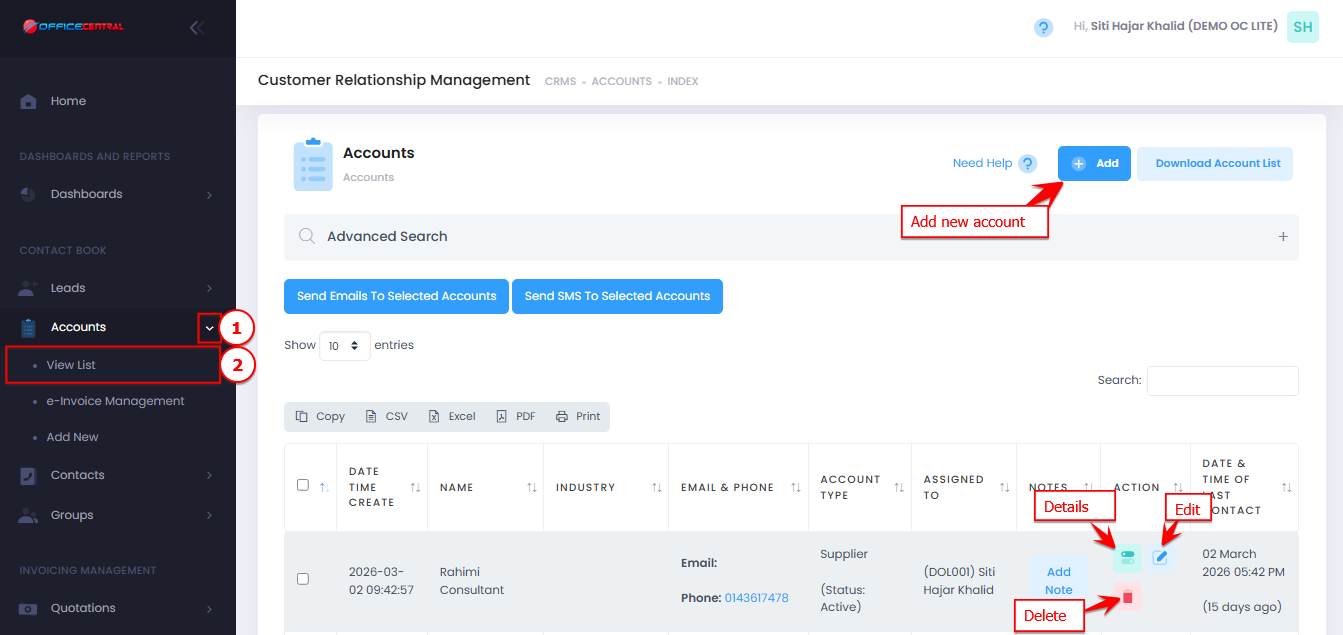
- Go to CRM > Accounts > View List
- On the Accounts View List page, you will see:
| No. | Function | Description |
|---|---|---|
| 1 | Add | Add a new account manually |
| 2 | Details | View full account information |
| 3 | Edit | Update account details |
| 4 | Delete | Remove unused account |
Use the screenshot below to locate these buttons.
How to Add a New Account
Go to CRM > Accounts > View List
Click Add
- Fill in the required information such as:
1. Account Information
No.FieldDescription / Notes1ImageUpload company logo (Max 5MB)2Account Name *Company/organization/individual name3Identification Number / Registration No *Company registration or identification number4Short CodeUnique short code used for public pages (optional)5TagOptional label or category6Account Type *Select Customer, Supplier, Partner, etc.7Order From AccountOptional reference account for orders8Introducer AccountOptional reference if another account introduced this account9Salesperson *Select staff responsible for the account10Credit Terms (Days) *Default is 30 if left as 011LHDN e-Invoice Registration TypeOptional, for e-invoicing12TIN NumberEnsure no additional space when inserting the TIN number13New Registration Number / NRICFor e-Invoicing; numbers only14MSIC CodeOptional industry classification2. Contacts (PIC) - This will also appear in Contacts > View List
No.FieldDescription1TitleMr, Mrs, Madam, Dato', etc.2First Name *PIC first name3Last NamePIC last name4PhoneInclude country code (e.g., 60)5MobileInclude country code (optional)6EmailContact email7Add MoreClick to add additional PICs3. Custom FieldsClick Add More Custom Fields for any additional company-specific information
Click Add More Custom Fields to include additional information.
Optional, but recommended if your company wants to track extra details such as:
Vehicle plate numbers
Document reference numbers
Any other account-specific info
4. More Information
| Field | Description |
|---|---|
| Industry | Select from default industry list |
| Number of Employees | Enter total employees |
| Company email (optional) | |
| Phone | Company phone (optional) |
| Fax | Company fax (optional) |
| Website | Company website (optional) |
5. Billing Information
| Field | Description |
|---|---|
| Address Line 1 & 2 | Company billing address |
| Country / State / City / Postcode | Complete address |
6. Shipping Information Same as Billing if shipping is same as billing. Otherwise, fill in shipping address fields
7. Other Addresses
- Optional addresses for different branches
Fields: Street, Street 2, City, Postcode, State, Country
8. Bank Information
| Field | Description |
|---|---|
| Payable To | Name on the bank account |
| Bank Name | Select bank |
| Bank Account No | Bank account number |
4. Click Save Form.
How to View Account Details
Go to Accounts > View List
Click Details.
How to Edit an Account
Go to Accounts > View List
Click Edit and make any changes
Click Save Form
How to Delete an Account
Go to Accounts > View List
Click Delete
Confirm the deletion.
⚠️ Important Notes:
| Situation | Explanation |
|---|---|
| With transactions | Cannot be deleted if used in financial transactions |
| Without usage | Can be deleted if unused |
| Data removal | Deleted data cannot be recovered |
Extra Notes
| Topic | Explanation |
|---|---|
| Financial Transactions | Only accounts can be used for invoicing, quotations, etc. |
| Contacts (PIC) | One account can have multiple contacts |