
This guide explains how to create and manage Credit Notes in OfficeCentral Accounting Module.
Received Credit Notes are used to:
Adjust supplier invoice amounts (e.g., returns, overcharges)
Update supplier balances
Ensure accurate financial and aging reports
Accounting Entry
| Transaction | Debit (Dr) | Credit (Cr) | Remarks |
|---|---|---|---|
| Received Credit Note | Creditor | Expense / Inventory / Overhead | Reduce supplier invoice or record adjustments |
Where to Access Accounting



How to Create Credit Note
There is only one method:
| Method | Description |
|---|---|
| Generate from Received / Self-billed Invoice | Automatically links to an approved invoice with remaining balance for adjustment |
Step 1: Access the Create Function
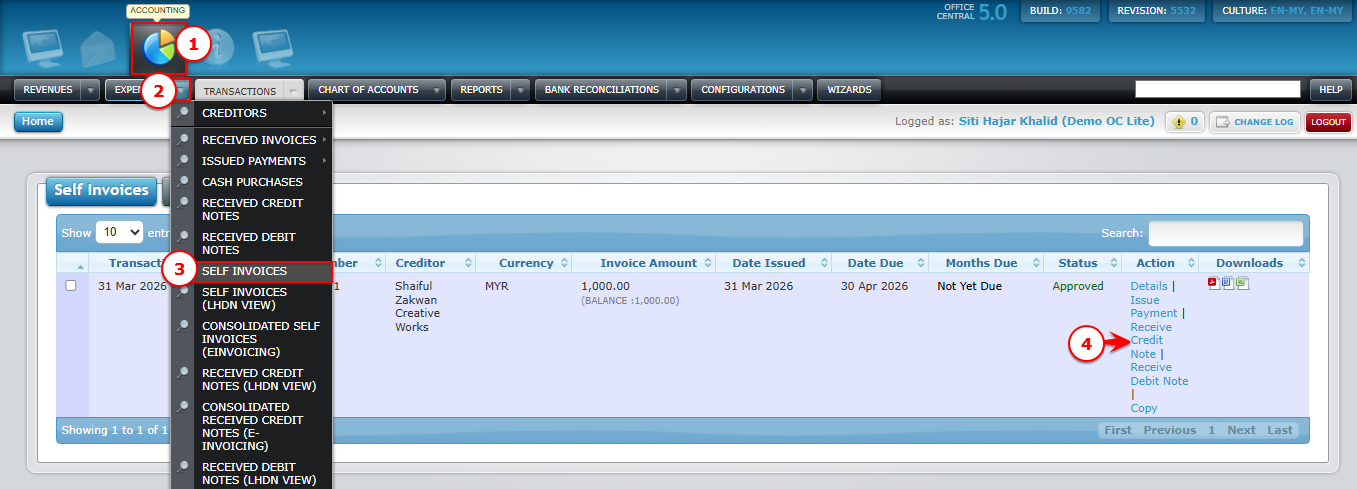
- Go to Accounting > Expenses > Received Invoices > Overall OR Accounting > Expenses > Self Invoices
Locate the approved received / self invoice with remaining balance
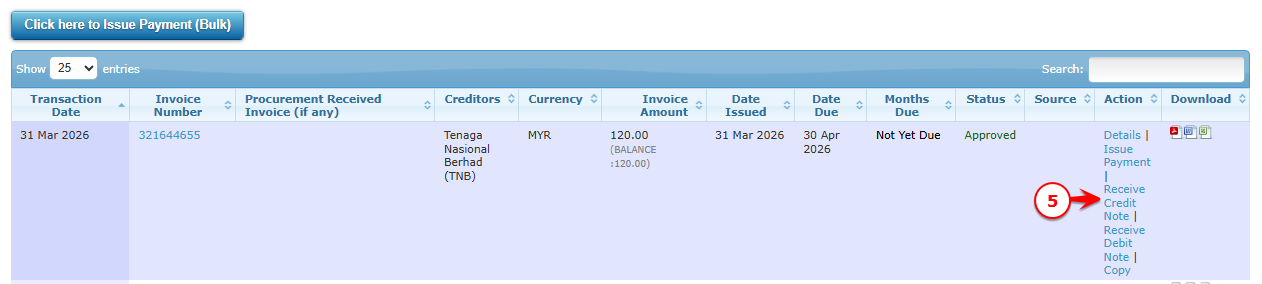
Click Receive Credit Note in the action column
? System auto-fills invoice details for adjustment
Use the screenshot below to locate these buttons.
Generate from Received Invoices

Generate from Self-billed Invoices
Step 2: Enter Received Credit Note Information
The user only needs to:
Select the Invoice – Choose the approved invoice with remaining balance that requires adjustment.
Enter Quantity (if applicable) – Adjust the number of units for the credit note.
Review Item Details – The system will display all items from the invoice, including:
| Field | Description |
|---|---|
| Subject | By default: Received Credit Note |
| Item Name | From invoice |
| Description | From invoice |
| Quantity | From invoice. Enter units to adjust |
| Unit Price | From invoice |
| Discount | Adjust if necessary |
| Tax | Auto-calculated based on invoice |
| Amount Excl./Incl. Tax | Auto-calculated |
? Note: You do not need to manually enter prices, item codes, or tax information — the system copies them from the invoice for accuracy.
Auto Calculation
System will automatically calculate:
Amount Excl. Tax
Discount
Tax
Exempted Tax
Amount Incl. Tax
Step 3: Save Received Credit Note
Review all details
Click Submit
Step 4: Approve / Reject Received Credit Note
After saving, received credit note must be approved to be valid.
? Go to: 5.0 How to Approve / Reject / Unapprove Transactions
⚠️ Important:
Only approved transactions will appear in accounting reports and customer aging
If not approved, system will assume not modification has been made
How to Edit Received Credit Note
Go to Accounting > Expenses > Received Credit Notes
Click Edit next to the Pending received credit note
Update required fields
Click Submit
Accounting Impact (Edit)
| Scenario | Debit (Dr) | Credit (Cr) |
|---|---|---|
| Edit Received Credit Note | Creditor (updated) | Expenses / Inventory / Overhead (updated) |
⚠️ Note:
Only Pending received credit note can be edited
Approved received credit note are NOT editable
Edited values will NEED user to edit the double entry accordingly (bottom of the page)
⚠️ Important Notes
Received Credit Note CANNOT be deleted
Only Pending received credit notes can be edited
Only approved received credit notes appear in accounting reports and update supplier aging
Incorrect entries can only be rejected