
This guide explains how to create and manage invoices in OfficeCentral Accounting Module.
Invoices are used to:
Record sales transactions
Bill customers (Debtors)
Track outstanding balances
Accounting Entry
| Transaction | Debit (Dr) | Credit (Cr) | Remarks |
|---|---|---|---|
| Issue Invoice | Debtor | Revenue | Record sales and customer liabilities |
Where to Access Accounting
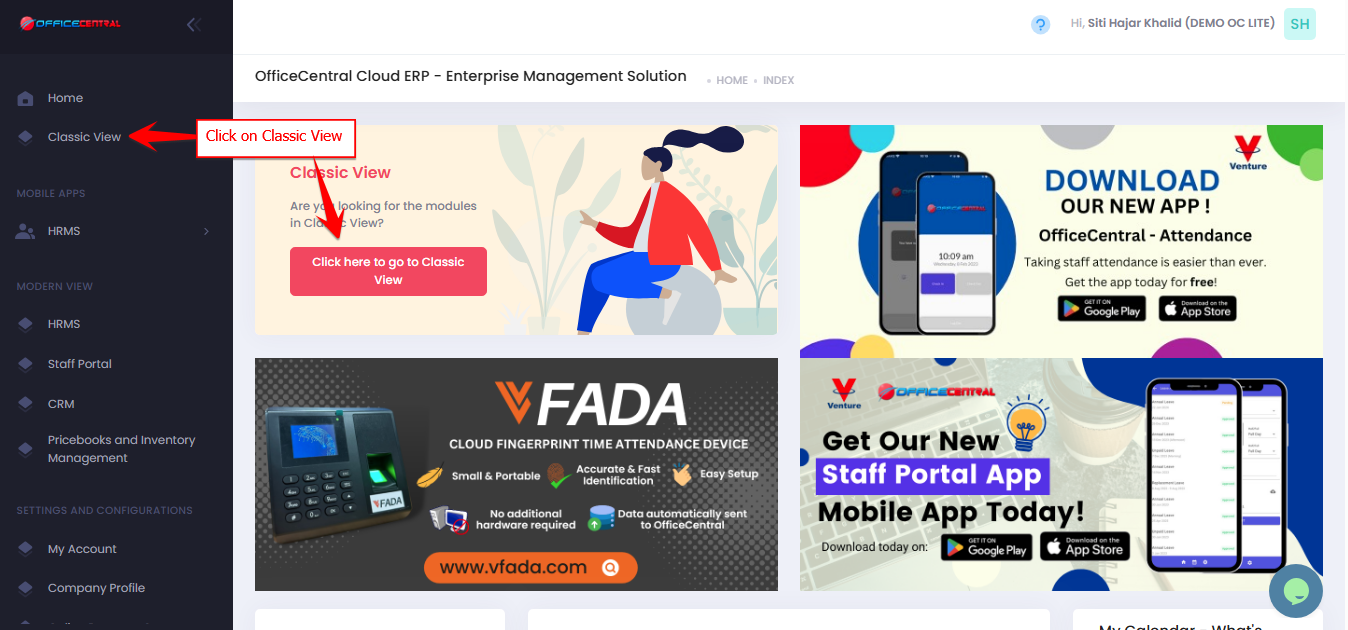
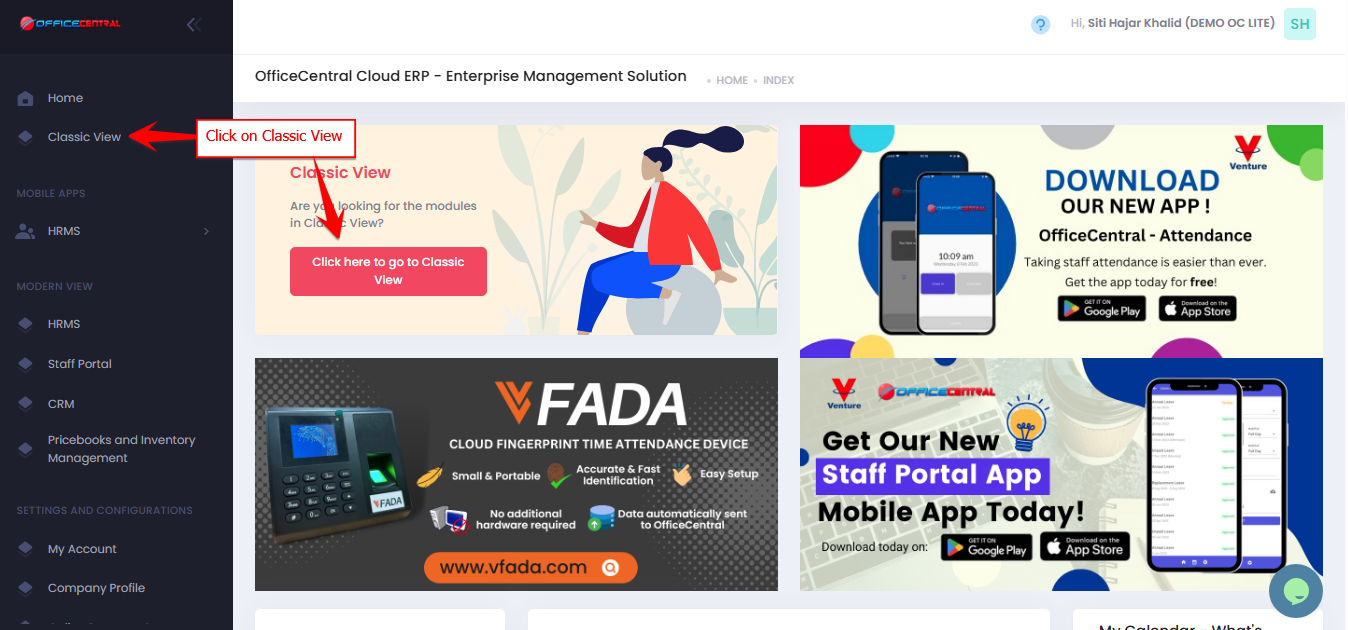

How to Create Issued Invoice
Step 1: Access the Create Function
Go to Accounting > Revenues > Issued Invoice > Add
Use the screenshot below to locate these buttons.

Step 2: Enter Invoice Information
Basic Information
| Field | Description |
|---|---|
| Reference Number * | Auto-generated (e.g., INV-A/2026/1). To set other reference number format, please refer 1.2 Accounting Configurations - Reference Number |
| To * | Select existing customer or Add New Account (Debtor). To add customer, please refer 3.1 How to Create and Manage (Customer) |
| Location * | Default location (OC Lite: Headquarters). To add location, please refer How do I Manage Locations in OfficeCentral? |
| Date Issued * | Invoice creation date |
| Date Due * | Based on credit terms |
| Currency * | Default currency (OC Lite: MYR). |
| Exchange Rate * | Default 1. Change current rate if applicable |
| Subject * | Short description of invoice |
Reference Details (Optional)
| Field | Description |
|---|---|
| Purchase Order Ref No | Customer PO reference |
| Delivery Order Ref No | Related DO number |
Billing & Pricing Settings
| Field | Description |
|---|---|
| Subject * | Short description of invoice |
| Billing Information | Click to view customer billing details |
| Discount in % | Tick if using percentage discount |
| Tax Inclusive | Tick if unit price includes tax |
Item Details
| Field | Description |
|---|---|
| Quantity * | Number of units |
| Measurement * | Example: unit / pax / box |
| Item Code | Product or service code |
| Item Name * | Product or service name |
| Description | Additional item details |
| Unit Price * | Price per unit |
| Discount | Amount or % |
| Tax | Select tax type |
Auto Calculation
System will calculate automatically:
- Amount Excl. Tax
- Discount
- Tax
- Exempted Tax
- Amount Incl. Tax
Additional Information
| Field | Description |
|---|---|
| Opening Balance Invoice | Tick if applicable |
| Terms | Payment terms shown to customer |
| Remarks | Additional notes (e.g., payment instructions) |
| Internal Note | Internal accounting notes (not shown to customer) |
Step 3: Save Invoice
Review all details
Click Submit
Step 4: Approve / Reject Invoice
After saving, invoice must be approved to be valid.
? Go to: 5.0 How to Approve / Reject / Unapprove Transactions
⚠️ Important:
Only approved transactions will appear in accounting reports and customer aging
Payment (receipt) should only be made after approval
How to Edit Invoice
- Go to Accounting > Revenues > Issued Invoice > Overall
Click Edit next to the invoice you would like to edit
Update the required information
Click Submit
Accounting Impact (Edit)
| Scenario | Debit (Dr) | Credit (Cr) |
|---|---|---|
| Edit Invoice | Debtor (updated) | Revenue (updated) |
⚠️ Note:
Only Pending invoices can be edited
Approved invoices are NOT editable
Edited values will NEED user to edit the double entry accordingly (bottom of the page)
⚠️ Important Notes
Invoice CANNOT be deleted
Only Pending invoices can be edited
Only approved transactions appear in accounting reports
Customer must be created BEFORE issuing invoice
Always approve invoice before receiving payment
Ensure pricing and tax are accurate