
This guide explains how to record and manage payments received from customers in OfficeCentral Accounting Module.
Receipts are used to:
Record customer payments
Update outstanding invoice balances
Ensure accurate financial and aging reports
Accounting Entry
| Transaction | Debit (Dr) | Credit (Cr) | Remarks |
|---|---|---|---|
| Receive Payment | Bank / Cash | Debtor | Record payment received from customer |
Where to Access Accounting
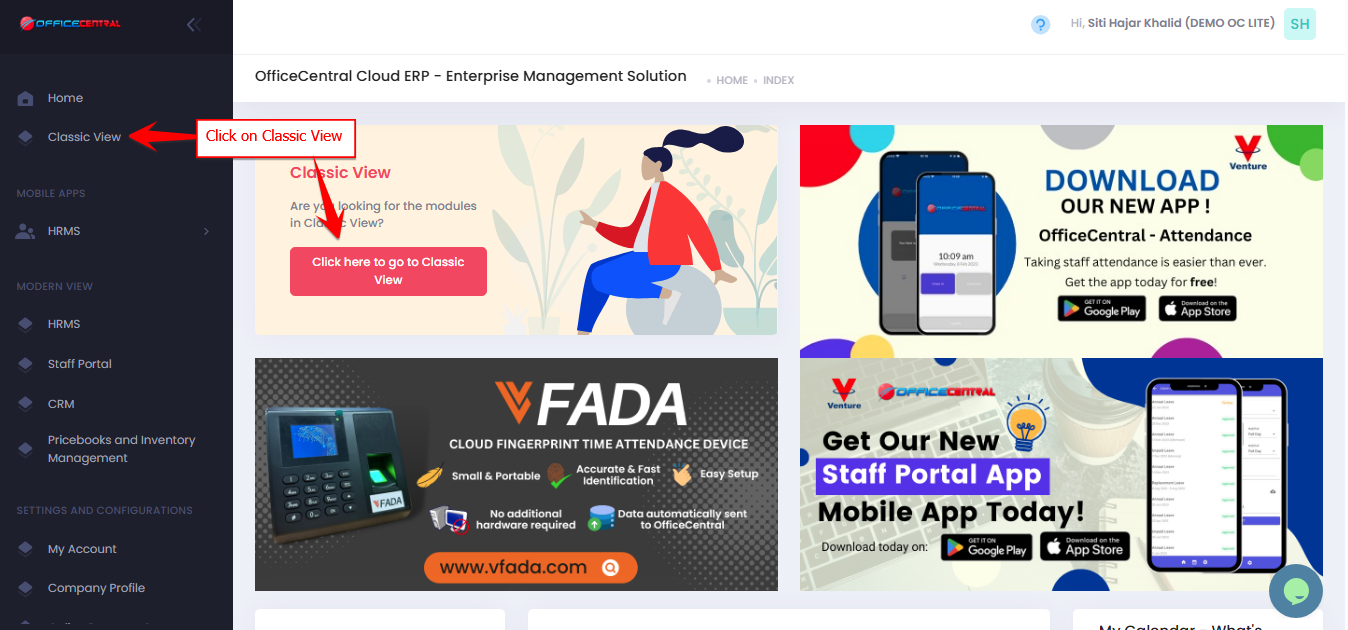
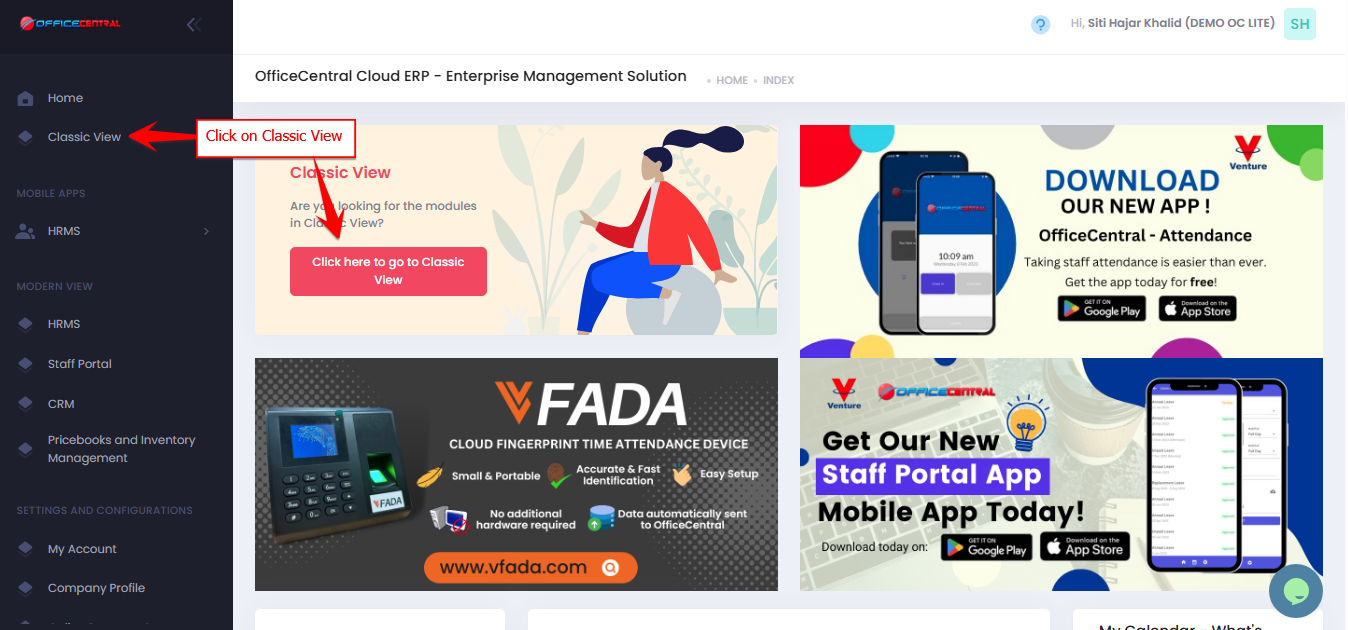

How to Create Receipt (Receive Payment)
There are 2 methods to record payment:
| Method | Description |
|---|---|
| Generate from Invoice | Recommended. Automatically links payment to an existing approved invoice |
| Create Directly | Manual creation without linking to any invoice. You must fill in all payment details |
Step 1: Access the Create Function
Option 1: Generate from Invoice (Recommended)
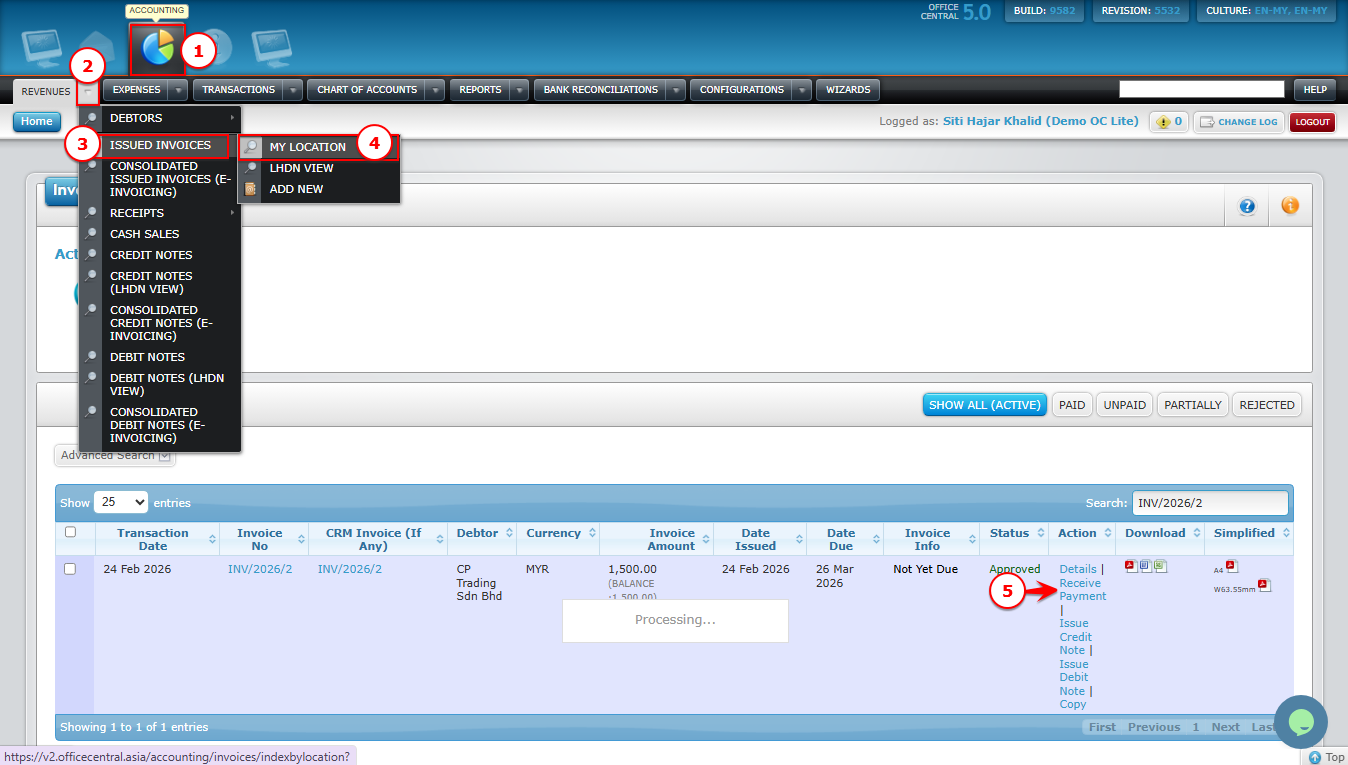
Go to Accounting > Revenues > Issued Invoice > Overall
Locate the invoice
Click Receive Payment
? No need to re-enter details — system will auto-fill based on invoice
Use the screenshot below to locate these buttons.
Option 2: Create Receipt Manually
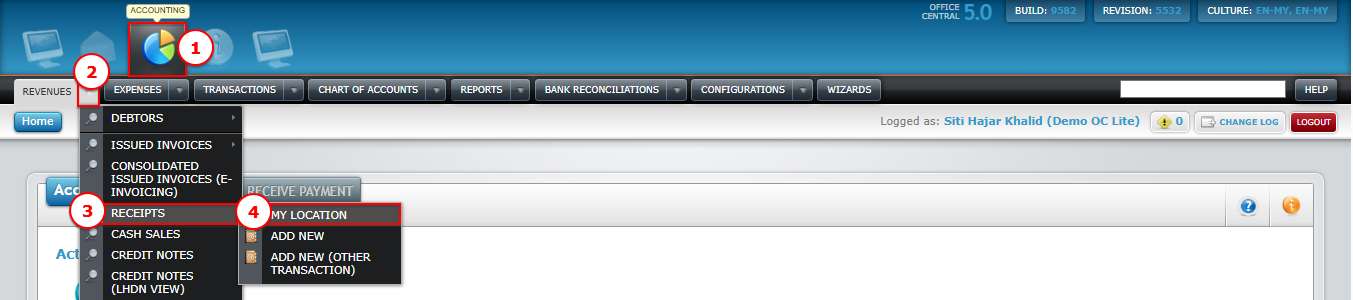
Go to Accounting > Receipts > Overall
Click + Receive Payment
Use the screenshot below to locate these buttons.
Step 2: Enter Receipt Information
Basic Information
| Field | Description |
|---|---|
| Reference Number * | Auto-generated (e.g., INV-A/2026/1). To set other reference number format, please refer 1.2 Accounting Configurations - Reference Number |
| Received In * | Select existing cash / bank account |
| Issued To * | Select existing customer or Add New Account (Debtor). To add customer, please refer 3.1 How to Create and Manage Customer (Debtor) |
| Location * | Default location (OC Lite: Headquarters). To add location, please refer How do I Manage Locations in OfficeCentral? |
| Date Issued * | Receipt creation date |
| Payment Method | Default: Cash. Optional |
| Payment Reference Number / Cheque Number | Optional |
| Currency * | Default currency (OC Lite: MYR). |
| Exchange Rate * | Default 1. Change current rate if applicable |
| Subject * | Short description of invoice |
Billing & Pricing Settings
| Field | Description |
|---|---|
| Billing Information | Click to view customer billing details |
| Discount in % | Tick if using percentage discount |
| Tax Inclusive | Tick if unit price includes tax |
Item Details
| Field | Description |
|---|---|
| Quantity * | Number of units |
| Measurement * | Example: unit / pax / box |
| Item Code | Product or service code |
| Item Name * | Product or service name |
| Description | Additional item details |
| Unit Price * | Price per unit |
| Discount | Amount or % |
| Tax | Select tax type |
Auto Calculation
System will calculate automatically:
- Amount Excl. Tax
- Discount
- Tax
- Exempted Tax
- Amount Incl. Tax
Step 3: Save Receipt
Review all details
Click Submit
Step 4: Approve / Reject Receipt
After saving, receipt must be approved to be valid.
? Go to: 5.0 How to Approve / Reject / Unapprove Transactions
⚠️ Important:
Only approved transactions will appear in accounting reports and customer aging
If not approved, system will treat the invoice as unpaid
How to Edit Receipt
- Go to Accounting > Revenues > Receipts > Overall
Click Edit next to the Pending receipt you would like to edit
Update the required information
Click Submit to save
Accounting Impact (Edit)
| Scenario | Debit (Dr) | Credit (Cr) |
|---|---|---|
| Edit Receipt | Bank/Cash (updated) | Debtor (updated) |
⚠️ Note:
Only Pending receipt can be edited
Approved receipts are NOT editable
Edited values will NEED user to edit the double entry accordingly (bottom of the page)
⚠️ Important Notes
Receipt CANNOT be deleted
Only Pending receipt can be edited
Only approved transactions appear in accounting reports
Incorrect entries ONLY CAN be rejected